Quick Start
TapNota is designed so you can begin using your labels directly from your phone without downloading an app.
Scan One Label
Open your phone's camera and point it at the QR code on any unused TapNota label in your pack.
Activate Your Pack
Follow the on-screen steps and enter your email address. Activating one label activates the entire TapNota pack.
Attach & Add Details
Attach a label to a bin, box, tote, tool, piece of equipment, document, or other item. Scan it and add a name, notes, photos, or other useful details.
Find It Later
Search your TapNota Portal or scan the physical label again to open its current Item Page.
1. Activate Your TapNota Pack
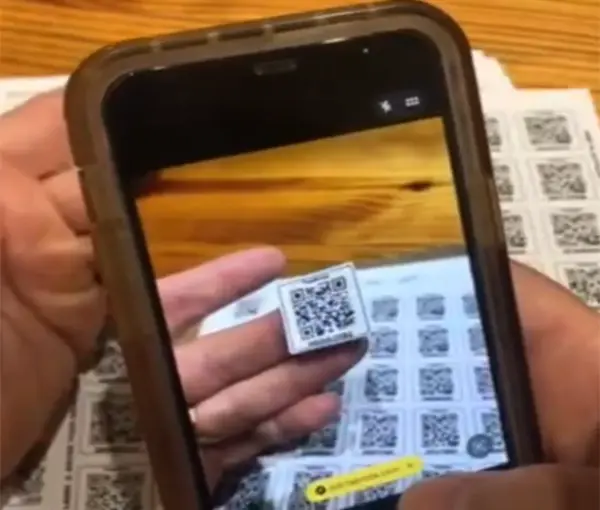
Scan any TapNota label using your phone's camera.
Open the camera on your smartphone and point it at the QR code on any TapNota label in the pack.
- Tap the link displayed by your phone.
- Enter the email address you want associated with your TapNota account.
- Complete the on-screen verification steps.
- Your TapNota pack is connected to that account.
2. Attach Your Labels
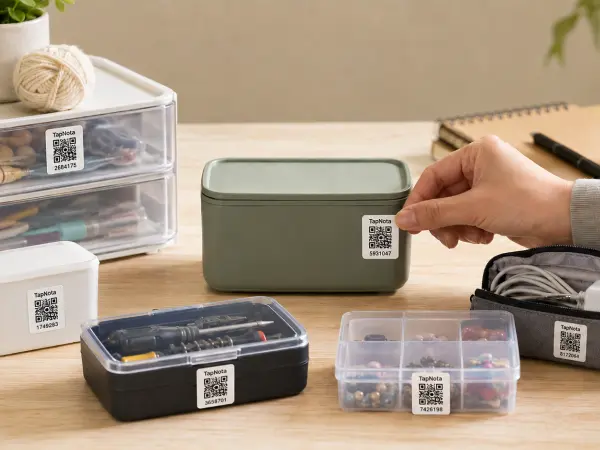
TapNota labels can be used on boxes, bins, organizers, totes, equipment, documents, and other items.
Apply each TapNota label to the item or container you want to identify.
For best results:
- Apply the label to a clean, dry surface.
- Place it where the QR code can be easily scanned.
- Avoid deep curves, folds, or seams.
- Keep the QR code visible and unobstructed.
After applying the label, scan it to create or update the information for that specific item.
3. Add Information to an Item
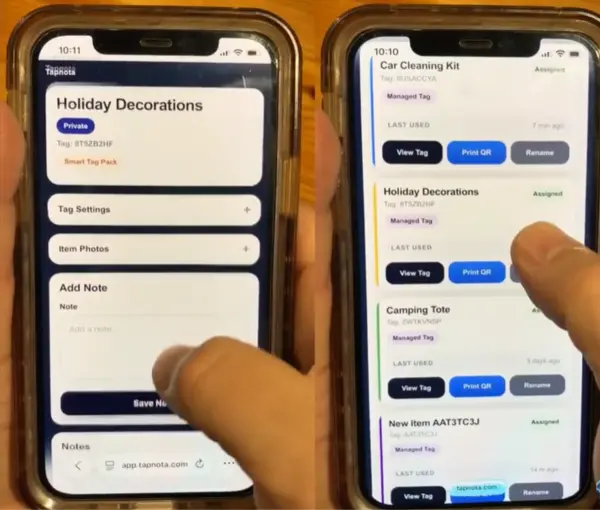
Each TapNota QR label connects to its own Item Page.
Each TapNota QR label has its own Item Page. Scan the label whenever you want to view or update the information connected to that label.
You can use an Item Page to:
- Give the item a recognizable name.
- Add notes, descriptions, contents, instructions, model numbers, or other details.
- Add item photos and optional note photos.
- Build a continuing history as information changes.
- View the item's current Item Status when one is set.
- Use Identify Items with AI when signed in as the account owner or an authorized Shared Account Access member.
4. Identify Items with AI
When you are signed in as the account owner or an authorized Shared Account Access member, TapNota can analyze a photo, identify visible items, and help fill the Note box for you.
Sign In to TapNota
Sign in on the phone, tablet, or browser you are using. You must be the account owner or an authorized Shared Account Access member for that account.
Open the Item Page
Scan a tag from the account you are viewing. The Identify Items with AI button appears in the Add Note area when your signed-in account has authorized access.
Take or Choose a Photo
Tap Identify Items with AI and take a new photo or choose one from your device. Supported browsers optimize large photos before analysis.
Review & Save the Note
TapNota places the identified items into the Note box, with multiple detected items listed one per line. Edit anything you want, then tap Save Note. Nothing is saved automatically.
AI Credits
One successful AI photo identification uses 1 AI credit. Failed identifications do not use a credit.
AI credits reset monthly, and the Portal shows how many credits remain for the current month.
Amazon Smart Tag Pack accounts currently include 200 AI credits per month.
AI Photo Handling
The photo used for AI identification is temporary and is not permanently added to the Item Page.
If you want to keep a photo with the note, use the regular note-photo option separately.
5. Use the TapNota Portal
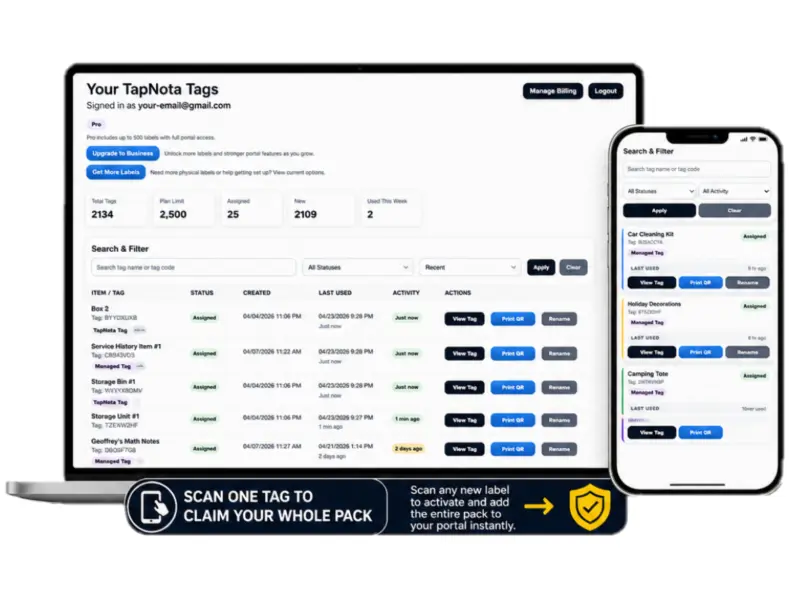
Your Portal is the private dashboard for your TapNota account.
Your TapNota Portal gives you one place to manage the tags and Item Pages connected to your account.
You can use the Portal to:
- View all tags and items connected to your account.
- View assigned and unassigned tags.
- Search item titles, saved notes, folder names, and tag codes.
- Create, rename, and manage folders.
- Move individual or multiple tags into folders.
- Create and print your own tags within your account's active-tag limit.
- Update Item Status.
- See your remaining monthly AI credits.
- Open Item Pages and update item details.
- Reprint individual QR codes.
- Manage sharing and privacy.
- Open Account & Access to manage plan/billing, Portal sign-in, and Shared Account Access.
- Switch between your own TapNota account and accounts shared with you, when applicable.
7. Organize, Share & Protect Your Items
Folders
Use folders to group related items by location, room, container, project, person, department, season, or any system that works for you. Moving an item to another folder does not change its QR code.
Item Status
Item Status can be Not Set, In Storage, In Use, Loaned Out, Sold, Donated, or Missing. Status is separate from folders and can change without moving the item to a different folder.
Privacy & Share Links
Item privacy options are Private, Shared, and Public. Shared and Public items can use a Share URL. Returning the item to Private turns off its share link.
Tag Backup URL
Each Item Page includes a Tag Backup URL. Save it in your email or notes if you want a backup way to reach the same tag page if the physical label is damaged.
Portal vs. Item Page
TapNota Portal
Your Portal is your private account dashboard. Use it to search across your account, manage folders, create and print tags, update Item Status, see AI credits, reprint QR codes, manage sharing/privacy, and open Account & Access settings.
Individual Item Page
Each QR label opens one Item Page containing information for that specific item, box, bin, tool, document, or piece of equipment. Signed-in account owners and authorized Shared Account Access members also see Identify Items with AI in the Add Note area when they have access to that account.
Portal Sign-In Options
TapNota gives you more than one way to sign in to your Portal.
Email Sign-In Link
Enter your email address and TapNota can send a secure one-time sign-in link. The emailed link expires after 30 minutes.
Portal PIN or Password
After signing in, you can choose either a simple 4-digit Portal PIN or a password with at least 8 characters. Email sign-in links remain available anytime.
Adding Another TapNota Pack
If you purchase an additional TapNota pack, you can add it to the same account.
- Scan any label from the new TapNota pack.
- Use the same email address associated with your existing TapNota account.
- Complete the on-screen activation steps.
- The new pack will be associated with that same account.
Searching for an Item
Use Search & Filter in your TapNota Portal to find information saved across your Item Pages.
- Open your TapNota Portal.
- Use the search field.
- Enter an item name, tag code, folder name, or words saved inside a note.
- Open the matching item from the results.
What Happens the Next Time the QR Code Is Scanned?
After a label is activated and its Item Page is created, it does not need to be activated again. Future scans open the item's current page.
- The signed-in account owner or an authorized Shared Account Access member can manage the Item Page and use AI item identification.
- Other visitors see the item according to its access, privacy, sharing, and PIN settings.
- The physical QR code stays the same while notes, photos, status, details, and history can continue to change.
Reprinting or Backing Up a QR Code
To print another copy of an individual QR code, locate the item in your Portal and use Print QR.
The Item Page also provides a Tag Backup URL. Saving that URL gives you another way to reach the same Item Page if the physical label is ever damaged.
Troubleshooting
My phone will not scan the QR code
- Open the phone's standard camera application.
- Make sure the entire QR code is visible.
- Move the phone slightly farther away or closer.
- Make sure there is enough light.
- Clean the camera lens if the image appears blurry.
- Make sure the QR code is not folded, covered, or obstructed.
I do not see the Identify Items with AI button
The AI button appears when the signed-in person is the account owner or an active Shared Account Access member for that account.
- Open the TapNota Portal on the same device and browser.
- Make sure you are signed in with the account that owns the tag or with a Shared Account Access member login.
- If you have access to more than one TapNota account, make sure you are viewing the correct shared account in the Portal.
- Scan the label again or refresh the Item Page.
- Look for Identify Items with AI in the Add Note area.
If the account has been inactive for more than 30 days, sign in again first.
AI could not identify the photo
Try another photo with the items clearly visible and good lighting. A failed identification does not use an AI credit.
I am out of AI credits
AI credits reset monthly. Amazon Smart Tag Pack accounts currently include 200 successful AI photo identifications per month. Your remaining balance is shown at the top of the Portal.
I scanned a label but do not see my existing items
Make sure you are using the same email address that was used to activate your existing TapNota account. Different email addresses can be associated with separate accounts.
I bought another pack and it is not in my existing account
Scan a label from the new pack and complete activation using the same email address associated with your existing TapNota account.
I have trouble returning to my Portal
You can request a secure email sign-in link, or use the Portal PIN/password you previously saved. After signing in, select Change Sign-In if you want to switch between a 4-digit Portal PIN and a password.
I was invited to Shared Account Access but do not see the shared inventory
- Open the invitation email and accept the Shared Account Access invitation.
- Sign in using the same email address that was invited.
- In the Portal, use the account selector if more than one account is available.
- Select the shared account you want to manage.
Accepting access does not merge your personal TapNota tags with the shared account.
I attached a label to the wrong item
Open that label's Item Page or locate it in the Portal and update the item name, notes, photos, status, or other information.
Common Questions
Do I need to download an app?
No. TapNota works through your phone's camera and web browser.
Do I have to stay signed in just to scan a label?
No. Normal label scanning does not require you to stay signed in. Signed-in account features, including Identify Items with AI, require an active Portal session for the account owner or an authorized Shared Account Access member on that device and browser.
Why can I see AI on one tag or device but not another?
The Identify Items with AI button appears when the signed-in person is either the account owner or an authorized Shared Account Access member for the account that owns the tag. Sign-in is specific to the browser/device you are using.
What does Identify Items with AI do?
It analyzes a photo, identifies visible items, and places the result into the Note box. Multiple detected items are listed one per line. You review or edit the result and tap Save Note; AI does not save the note automatically.
How do AI credits work?
One successful photo identification uses 1 AI credit. Failed identifications do not use a credit. Credits reset monthly, and your remaining monthly balance appears in the Portal. Amazon Smart Tag Pack accounts currently include 200 AI credits per month.
Does the AI photo become one of my saved photos?
No. The AI identification photo is temporary and is not permanently added to the Item Page. Use the regular note-photo option separately if you want to keep a photo with the note.
Do I have to activate every label individually?
No. Activate one label from the pack and the entire pre-coded pack is associated with your account.
Can I use more than one TapNota pack with the same account?
Yes. Activate additional packs using the same email address associated with your existing TapNota account.
What is the difference between a Portal PIN and an item-page PIN?
A Portal PIN is an optional 4-digit sign-in method for your TapNota account and is available to Portal users. An item-page PIN is a separate optional 4-digit lock placed on an individual tag page and is available across TapNota account tiers.
What does Item Status do?
Item Status shows the current state of an item: Not Set, In Storage, In Use, Loaned Out, Sold, Donated, or Missing. It is separate from folder organization.
Can I share an Item Page?
Yes. Item privacy can be set to Private, Shared, or Public. Shared and Public items can use a Share URL, and you can turn sharing off later by returning the item to Private.
What is Shared Account Access?
Shared Account Access lets the account owner invite other people to manage the same TapNota inventory using their own login. Members can work with tags, folders, notes, photos, Item Status, AI tools, and QR printing, while billing, plan changes, and member management remain owner-only.
How many Shared Account Access members are included?
Starter includes 1 additional member, Amazon Smart Tag Pack includes 3, Lite includes 5, Pro includes 7, and Business includes 20. The account owner does not count toward the additional-member allowance.
If I already have my own TapNota account, will accepting a shared invitation merge my tags?
No. Your own TapNota inventory remains separate. If you have access to more than one account, you can switch between your personal account and shared accounts in the Portal.
Can Shared Account Access members manage billing?
No. Billing, subscription changes, account ownership, and Shared Account Access member management remain with the account owner.
Is a paid subscription required to use my Amazon TapNota Smart Tag Pack?
No. The Amazon Smart Tag Pack includes the TapNota Portal organization experience for up to 600 active tags, including core organization features such as folders, notes, photos, search, Item Status, and Portal access. It also currently includes 200 AI credits per month and up to 3 additional Shared Account Access members.
Can I change an item's information later?
Yes. Scan the label again or locate the item in your Portal and update its information.
Can I reprint a QR code?
Yes. Locate the item in your Portal and use Print QR.
TapNota Smart Tag Pack Account Information
TapNota Smart Tag Packs purchased through Amazon include access to the TapNota Portal organization experience for up to 600 active tags.
Core included organization features currently include item management, full-text search, folders, notes, photos, Portal access, Item Status, QR reprinting, sharing/privacy controls, and Shared Account Access for up to 3 additional members.
Amazon Smart Tag Pack accounts currently include 200 AI credits per month. One successful AI photo identification uses 1 credit, failed identifications do not use a credit, and the allowance resets monthly.
Item-page PIN protection is available across TapNota account tiers. Active-tag capacity, AI-credit allowance, and Shared Account Access member limits depend on the plan connected to the account.