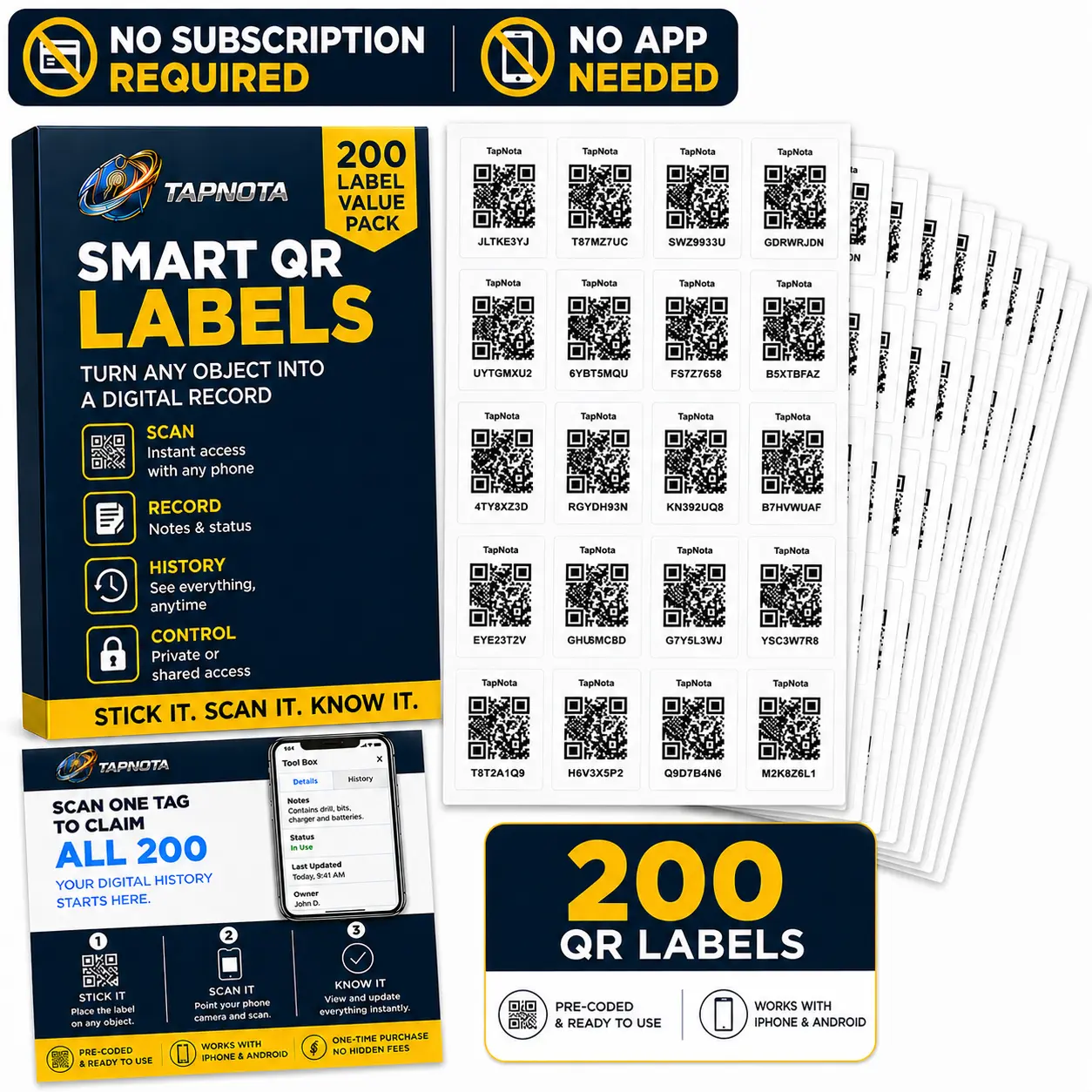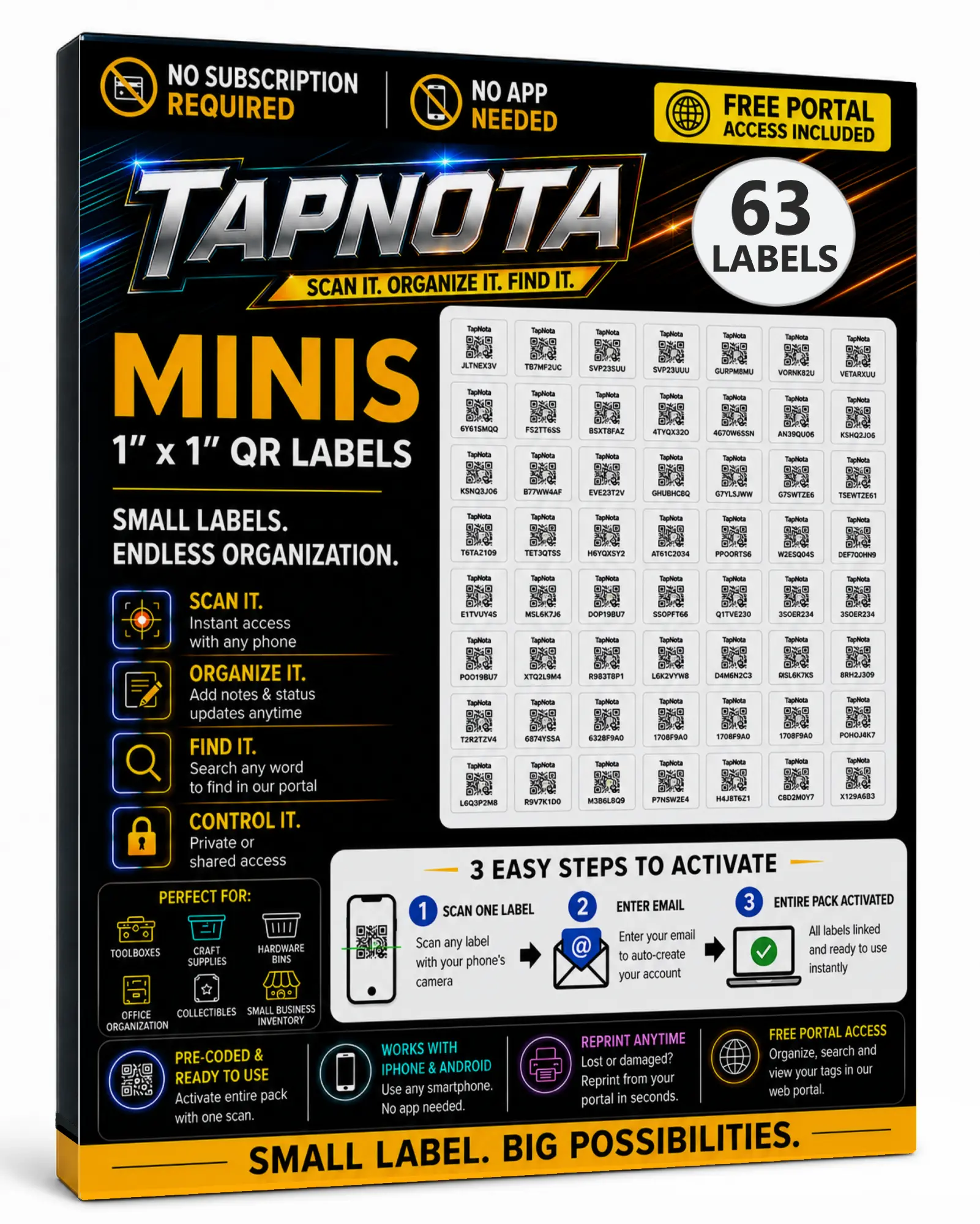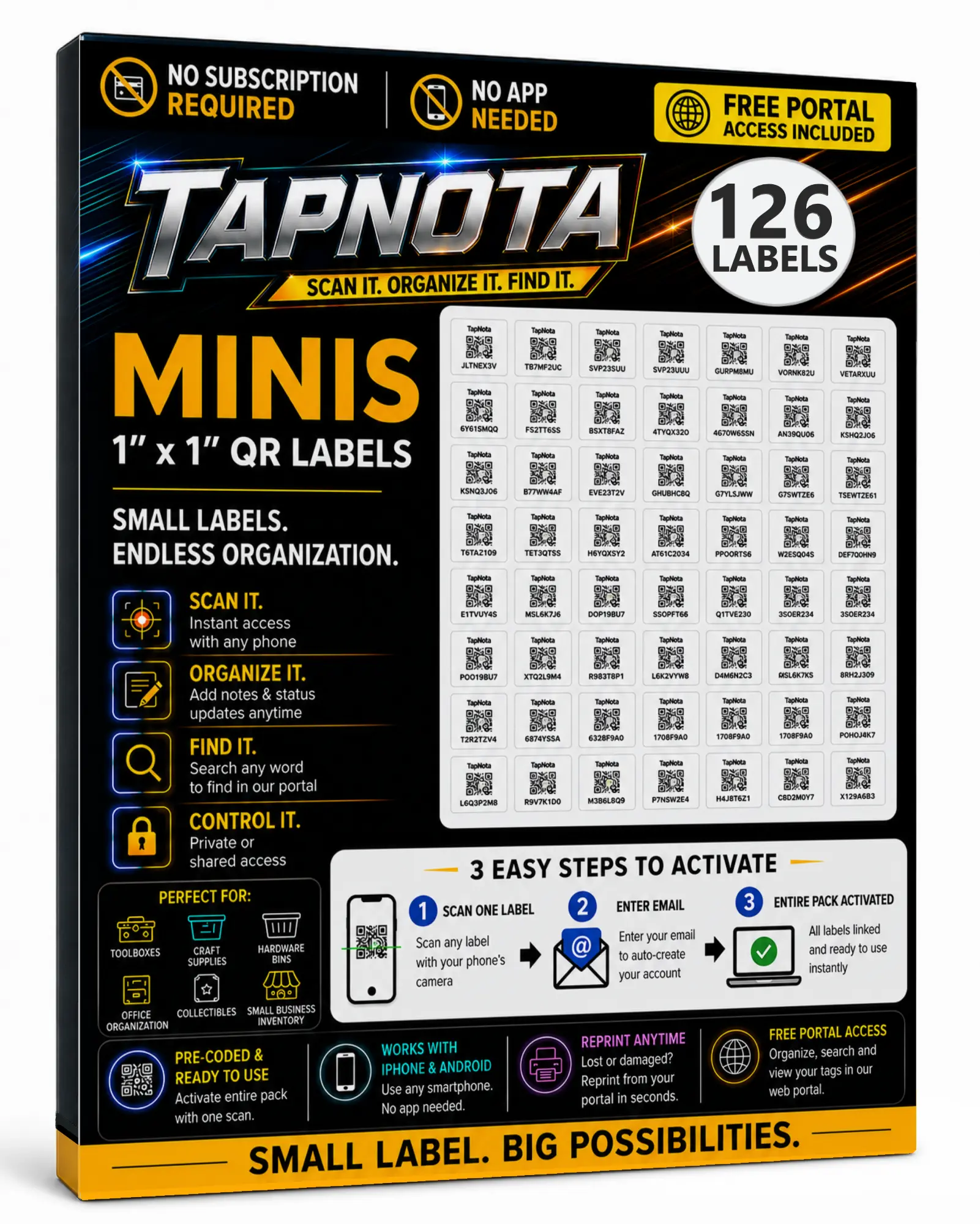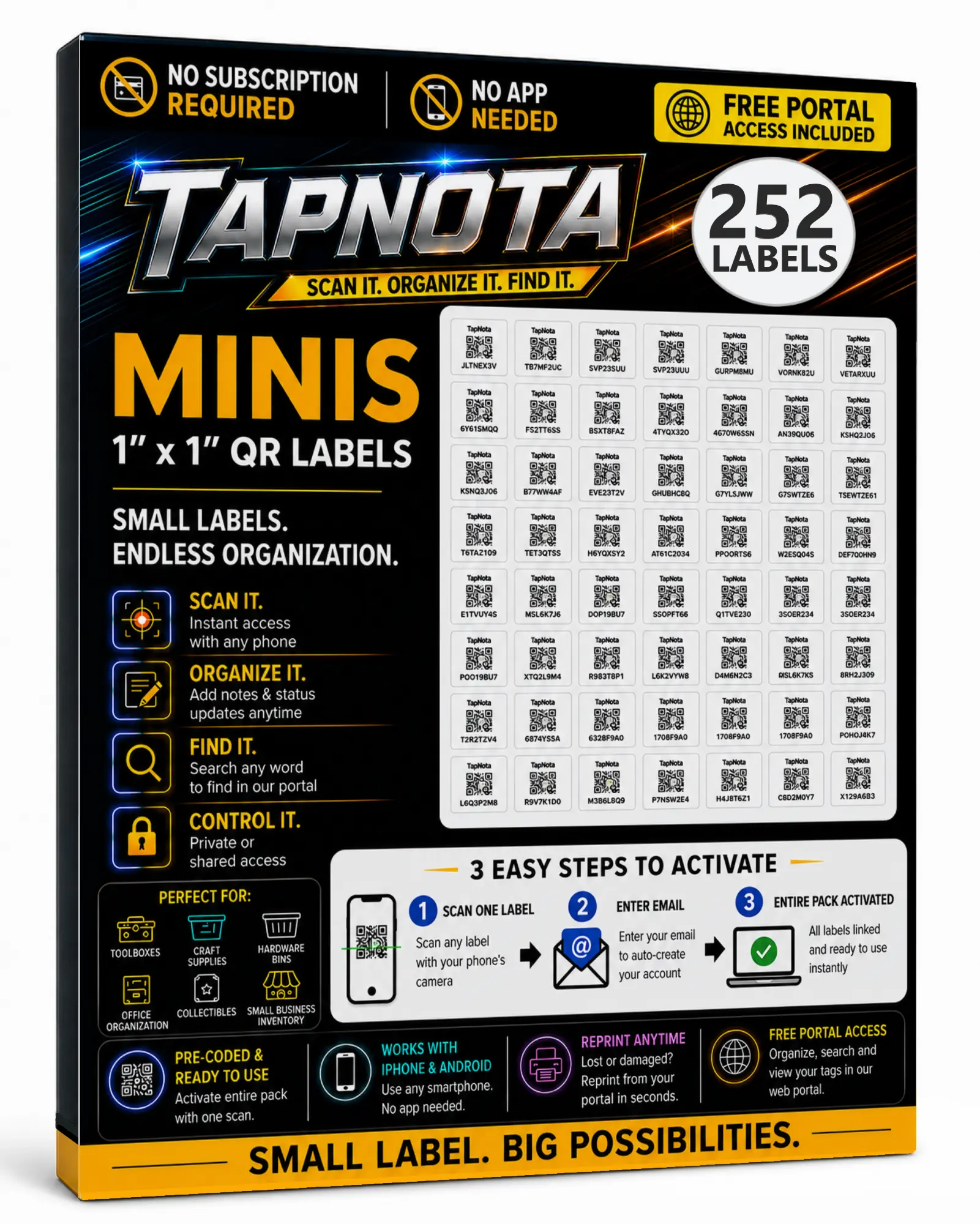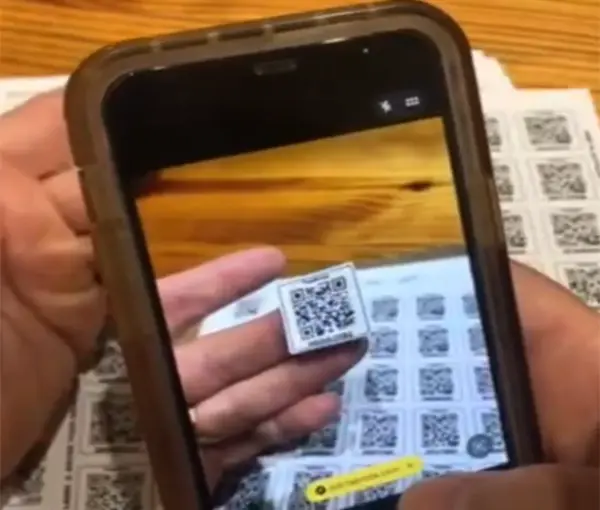
Activate the Entire Pack Once
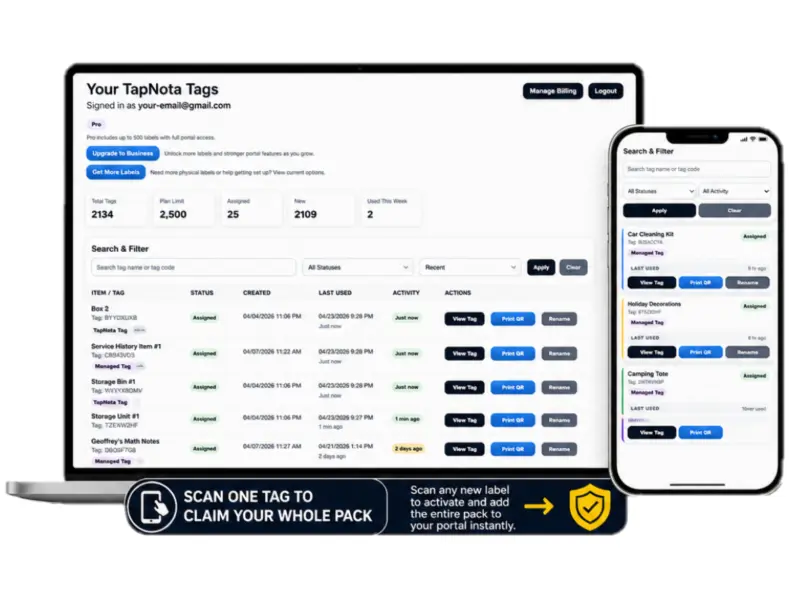
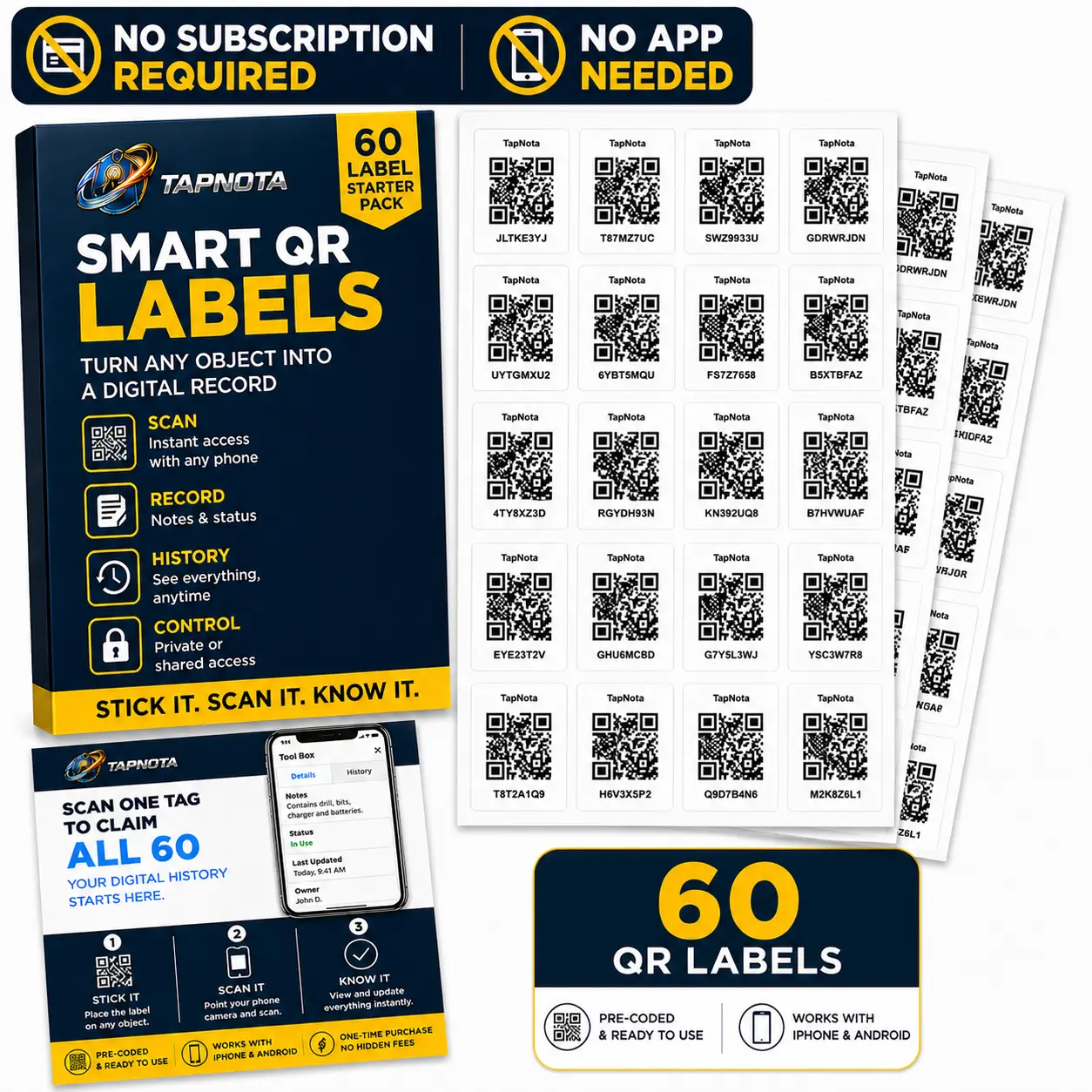
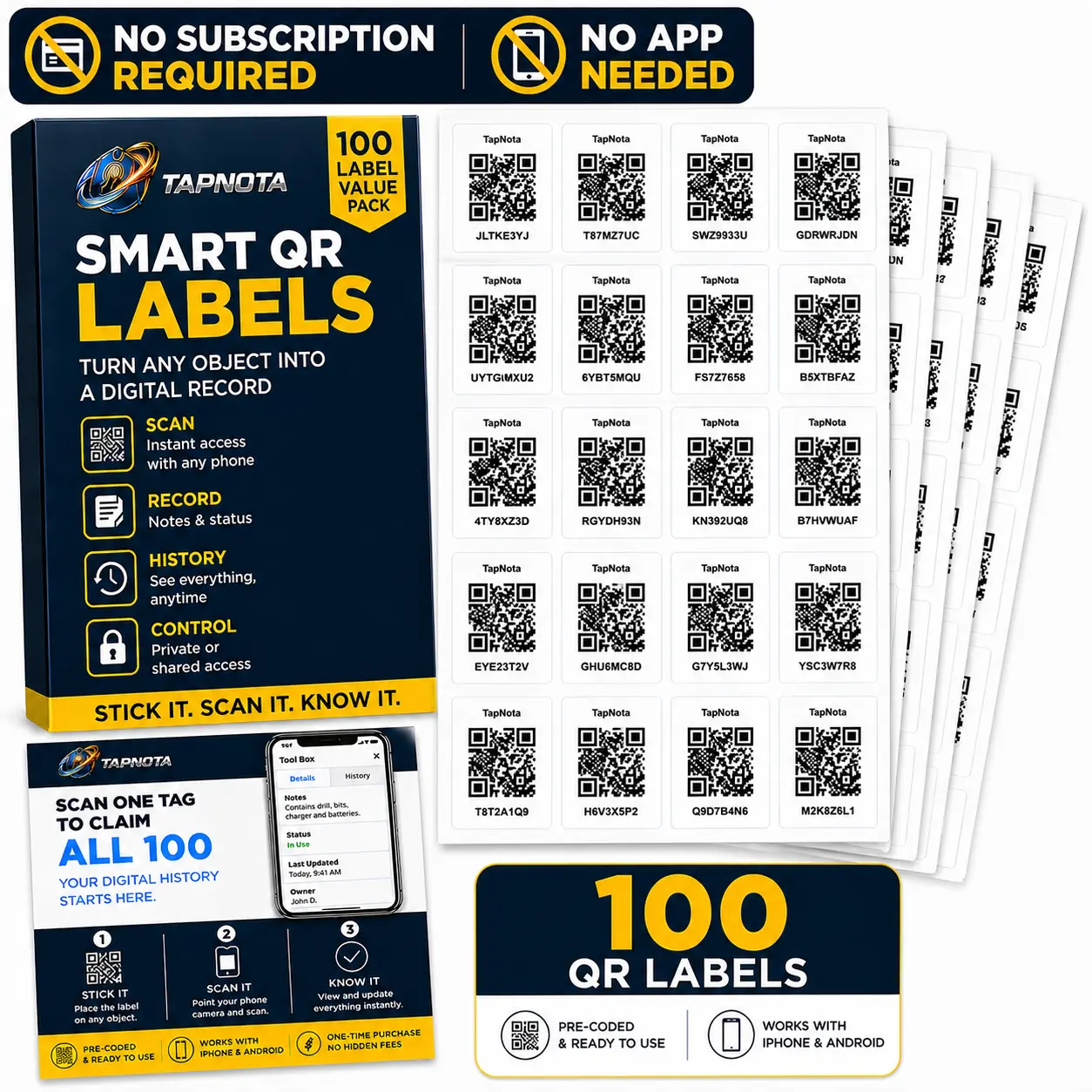
Scan any label in the purchased pack, enter and verify your email, and TapNota connects the whole pack to your account.
You do not activate every label separately.
TapNota connects a physical item to its own digital Item Page with a smart QR label. Set up the pack once, then each label becomes a direct link to notes, photos, AI-assisted item identification, status, history, privacy settings, and a searchable Portal.
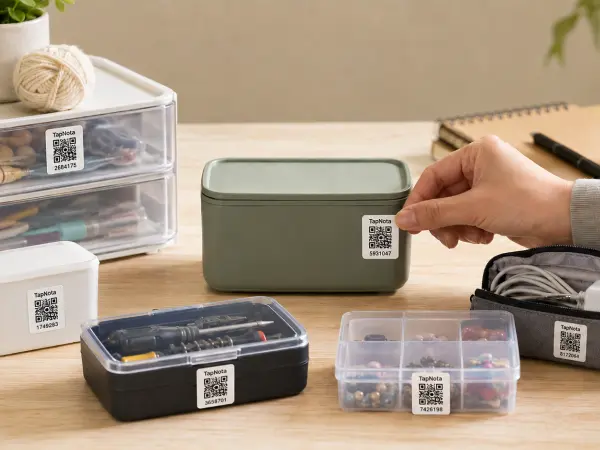
Put a TapNota label on a bin, box, tool, asset, appliance, document container, piece of equipment, shelf, case, or other physical item.
The label stays with the itemThe QR opens that item’s unique TapNota Item Page in the browser. No dedicated mobile app is required.
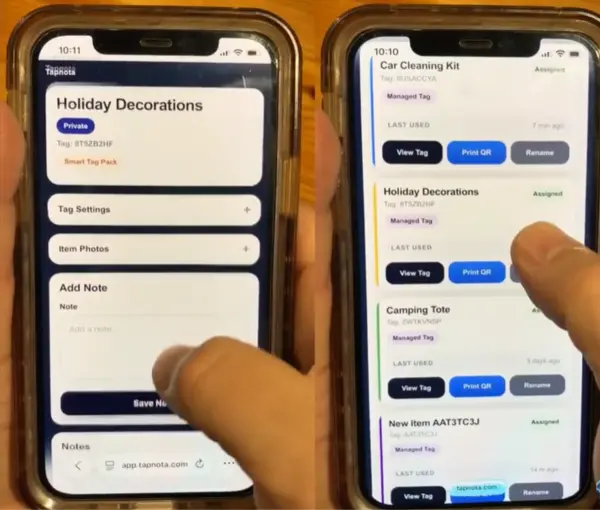
One QR → one Item PageSave a clear name, notes, permanent photos, contents, instructions, serial numbers, service details, or use Identify with AI while signed in.
You control what gets savedScan the same QR to reopen the current Item Page, or search item names, saved notes, folders, and tag codes from the TapNota Portal.
Physical scan + account-wide searchUse it on a bin, box, tool, asset, document container, collectible, appliance, or other item.
Names, notes, photos, instructions, history, status, privacy settings, and other useful information.
Search, folders, Item Status, member access, tag management, reprints, and account-wide organization.
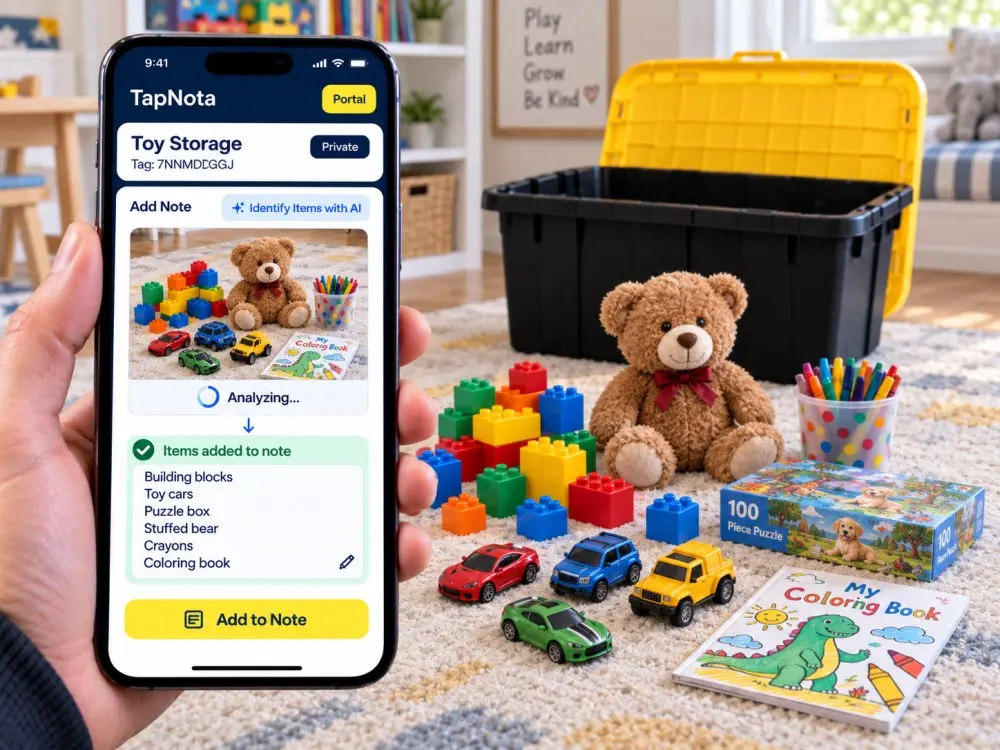
Analyze a photo, review the recognized item list, edit it, and decide what should be saved.
TapNota is not just a sheet of QR stickers and it is not just a database. The useful part is the connection between the physical item, its Item Page, and the searchable Portal.
Keep the physical object and its changing digital information linked over time.
That is the workflow TapNota is built around. The label gives you a direct path to the exact item in front of you. The Portal gives you a broader path to everything connected to the account.
These are the four core actions behind TapNota. The original workflow artwork from this page remains here so the page keeps its established visual content while the surrounding experience is updated.
Open the camera on your phone and scan any QR label in the TapNota Smart Tag Pack. Enter and verify the email address you want to use, and the entire pack is connected to that TapNota account.
Attach a TapNota label to a storage bin, moving box, tool, appliance, machine, case, shelf, document container, supply area, collectible, piece of equipment, or another physical item.
Give the Item Page a clear name, then add notes, permanent photos, contents, serial numbers, purchase details, instructions, service information, location context, or other information that belongs with it.
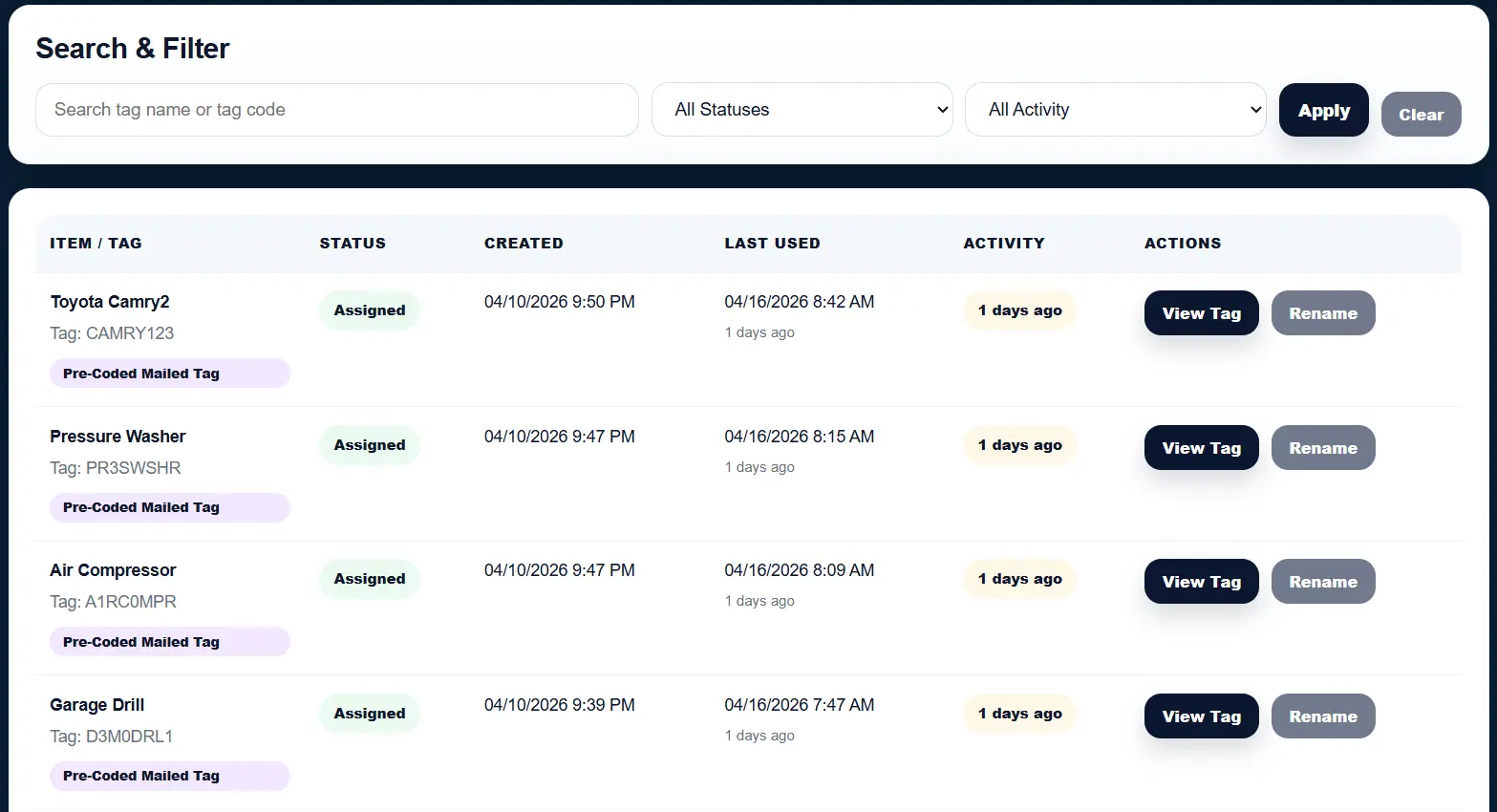
The private TapNota Portal brings your Item Pages together. Search from a phone, tablet, or computer even when the physical label is somewhere else.
Both paths lead into the same TapNota system. Choose the one that fits how you want to label your items.
Pre-coded labels arrive ready to connect to your account.
Use the camera on a compatible phone.
Use the email address you want connected to the account.
You do not repeat activation on each individual label.
Scan each label when you are ready to build its Item Page.
Create new QR tags from your Portal up to the limits supported by the account.
Choose how many new tags you want to create.
New tags appear in your TapNota account.
Use suitable label material for the physical QR codes.
Build the Item Page for the physical object wearing the label.
When you are signed into the TapNota Portal, Identify with AI can analyze a photo and return a plain list of visible items. The result is placed into the note workflow so you can review it before saving.
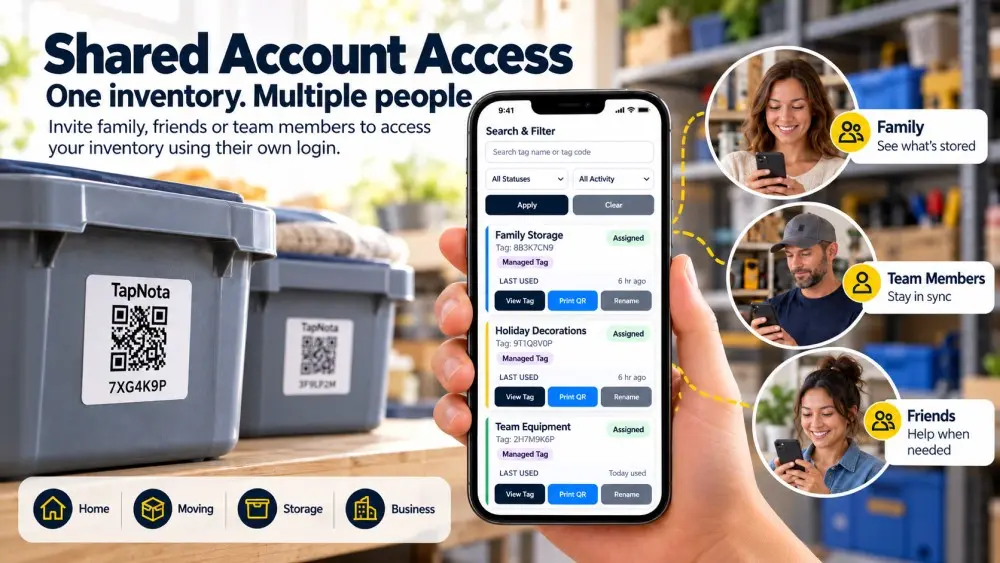
Shared Account Access is different from sharing a public link to one Item Page. It lets invited members use their own TapNota login to work inside the shared account.
The Portal is the dashboard for the entire account. Use it when you want to search, organize, manage, or open records without physically scanning every QR code.
The Item Page is the digital record connected to one QR label. It represents the specific object, bin, box, tool, document container, asset, or piece of equipment wearing that label.
Portal search can match useful information across the account, including item titles, note content, folder names, and tag codes. Saved AI-assisted notes become searchable just like other saved note text.
Finds the storage record even if “Christmas lights” appears only inside a saved note.
Finds a vehicle, tool, or equipment record where the part was mentioned in maintenance notes.
Finds pages where warranty, receipt, replacement, or service information was recorded.
Finds items when a color, location, shelf, or storage area was included in a note.
Folders and Item Status solve different problems. A folder describes the organizational group. Item Status describes the current state.
Garage, attic, warehouse, office, storage unit, room, truck, or job site.
Tools, decorations, documents, inventory, equipment, supplies, or collections.
Customer job, remodel, family member, department, team, move, or event.
Christmas, camping, summer, tax year, archives, or another recurring group.
Useful for bins, seasonal items, stored inventory, and equipment.
Shows that the item is currently being used rather than stored.
Flags something temporarily away from its normal location.
Keep useful history while recording that the item's current state has changed.
Once a TapNota pack is activated and an Item Page has been created, future scans simply open the Item Page connected to that QR code.
Add permanent photos, contents, instructions, serial numbers, model information, purchase details, condition notes, repairs, and other useful history.
Keep useful updates attached to the same Item Page instead of creating a disconnected new record whenever something changes.
If a physical label is damaged, export and reprint the same QR so it continues opening the existing Item Page.
Keep another path to the Item Page if a physical QR becomes damaged, removed, or difficult to scan.
Choose Private, Share, or Public visibility depending on how that specific Item Page should be viewed.
Add optional Item Page PIN protection when another layer of access control is useful.
Share a specific Item Page without giving someone access to the entire TapNota account.
Invite approved people to use their own login inside the same account instead of sharing the owner's password.
Use TapNota through a mobile-friendly web experience from compatible phones, tablets, laptops, and desktops.
Best for personal records, internal information, private history, or details that should stay inside the account.
Use a share link when someone should view a specific record without joining the whole account.
Best when anyone scanning the QR code should be able to see the information you intentionally make available.
Add optional PIN protection where another layer of access control is useful for the Item Page.
TapNota pre-coded packs are available in original 2-inch labels and 1-inch Minis. Both connect into the same TapNota account and Portal.
Track household belongings, valuables, appliances, electronics, documents, collections, keepsakes, and stored items.
Know what is inside without opening every box. Search for stored items later using names, notes, folders, and tags.
Track operational equipment, tools, supplies, cases, service records, assets, departments, projects, and shared inventory.
Use folders, names, notes, status, privacy, AI, and shared access in the way that fits your home, team, project, or operation.
Apply a QR label, create the Item Page, add the information that matters, and let the Portal make those physical items easier to find and manage later.
Need more labels? Buy additional TapNota pre-coded packs on Amazon. Scan one label to activate your entire pack instantly.