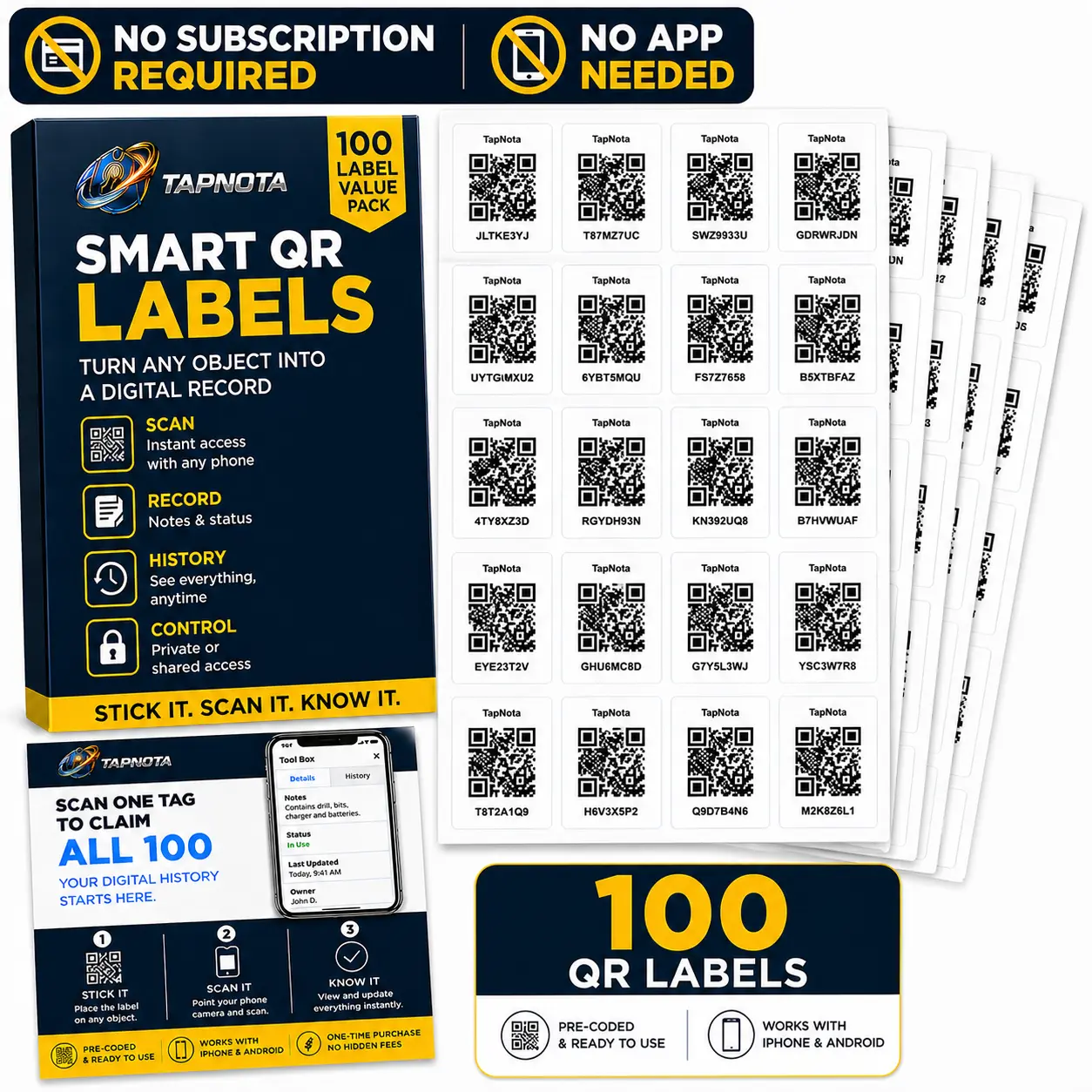
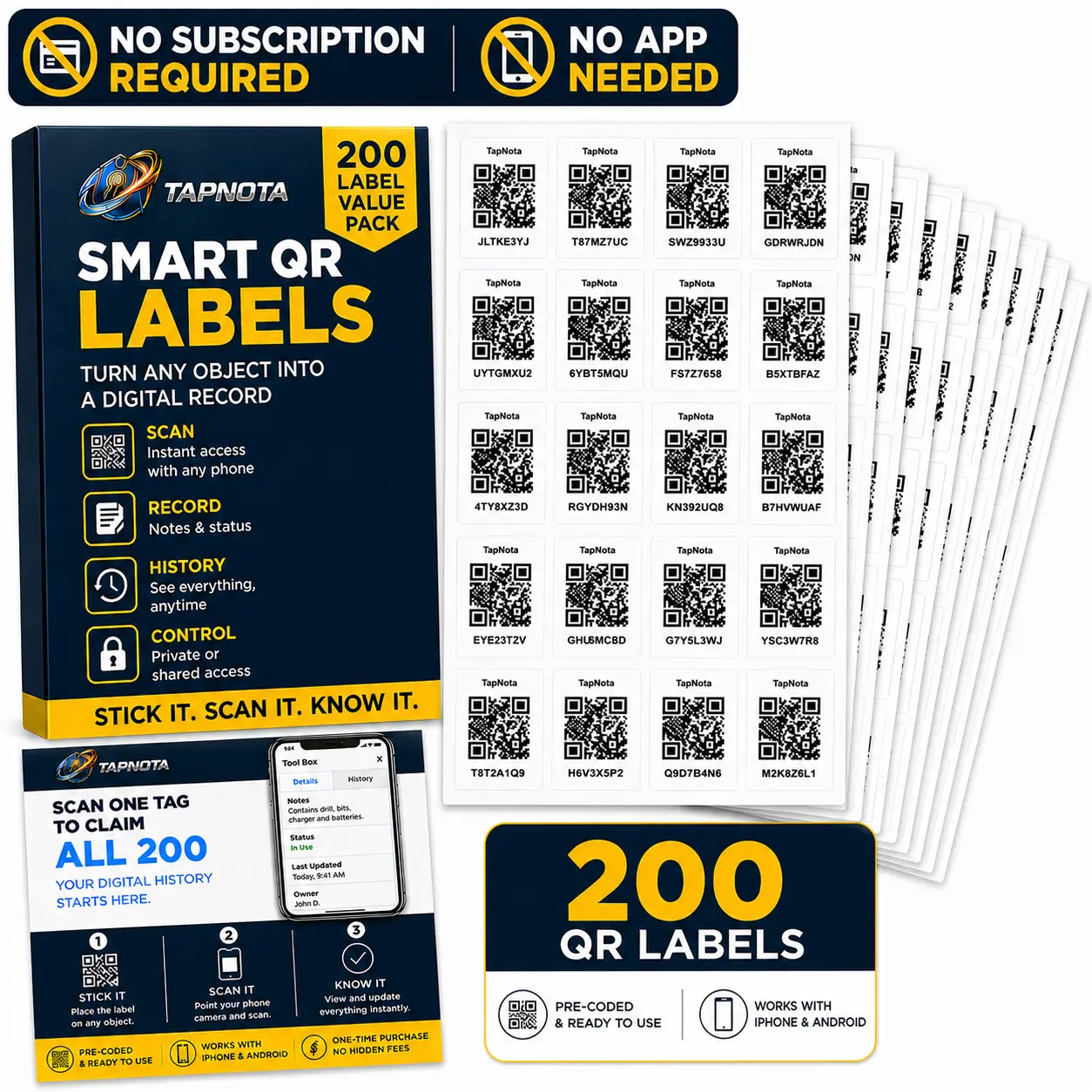
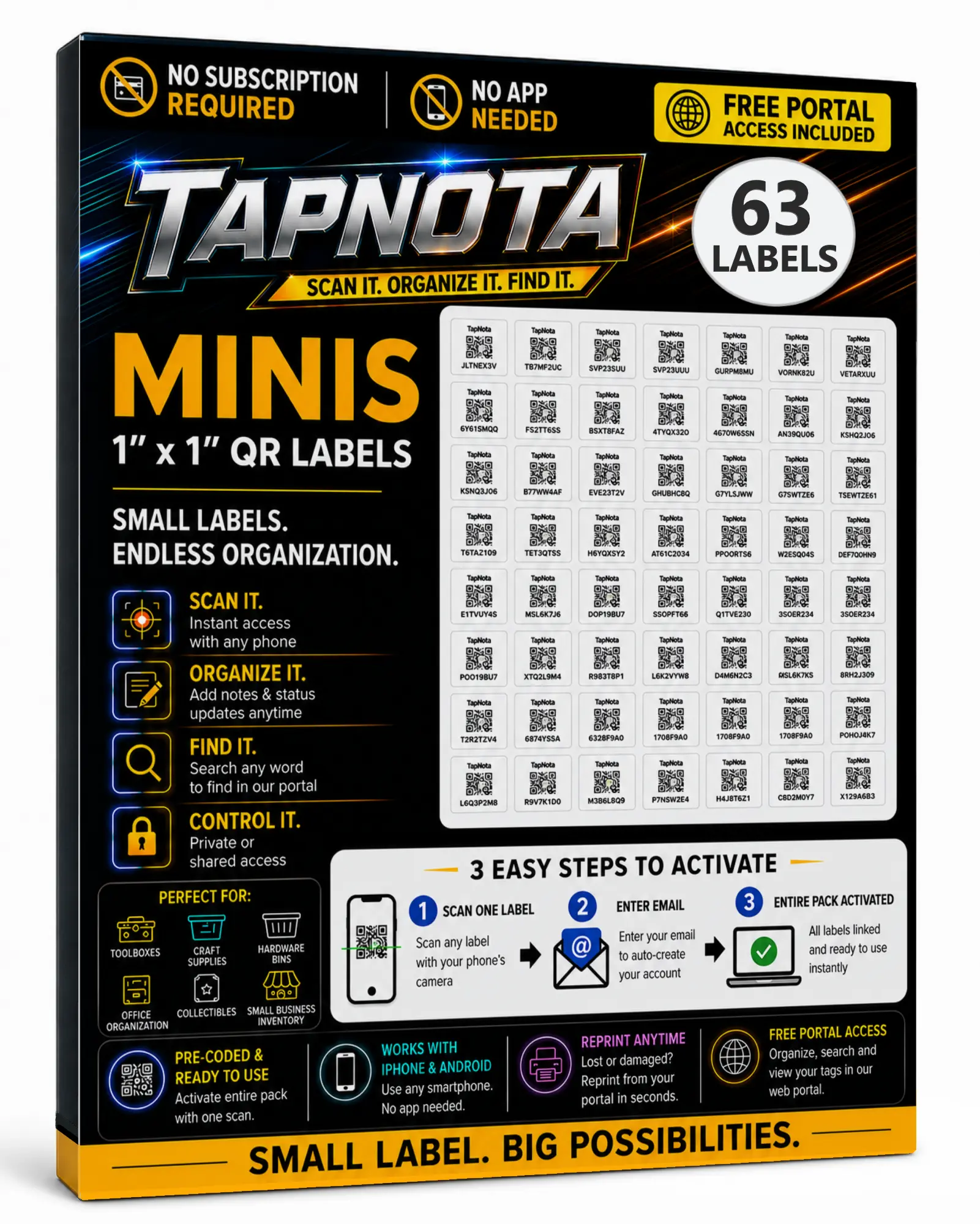
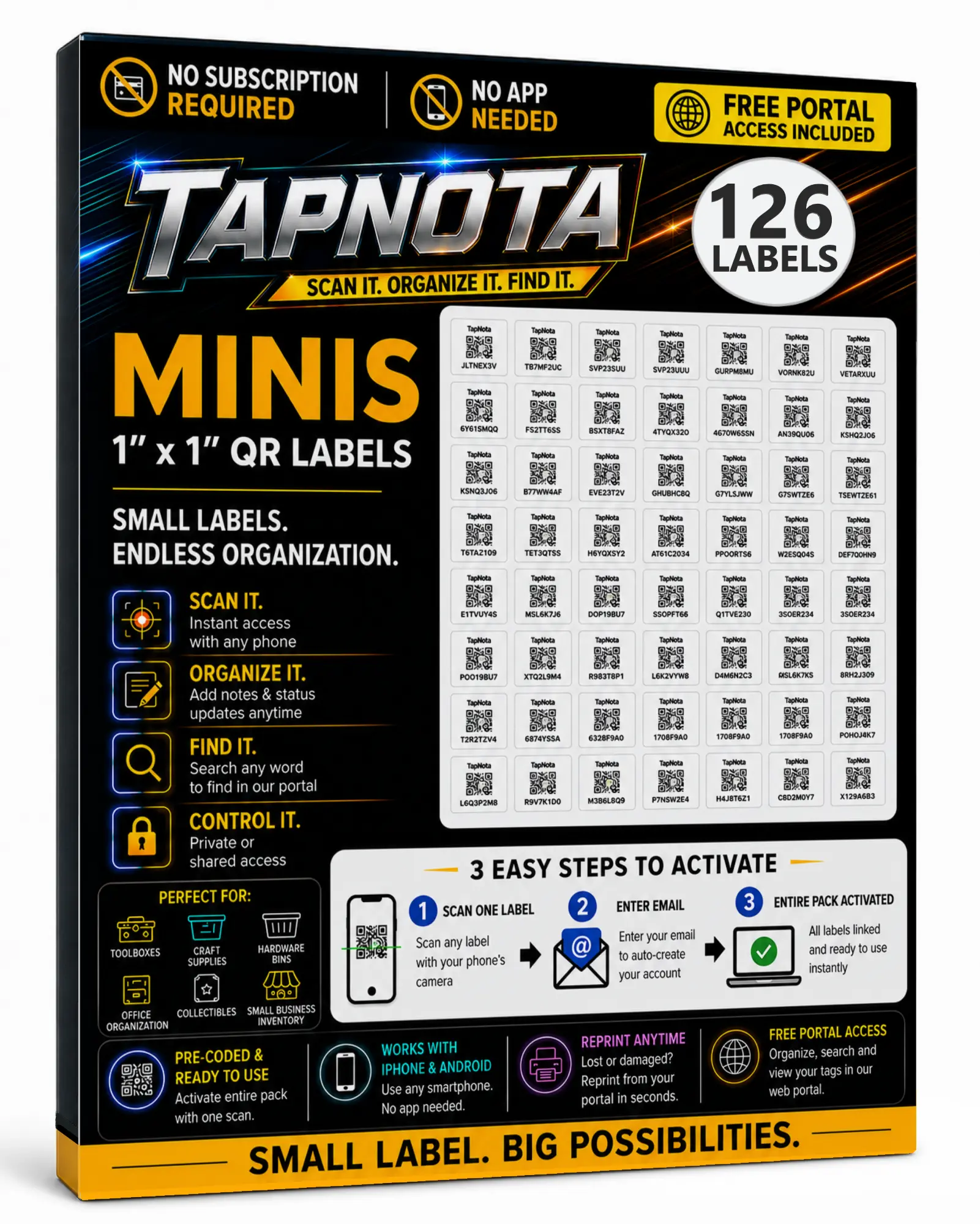
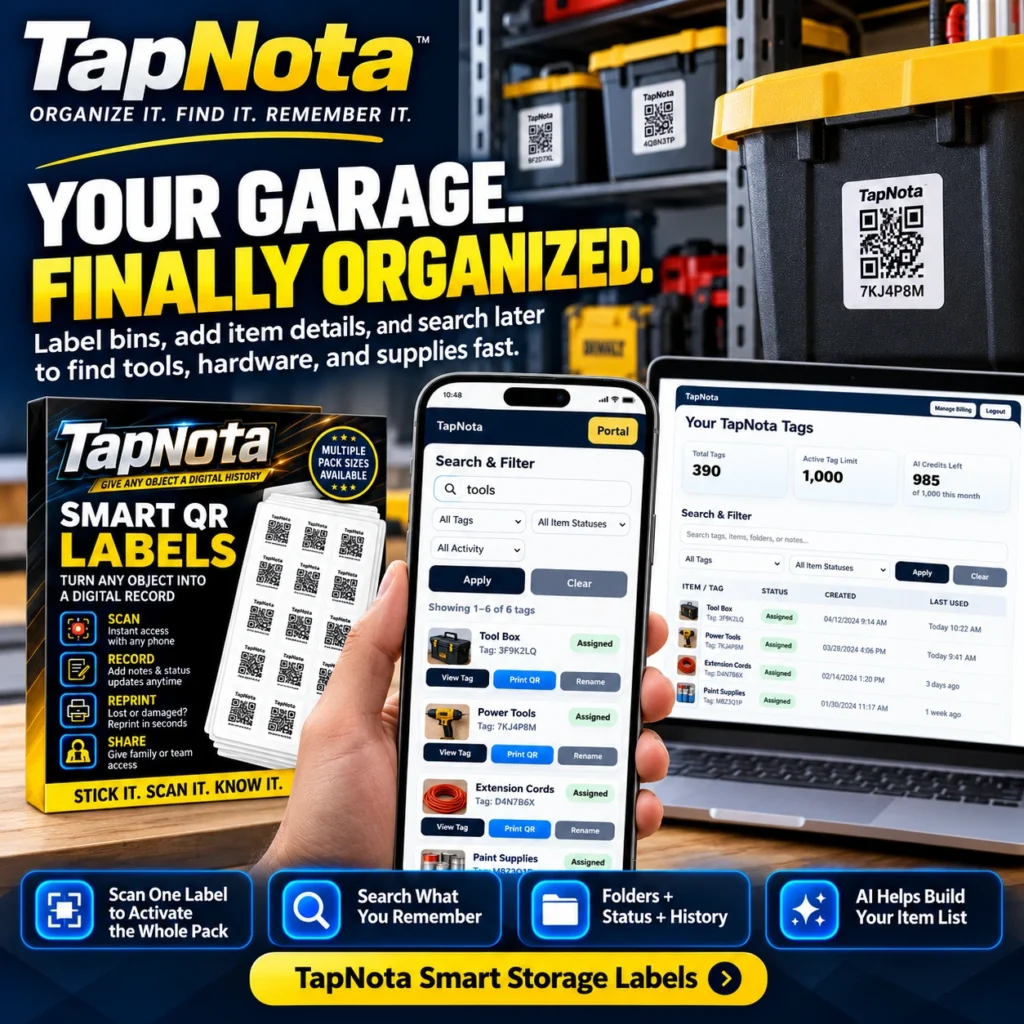
Organizing a garage can quickly become overwhelming, especially when tools, hardware, and supplies are scattered across bins, shelves, and workbenches. TapNota offers a powerful solution to this common problem by combining physical QR labels with a dynamic digital inventory system. Unlike simple stickers or spreadsheets, TapNota smart QR labels create a seamless connection between your physical items and detailed digital records accessible anytime through a web Portal.
Why Choose TapNota for Garage Organization?
TapNota smart QR labels are designed specifically to turn any object, bin, or tool into a digital record. This means you get more than just a label — you get an evolving Item Page where you can add names, notes, photos, manuals, serial numbers, and condition updates over time. The system is flexible enough to handle everything from power tools to small hardware parts.
Key benefits include:
- One Label, One Item Page: Each QR code links to a unique digital record that you can update anytime without changing the physical label.
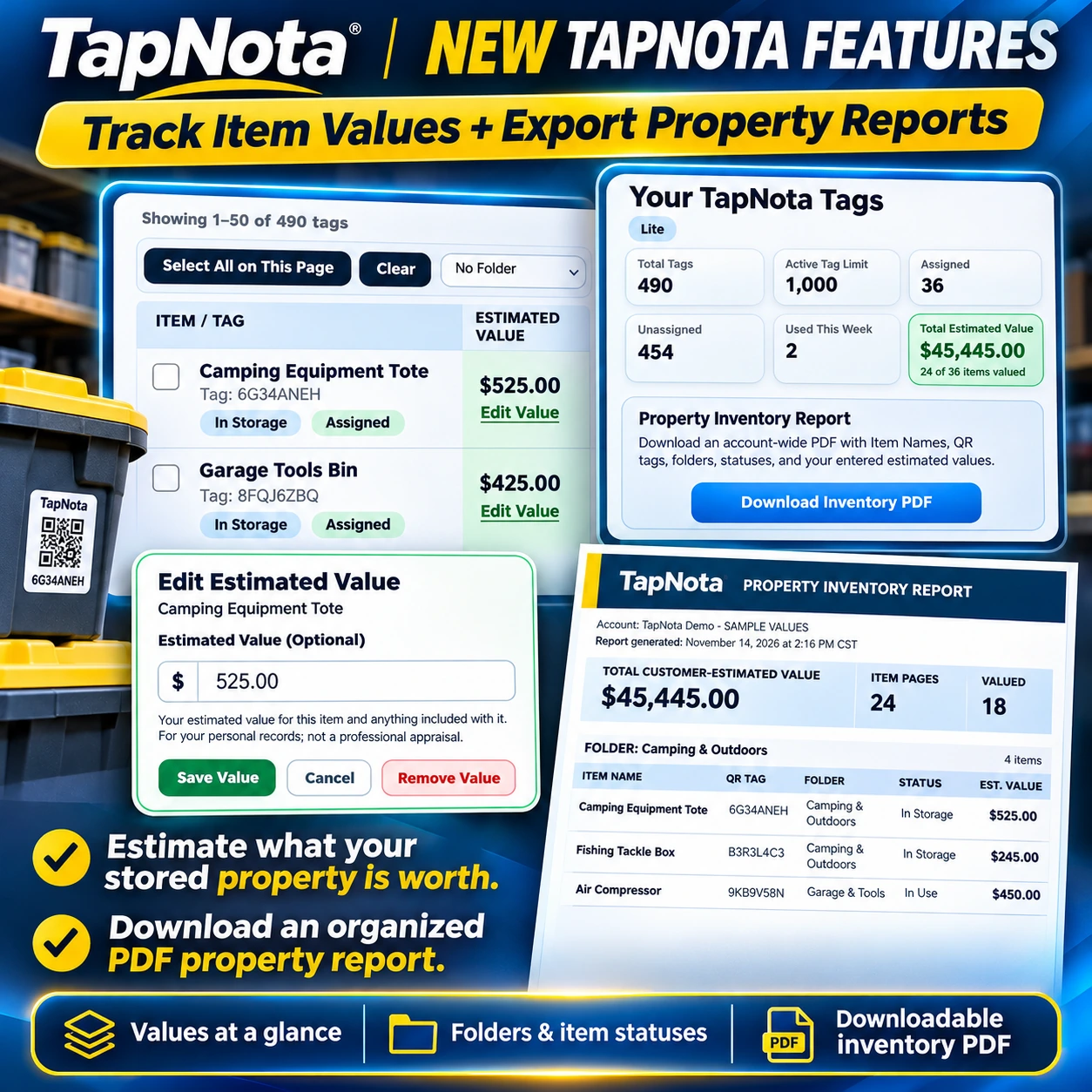
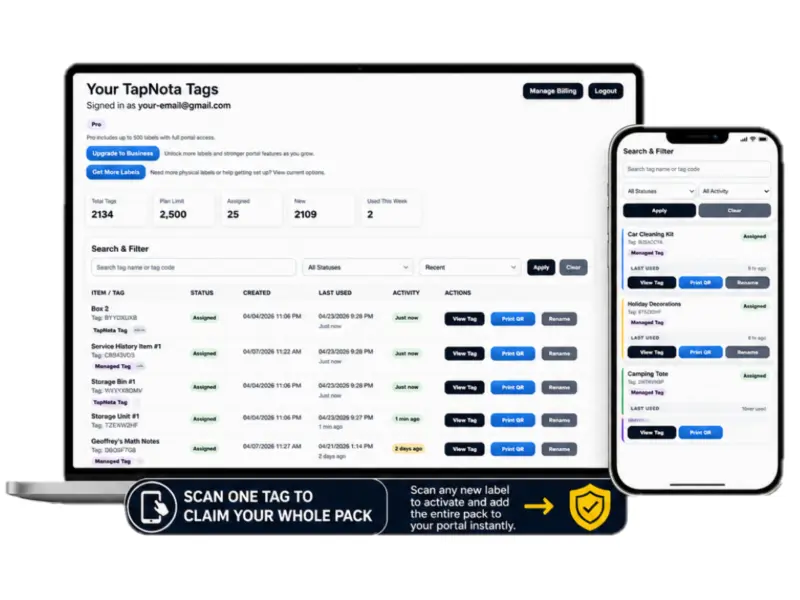
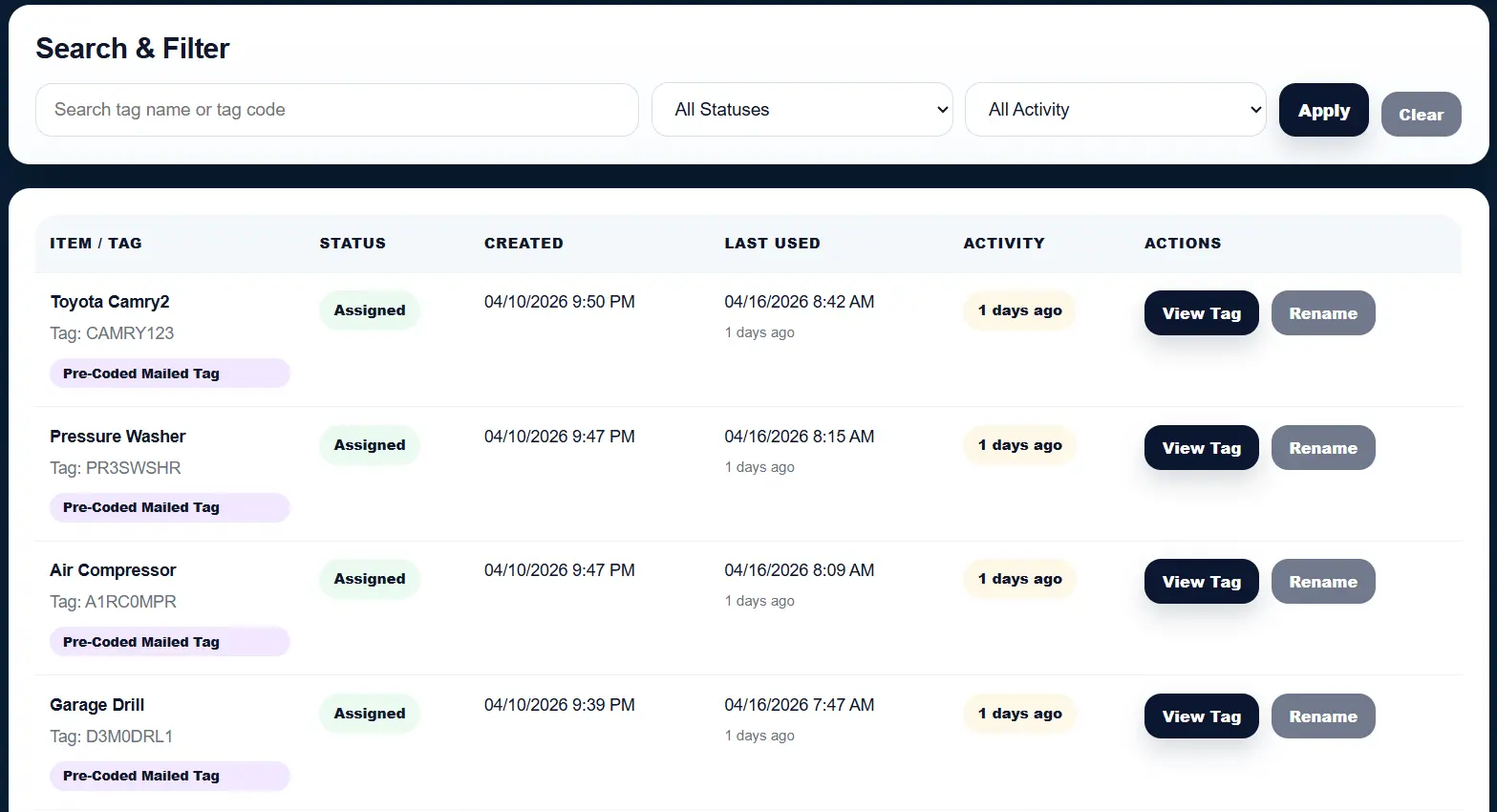
- Account-Wide Portal: Manage all your garage records in one place, searchable by item names, notes, tags, and folders.
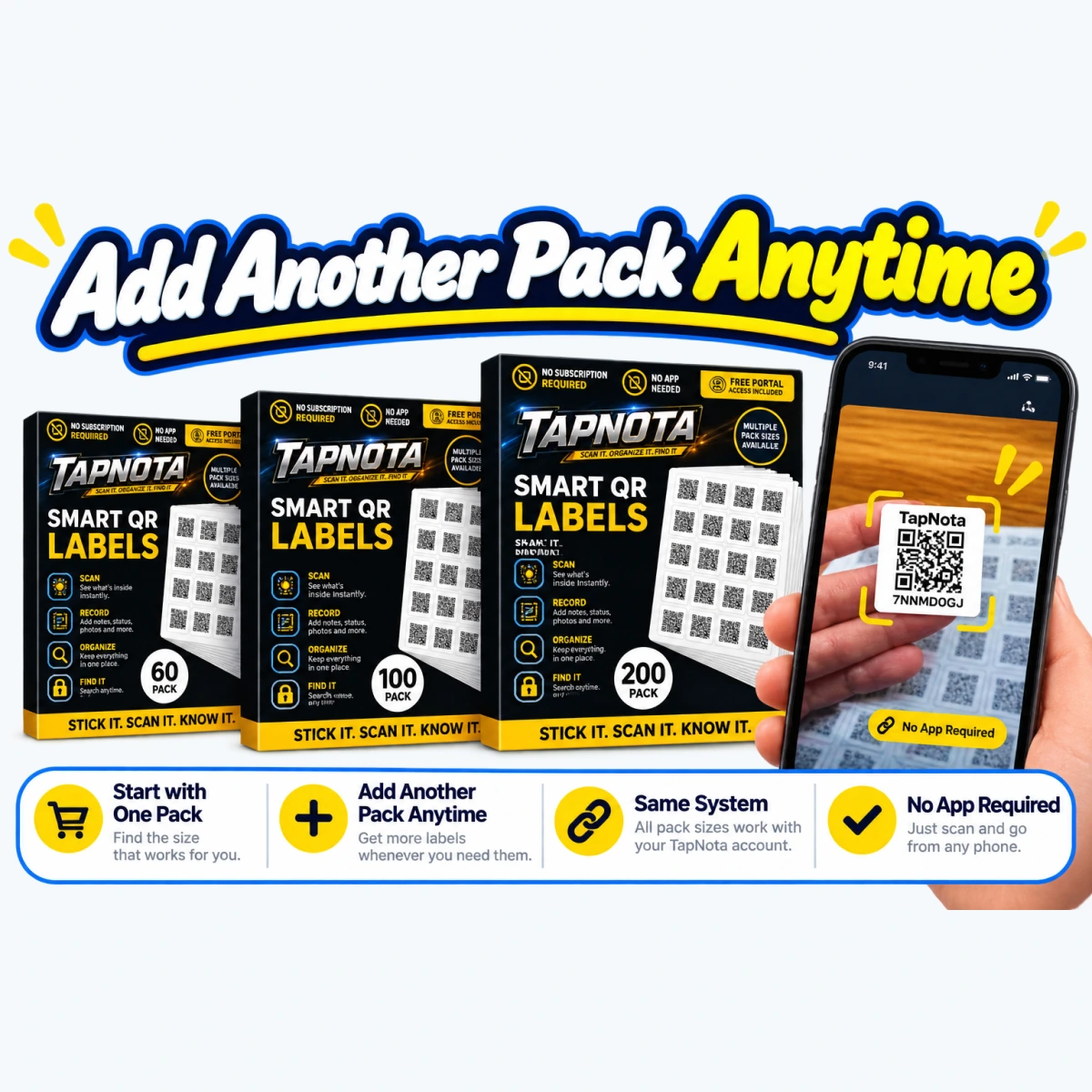
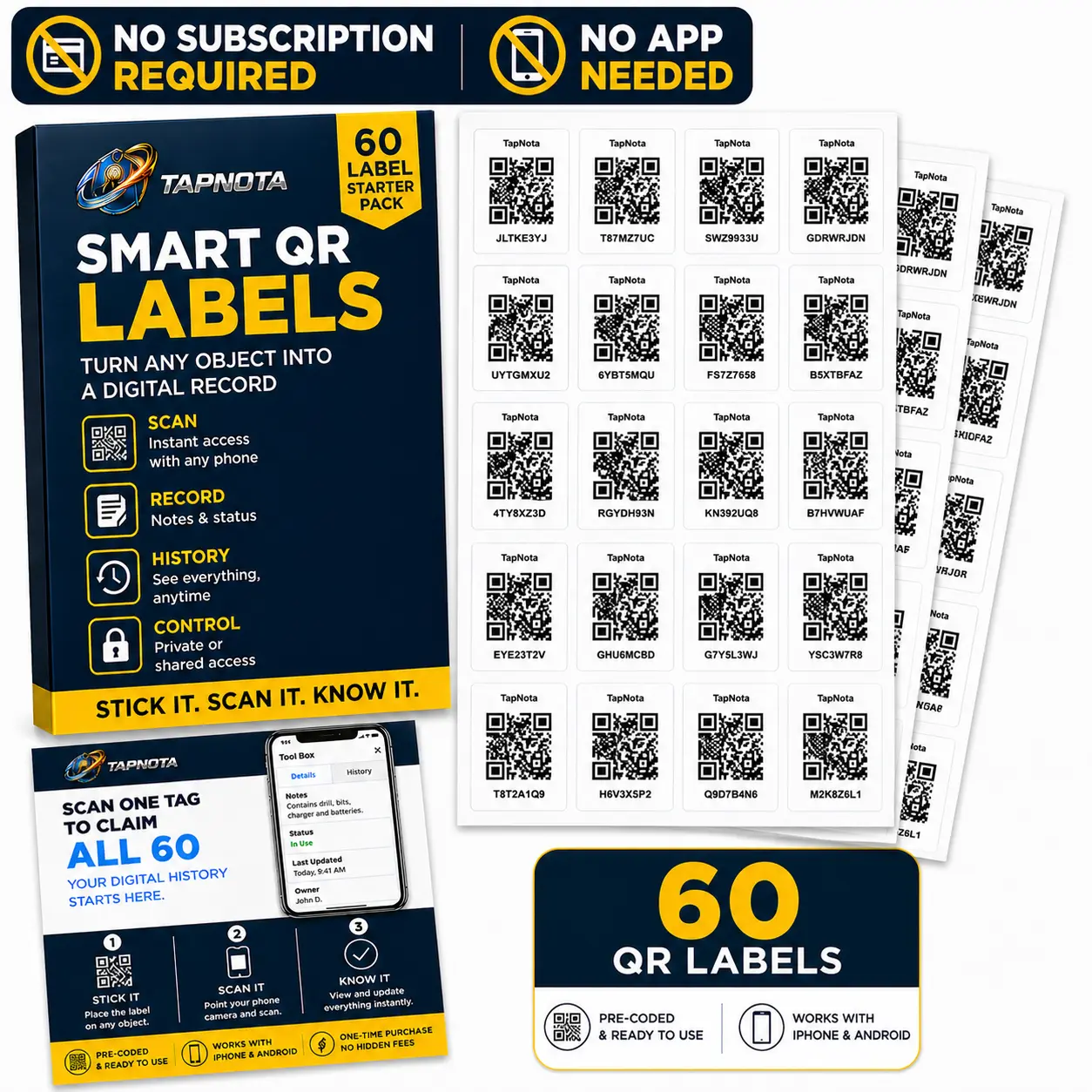
- Easy Activation: Activate an entire purchased pack of labels with a single scan and email verification — no need to activate each label individually.
- Reprint and Share: Lost or damaged labels can be reprinted instantly without losing history. Share individual items or grant shared account access to family or team members.
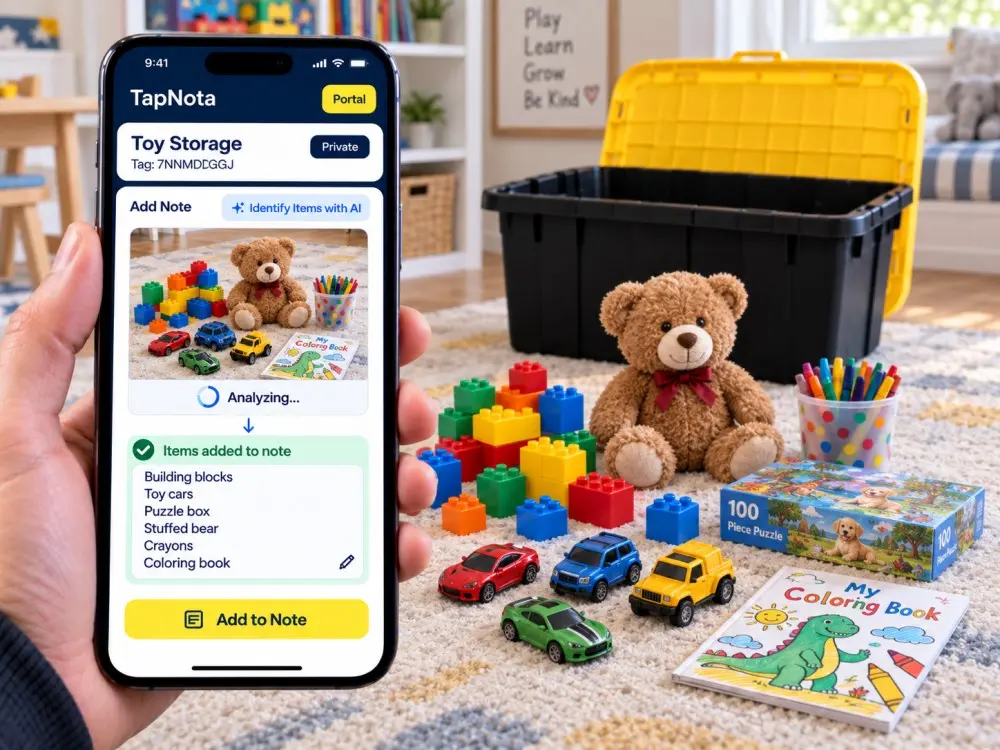
- AI Identification (Optional): Use AI to help build your item list by taking photos of visible contents and reviewing AI-suggested notes.
Step-by-Step Garage Organization with TapNota
1. Attach Labels to Your Storage Bins and Tools
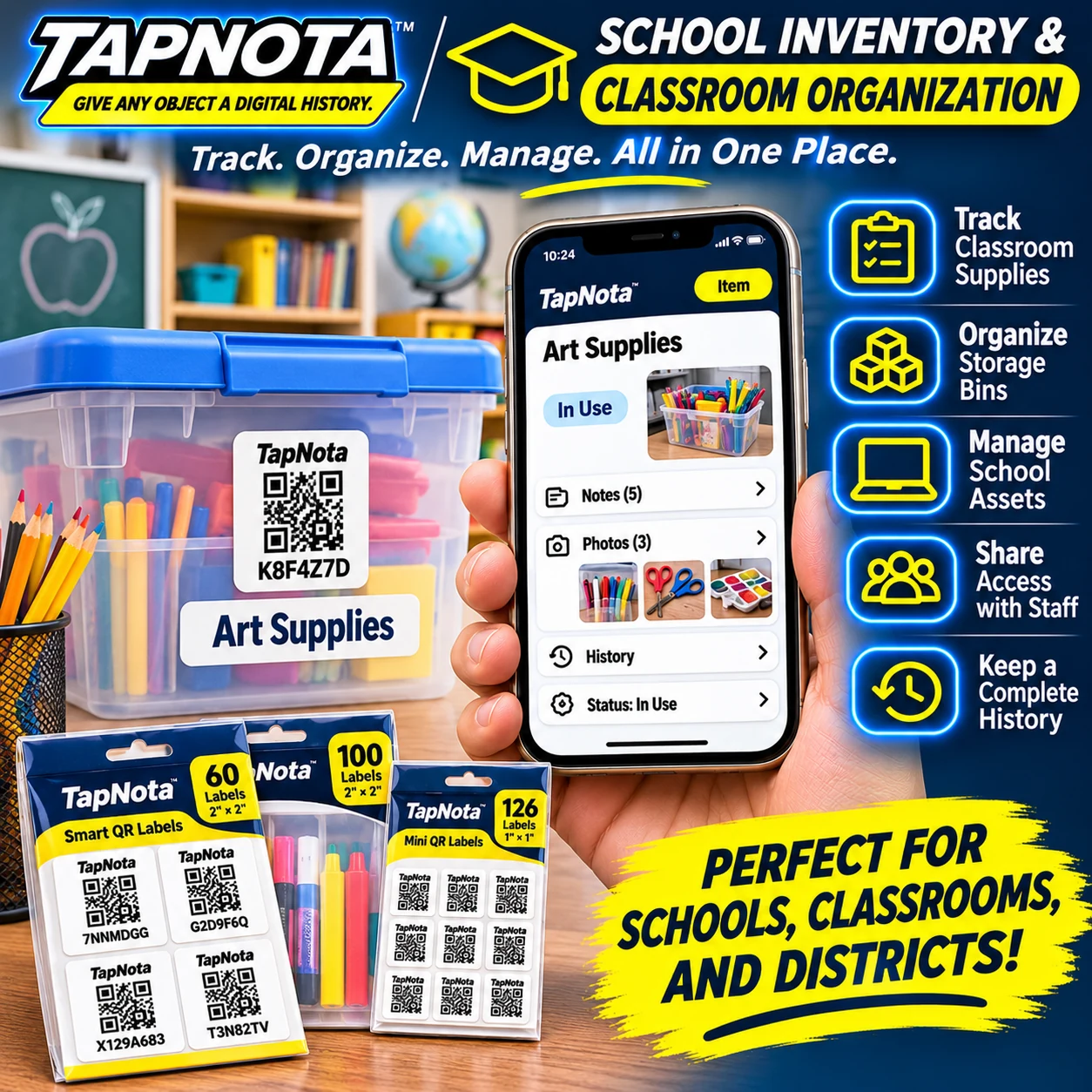
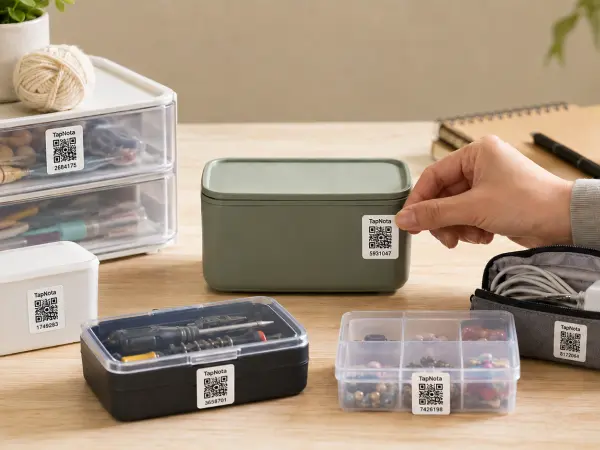
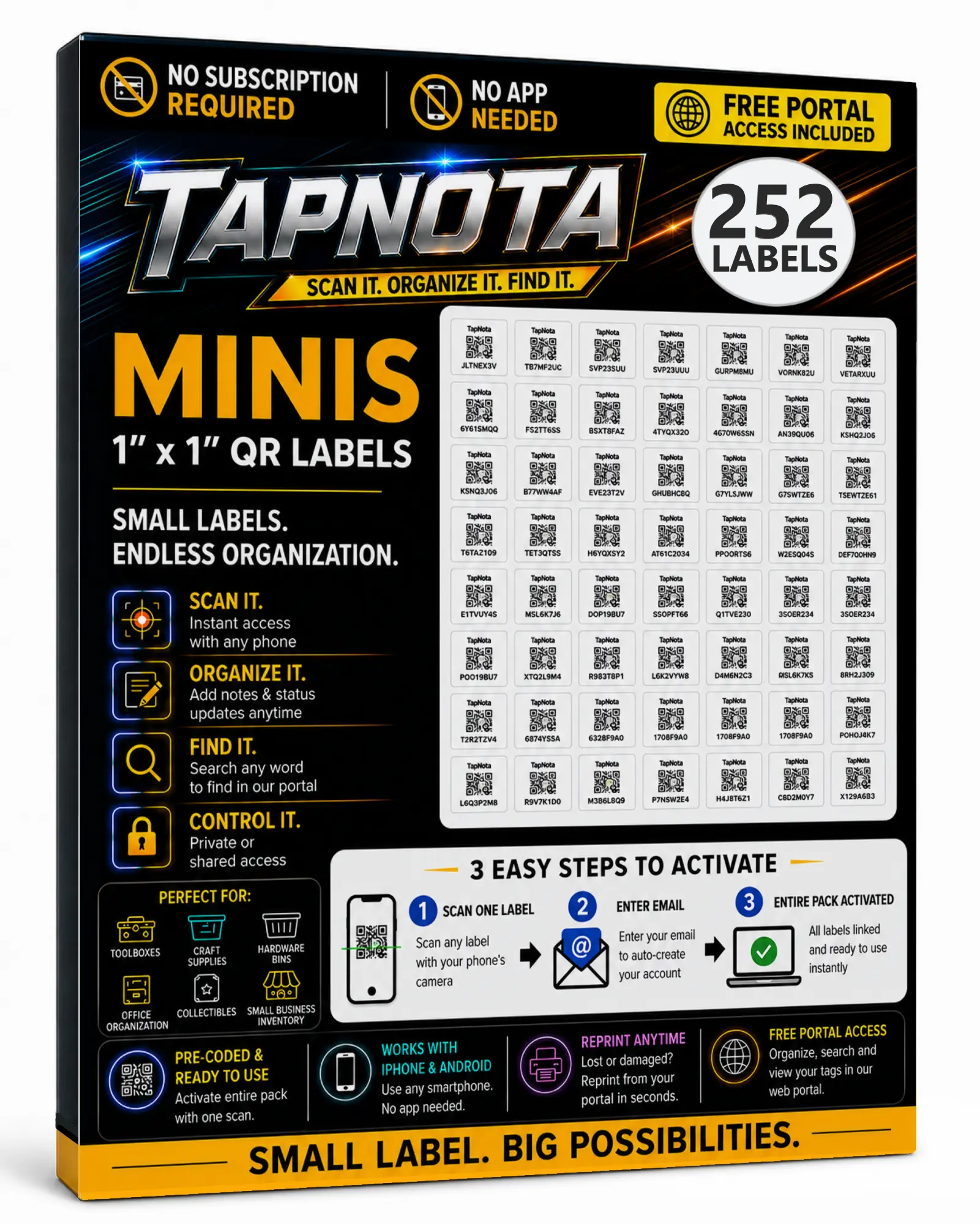
Start by sticking TapNota’s pre-coded QR labels on your storage bins, toolboxes, or individual tools. The labels come in two sizes (2×2 inches and 1×1 inch) suitable for various applications. For example, place a label on your power tool bin, another on the drill accessories box, and so on.
2. Activate Your Label Pack
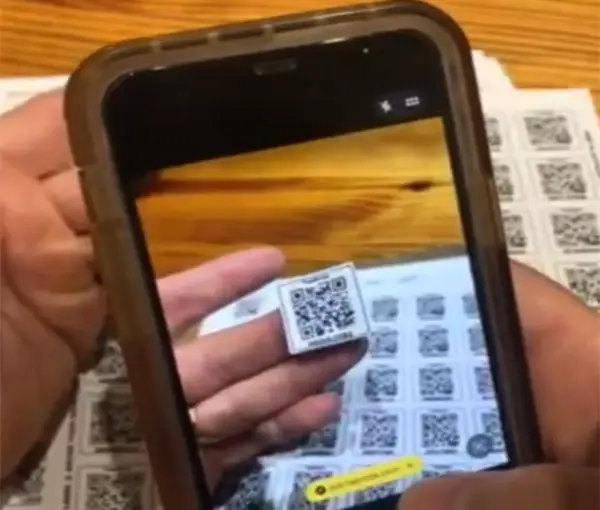
Scan any one label from your purchased pack using your phone’s camera, then enter and verify your email address. This single scan activates the entire pack and links it to your TapNota account. If you buy more packs later, you can add them to the same account with another scan and email.
3. Create and Update Item Pages
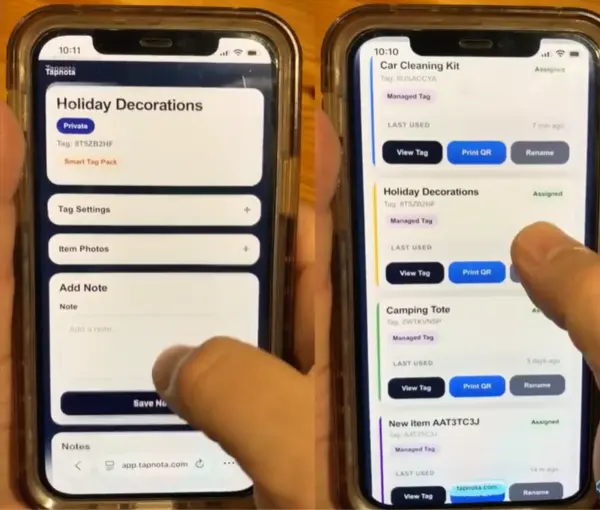
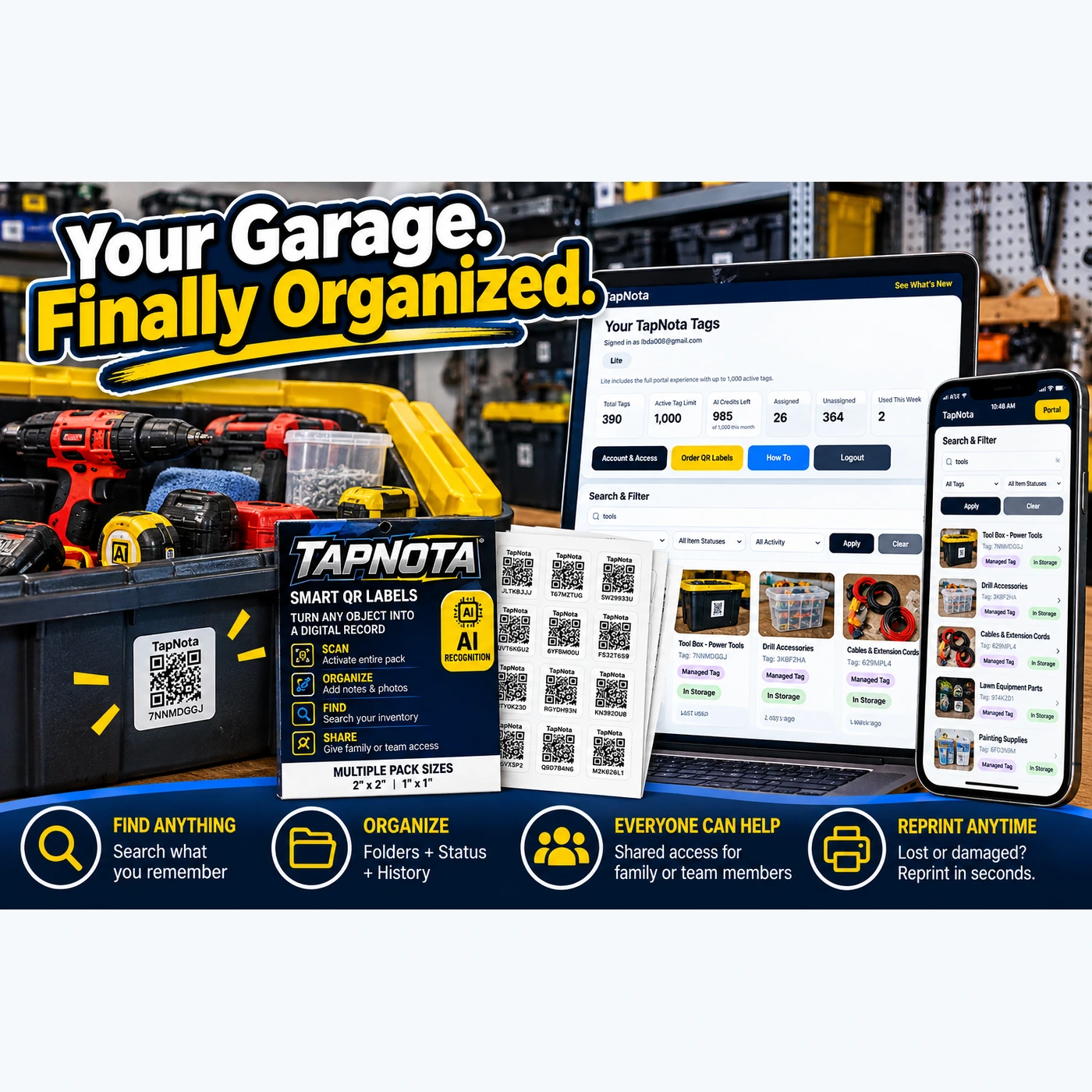
After attaching labels, scan each one to open its specific Item Page in the TapNota web Portal. Add a clear name like “Power Tools Bin,” detailed notes such as contents or special instructions, photos of the items inside, serial numbers, or service history. You can update these details anytime, making the record evolve as your garage inventory changes.
4. Organize with Folders and Tags
Use folders to group related items, for example, “Lawn Equipment,” “Painting Supplies,” or “Automotive Tools.” Tagging items with keywords helps you quickly filter and find what you need later. The Item Status feature lets you mark if an item is “In Storage,” “In Use,” or “Loaned Out,” helping you track tool availability.
5. Search Without Scanning
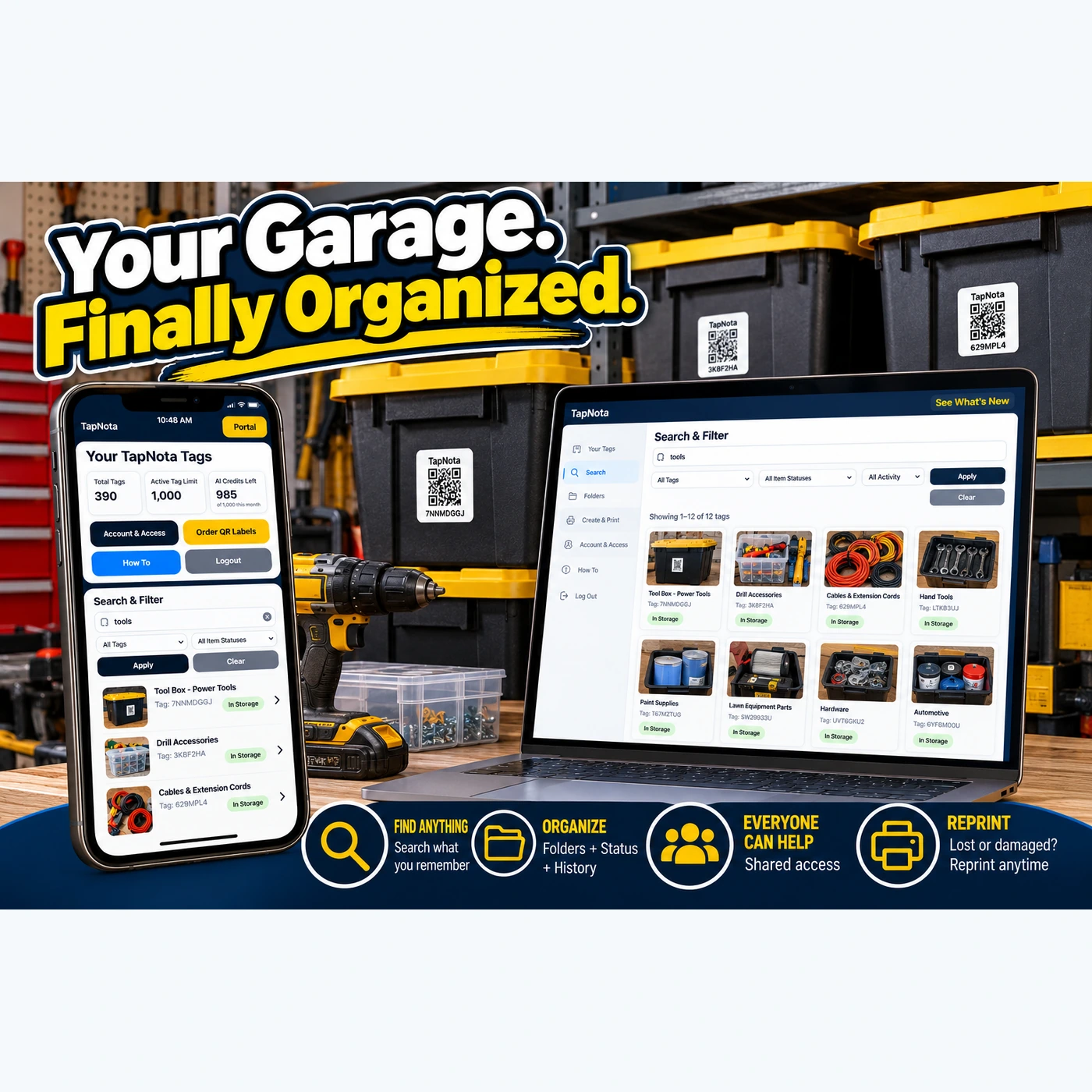
One of TapNota’s most powerful features is its search capability. You do not need to scan a label to find an item. Simply open your account Portal on any device and search by item name, notes, tags, or folder names. This is especially handy when you want to check what’s in a bin before heading to the garage.
6. Share Access with Family or Team
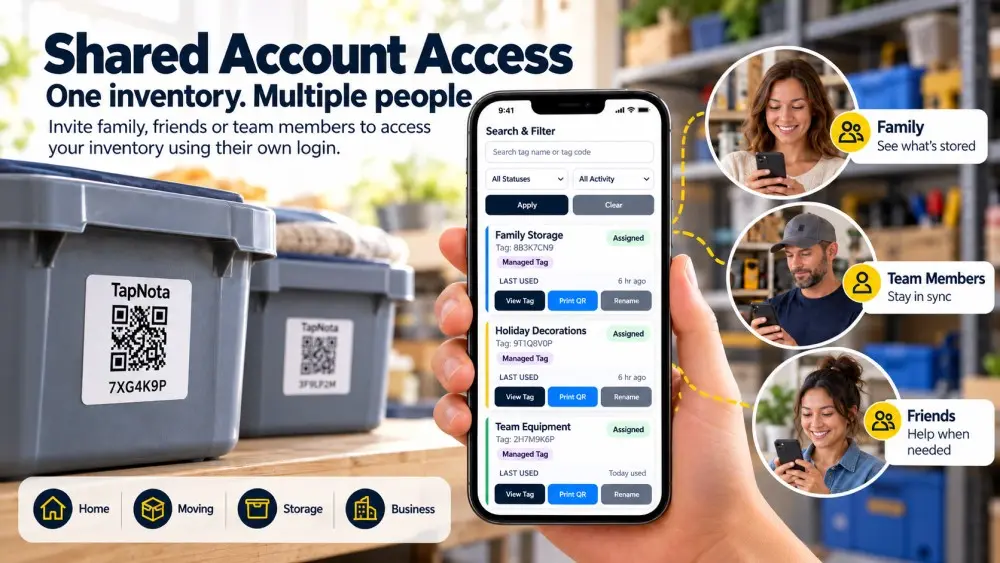
TapNota supports Shared Account Access, allowing approved family members or team helpers to log in with their own credentials and collaborate on the garage inventory. This feature ensures everyone can help maintain order and find tools quickly without compromising your account control.
7. Reprint Labels Anytime
If a label gets lost, damaged, or worn out, you can reprint it from the Portal instantly. The reprinted label links to the same Item Page and preserves all your history and notes, avoiding the hassle of re-entering information.
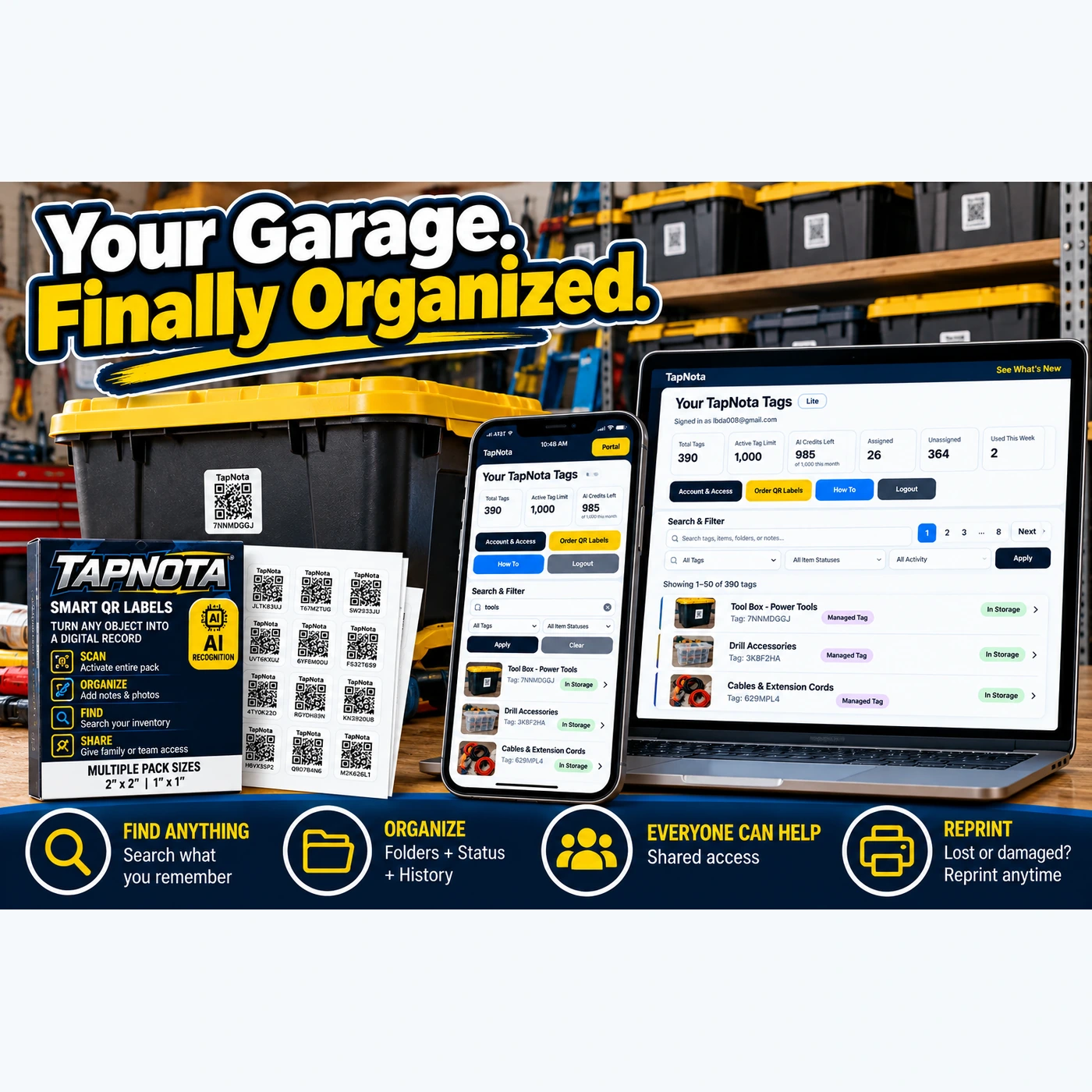
Practical Garage Organization Example
Imagine you have a garage shelf with multiple black and yellow bins. You attach TapNota labels to each bin and scan them to create Item Pages. For the “Power Tools” bin, you add notes listing the drill, sander, and battery charger inside, plus photos of the tools. You tag it with “tools” and “power.” For the “Painting Supplies” bin, you add notes about brushes, rollers, and drop cloths, tagging it “paint” and “supplies.”
Later, when you need the drill, you open the TapNota Portal on your phone or laptop and search “drill” or “power tools.” The system instantly shows the bin location and contents, saving you time digging through multiple boxes.
Additional Tips for Effective Use
- Label Visible Items: Attach labels where they are easy to see and scan without moving heavy bins.
- Keep Photos Updated: Take new photos if contents change significantly to maintain accurate records.
- Use AI Recognition Wisely: The AI feature can help start your notes by recognizing visible items in photos, but always review and edit suggestions for accuracy.
- Regularly Review Inventory: Periodically check your inventory for outdated items or status changes to keep your garage organized long-term.
Learn More and Get Started
TapNota offers a free Starter tier and optional paid plans with advanced features like PIN protection and increased AI credits. You don’t need to install any app — just use your phone’s camera and a web browser. To order label packs or explore product support, visit the Order QR Labels and TapNota Product Support pages.
For more insights on organizing storage bins and managing home inventories, check out How to Organize Storage Bins for Easy Access and Home Inventory Checklist for Every Room.
Frequently Asked Questions
Do I need to scan each TapNota label to activate it?
No, scanning any one label from a purchased pack and verifying your email activates the entire pack linked to your account.
Can I update the contents of a bin after labeling it?
Yes, you can add or change notes, photos, and other details on the Item Page anytime without changing the physical QR label.
Is there a mobile app required to use TapNota?
No, TapNota works through your phone’s camera and a web browser with the TapNota web Portal; no dedicated app installation is needed.
How does the AI recognition feature work for garage items?
The AI feature lets you take or select photos of visible items to suggest a starting list of contents, which you can review and edit before saving.
Can I share my garage inventory with family members?
Yes, you can grant Shared Account Access to approved family or team members, allowing them to view and update the inventory with their own login.