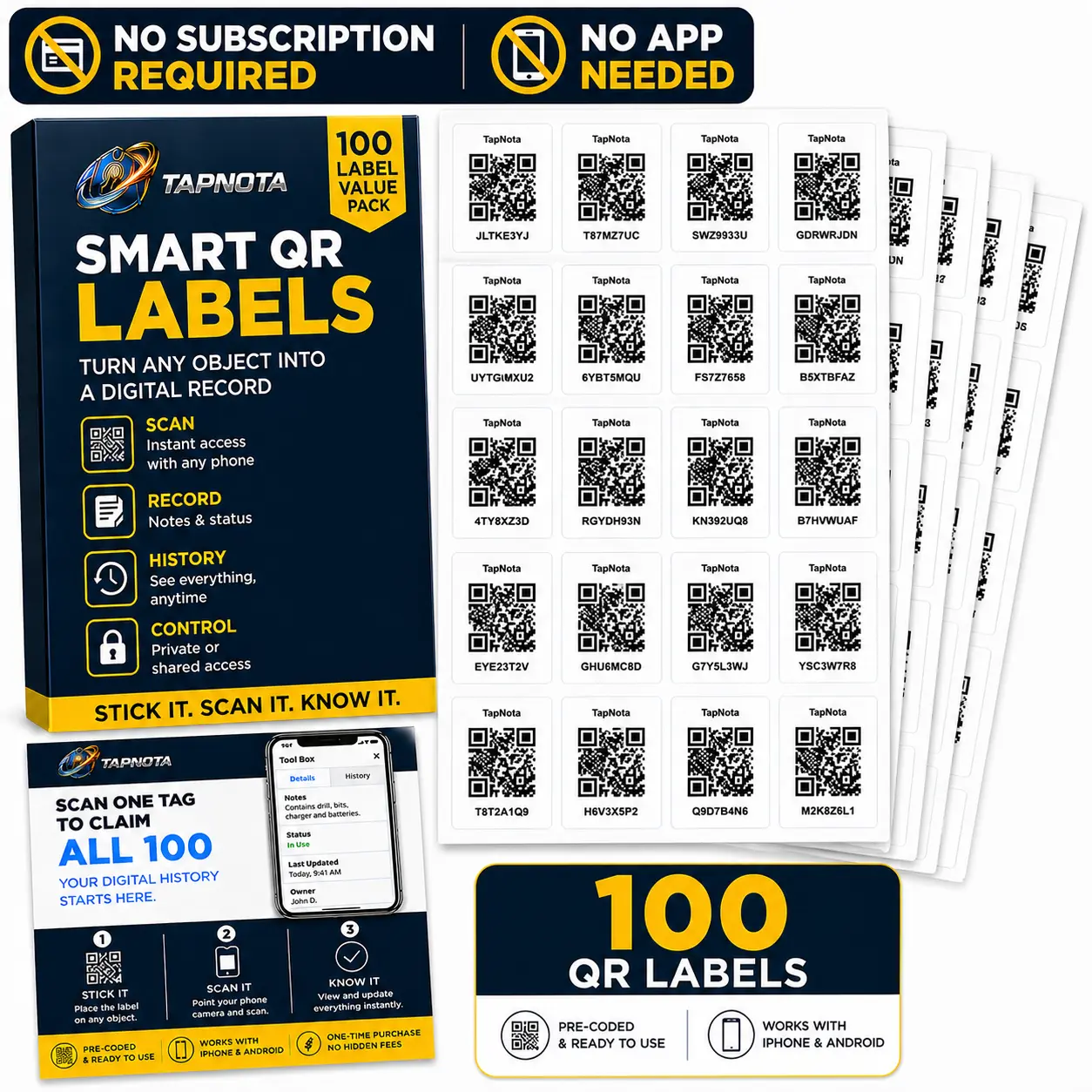
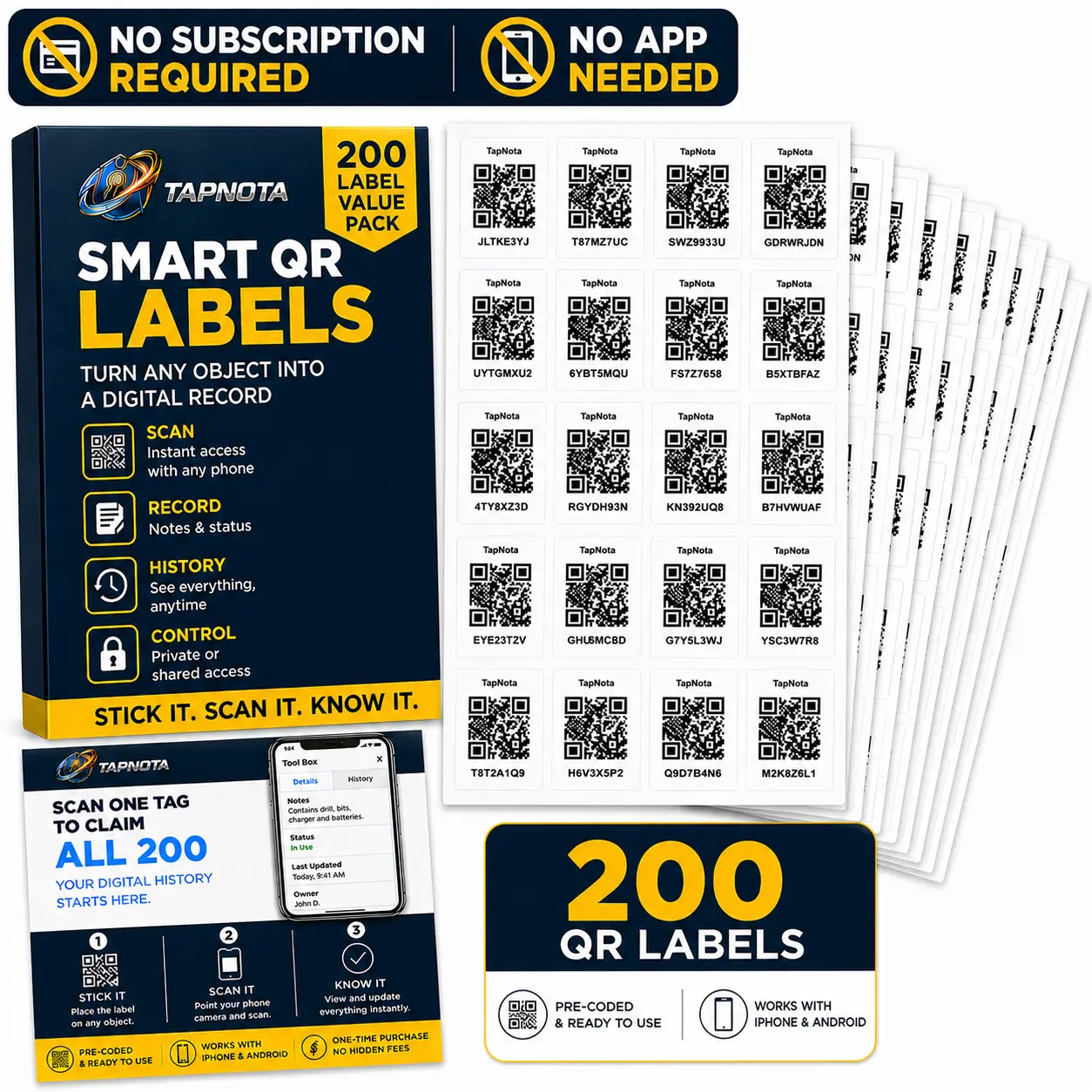
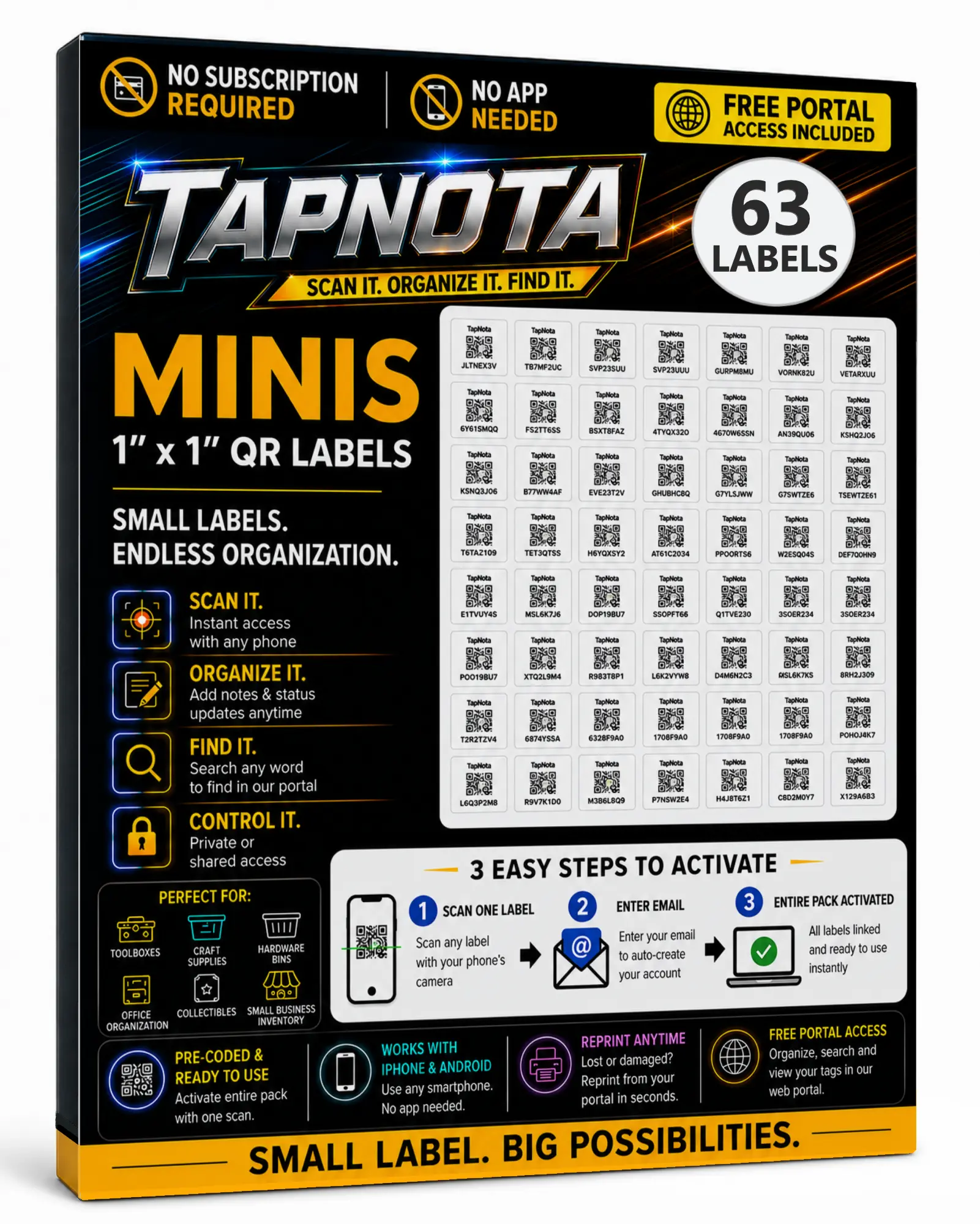
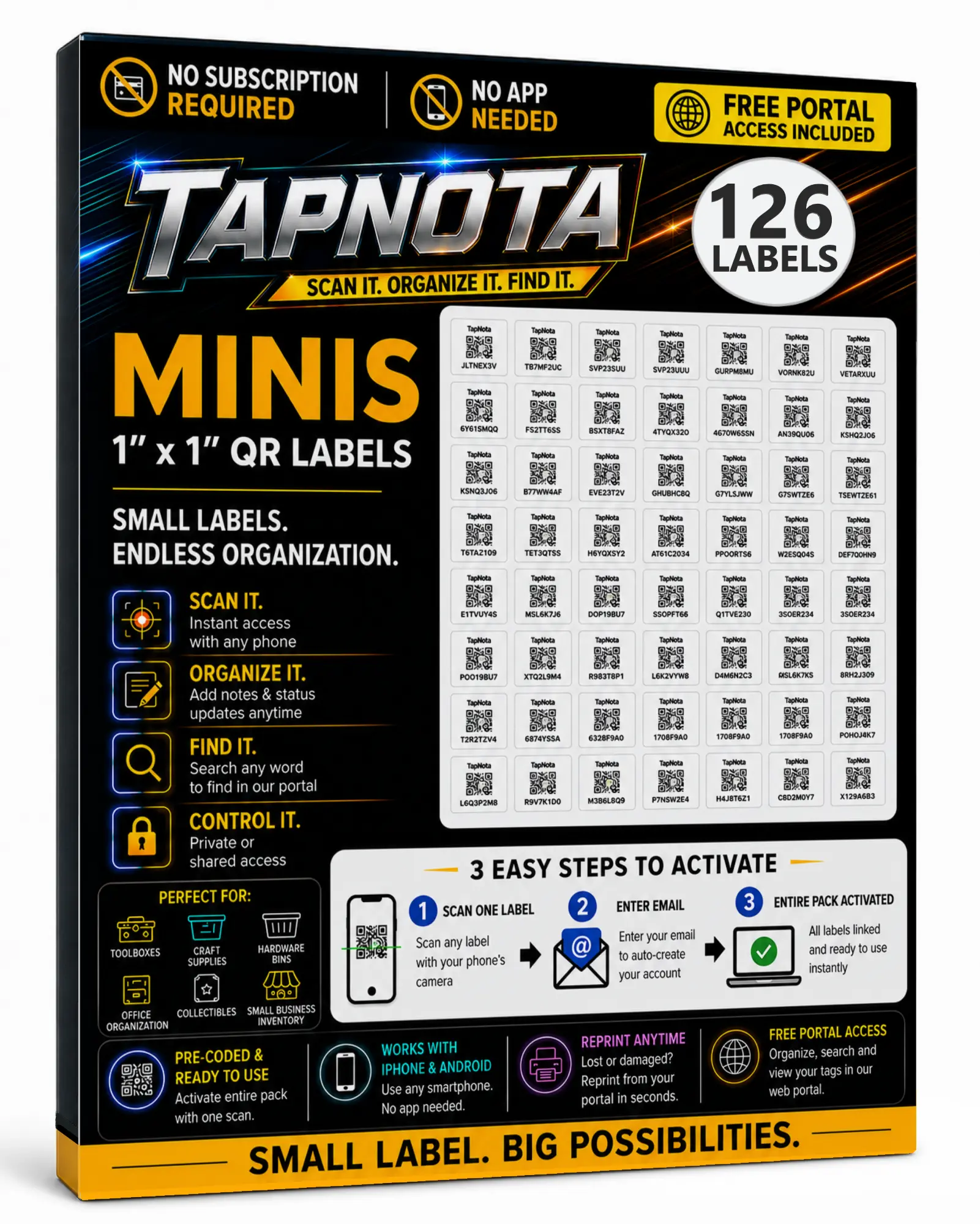
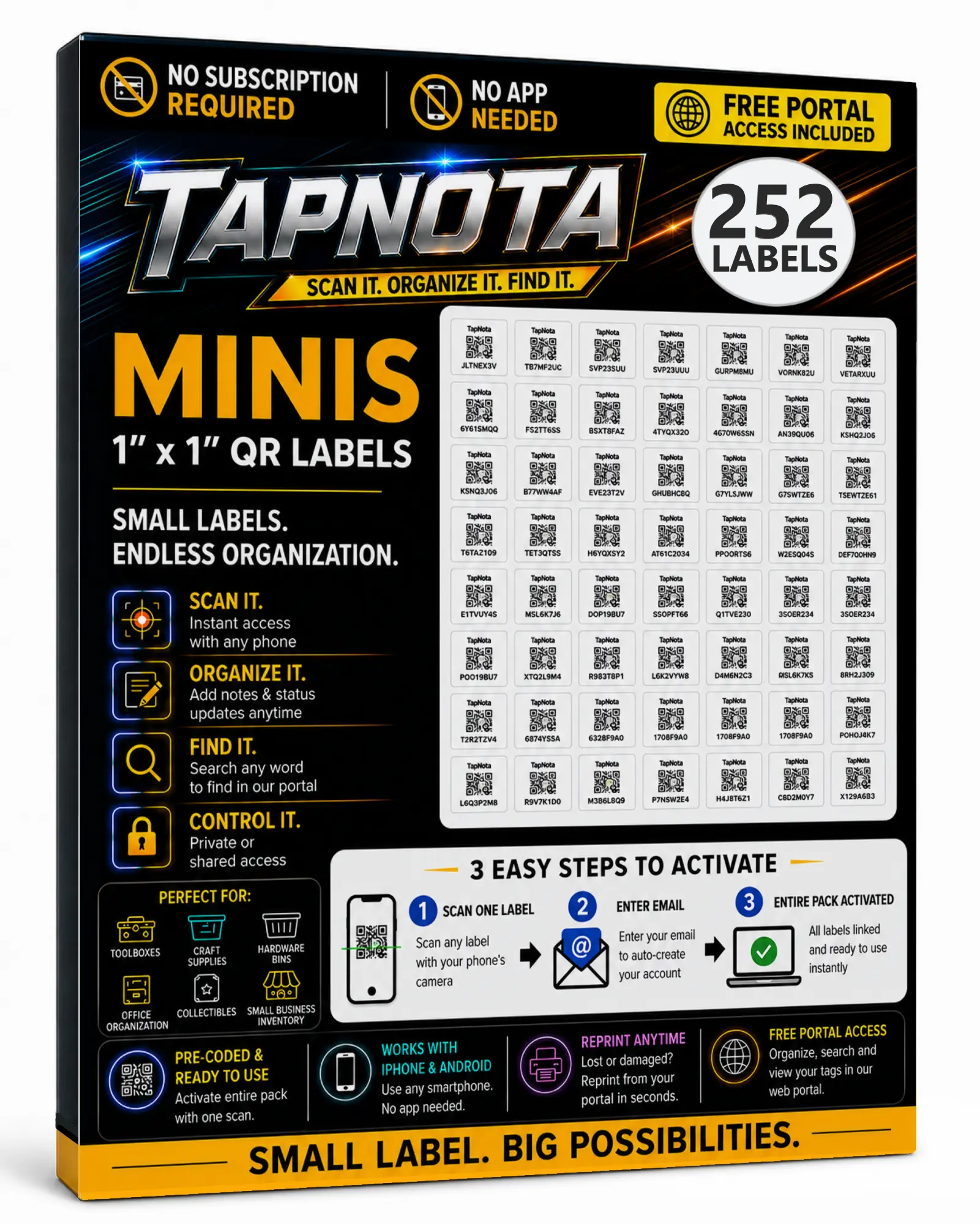
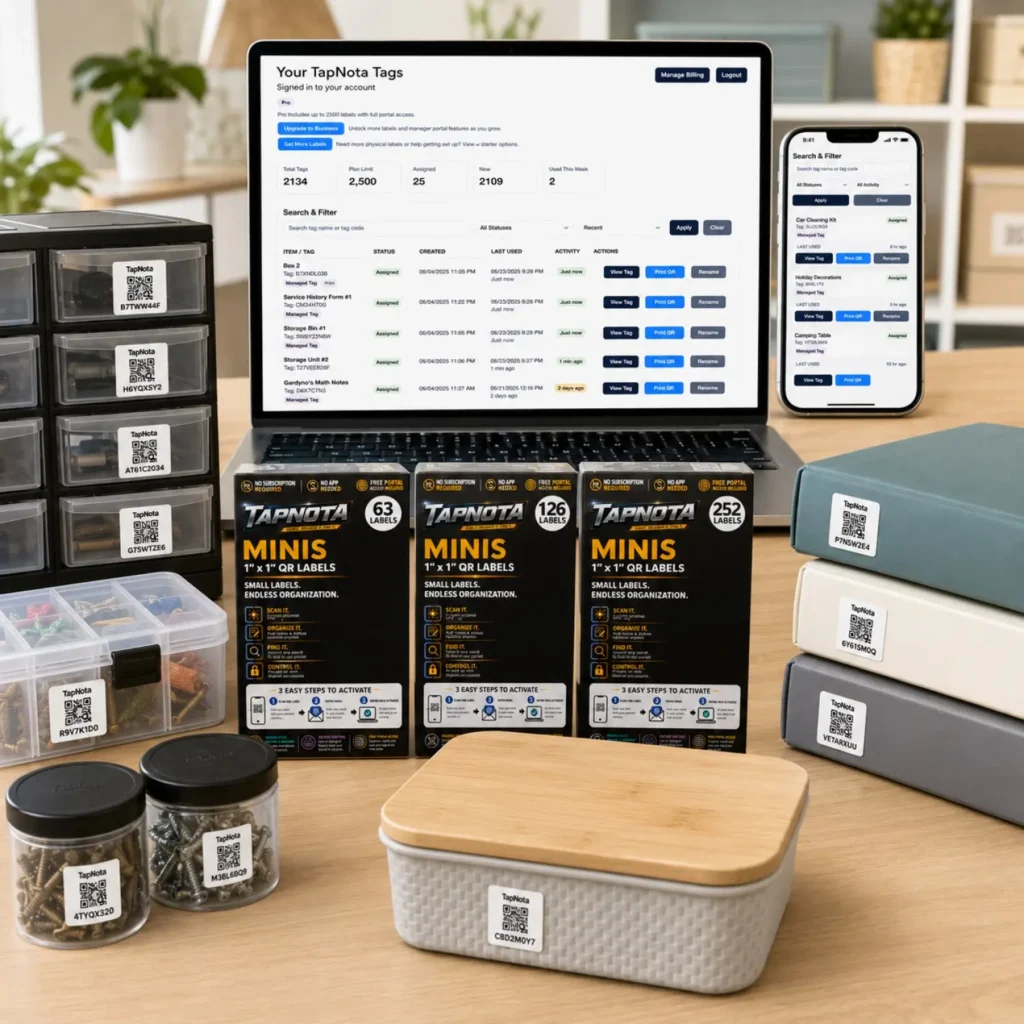
Keeping your office documents, folders, and supplies organized can often feel overwhelming, especially when you need to find something quickly without rifling through piles of paper or boxes. TapNota offers a smart, physical-to-digital record system that simplifies this process using mini QR labels designed specifically for smaller items like folders, document boxes, and office supply containers.
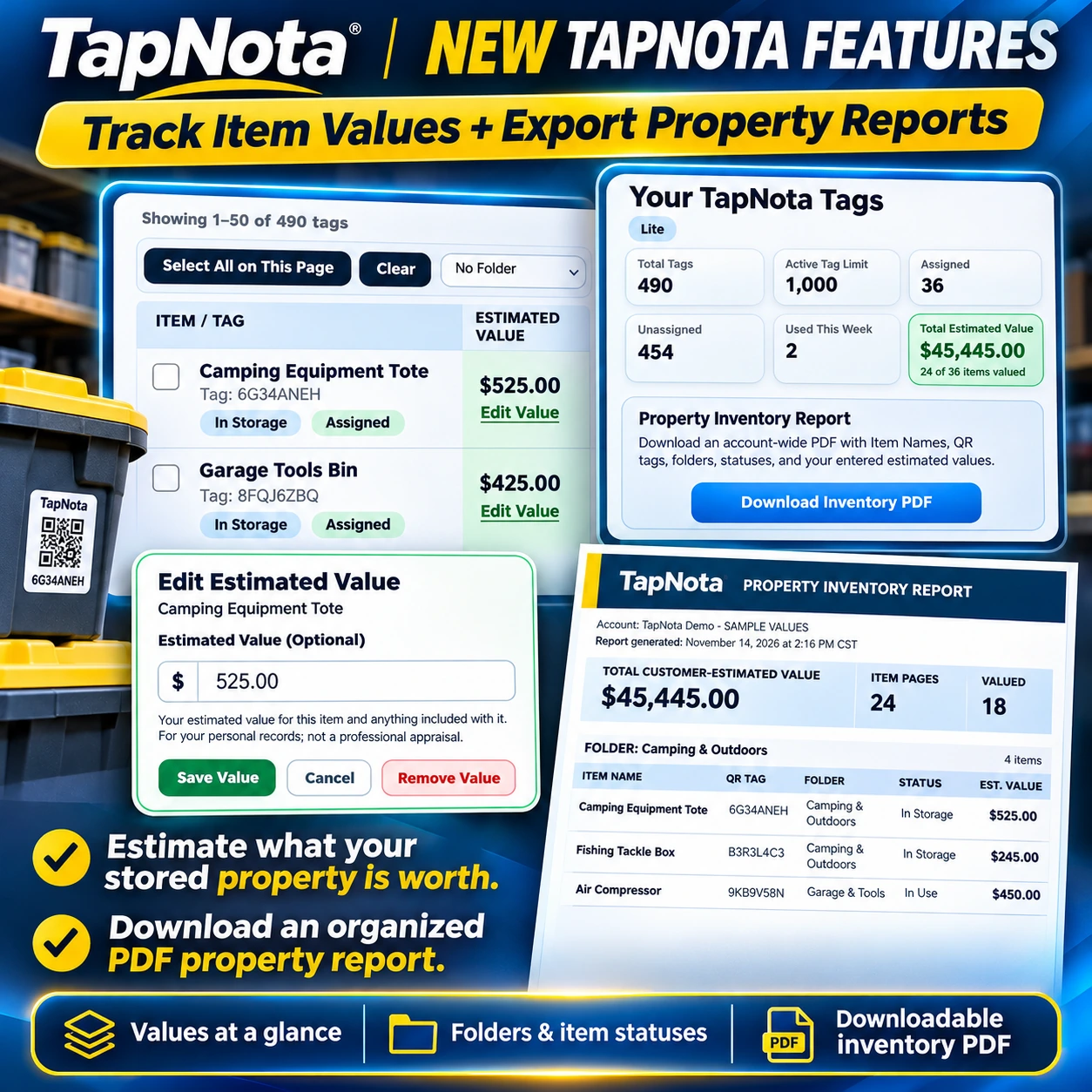
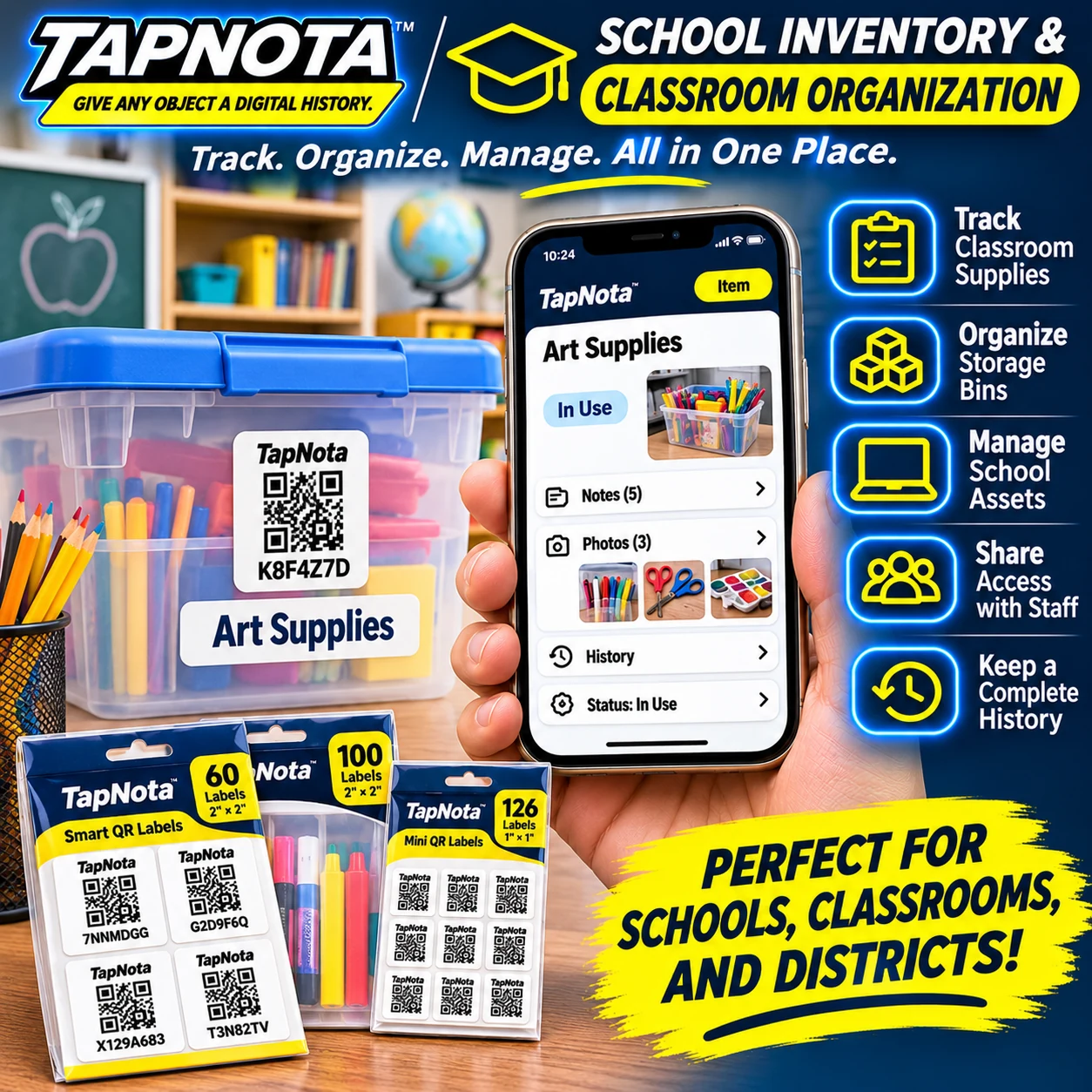
Unlike traditional labels or spreadsheets, TapNota connects each physical item to a unique, evolving digital Item Page accessible through scanning its pre-coded smart QR label. This digital record can hold detailed information such as folder names, contents, notes, photos, and even manuals or serial numbers. The system is designed to grow with your needs, allowing you to update records over time without changing the printed QR label.
How TapNota Mini QR Labels Work for Office Organization
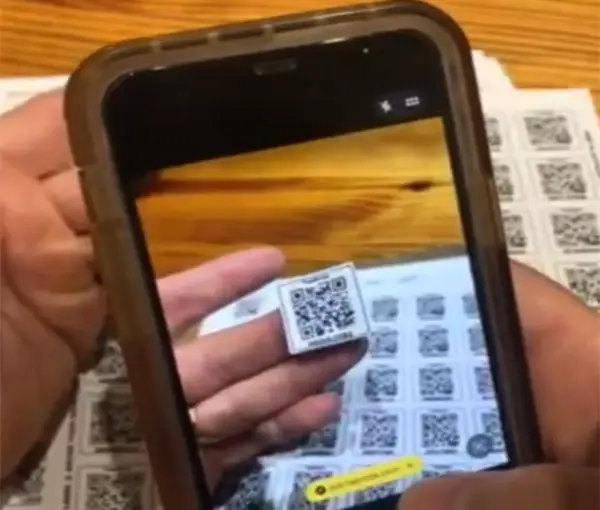
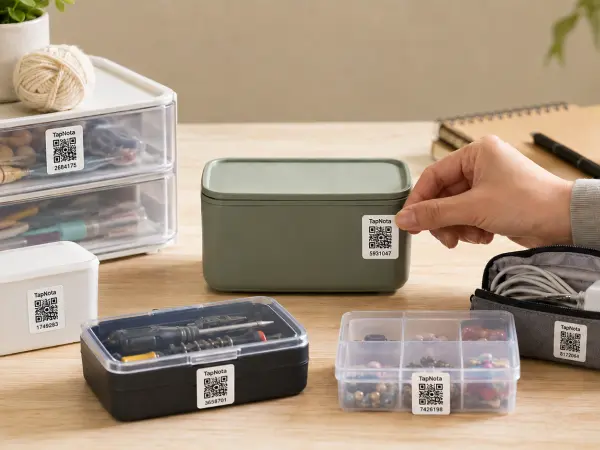
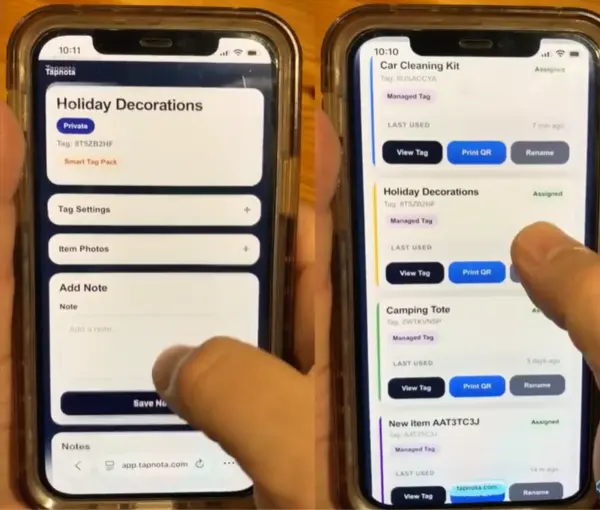
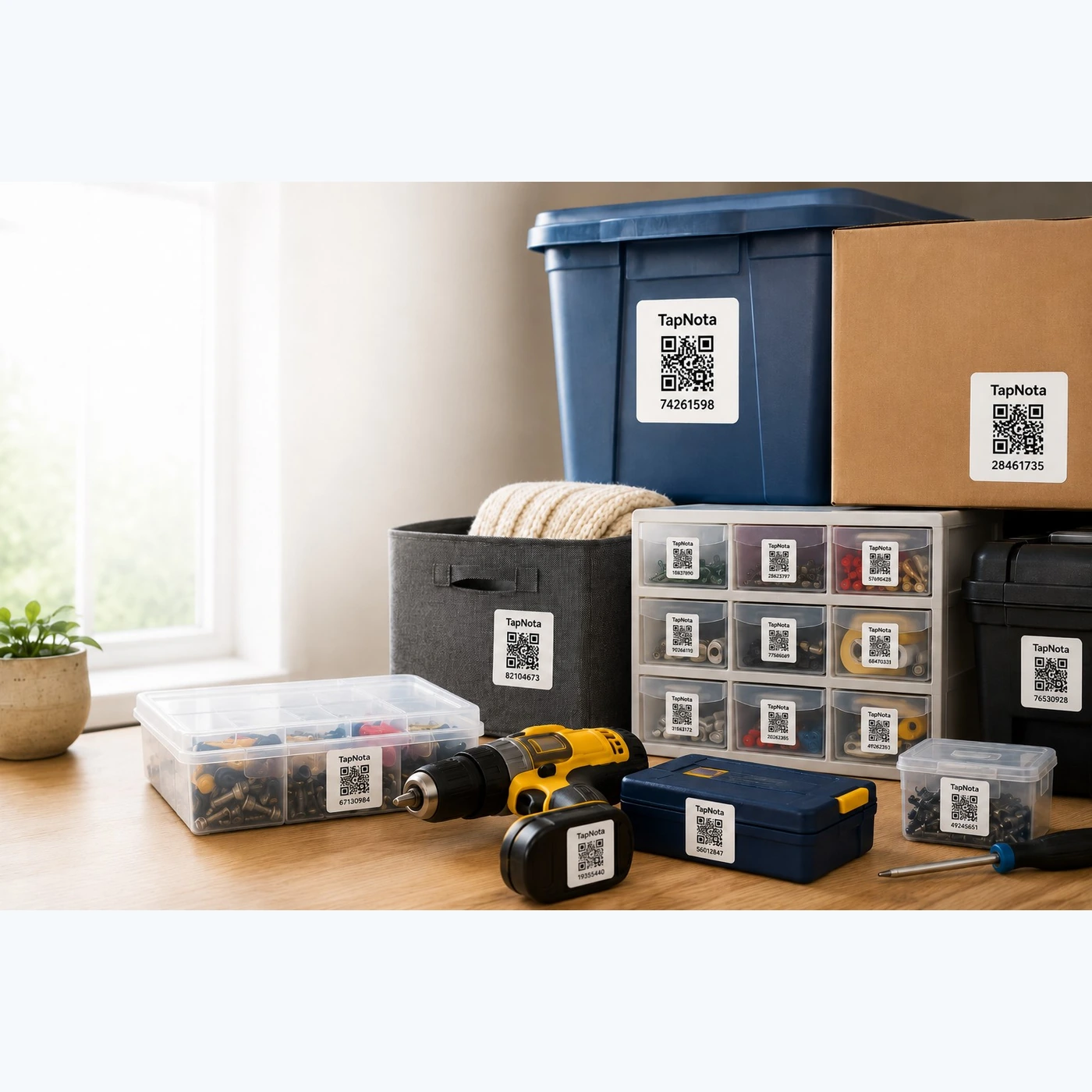
Start by attaching a mini QR label to each folder, document box, or office supply bin. When you scan the label, it opens that item’s specific digital page in the TapNota web Portal. Here, you can add a descriptive name (e.g., “Financial Reports 2023”), notes about contents, photos of important documents, or instructions for use. This creates a searchable, editable inventory record that you control.
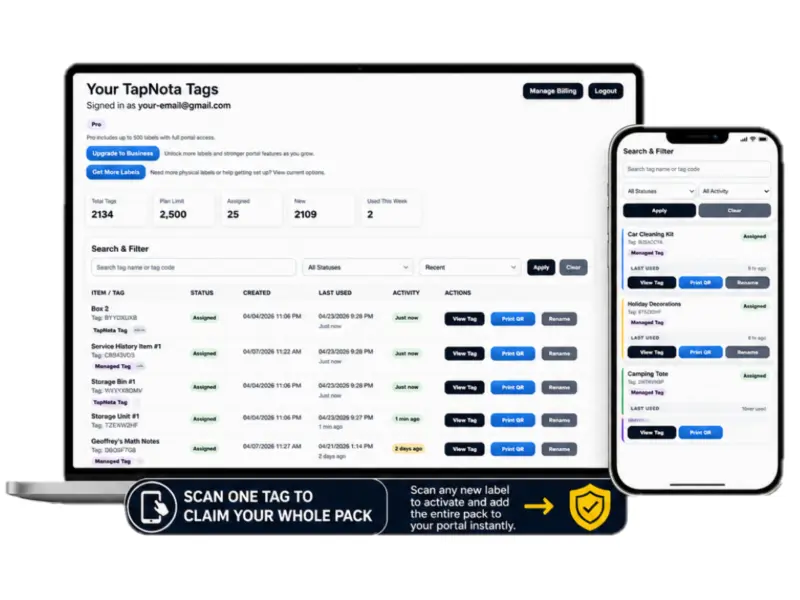
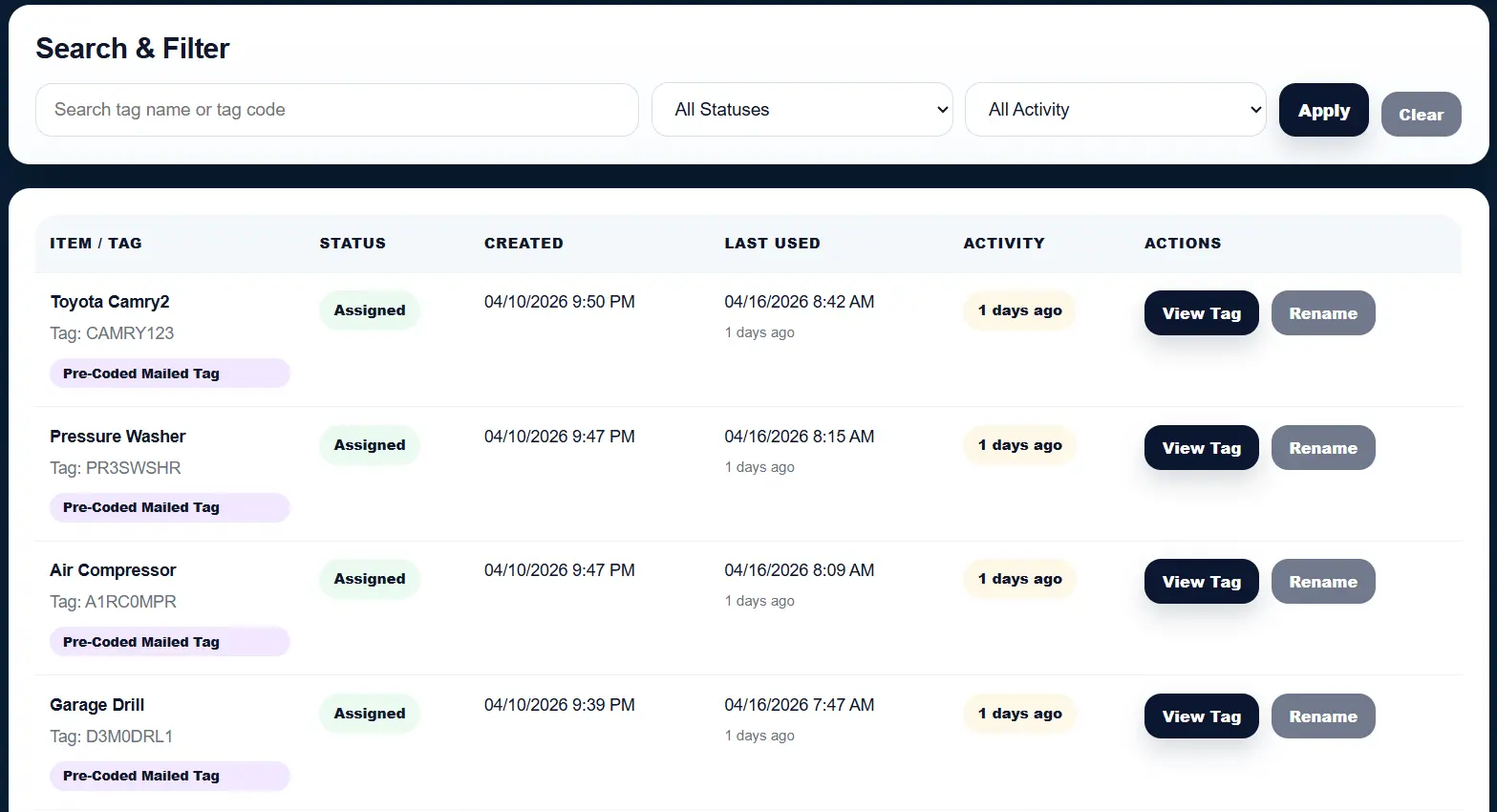
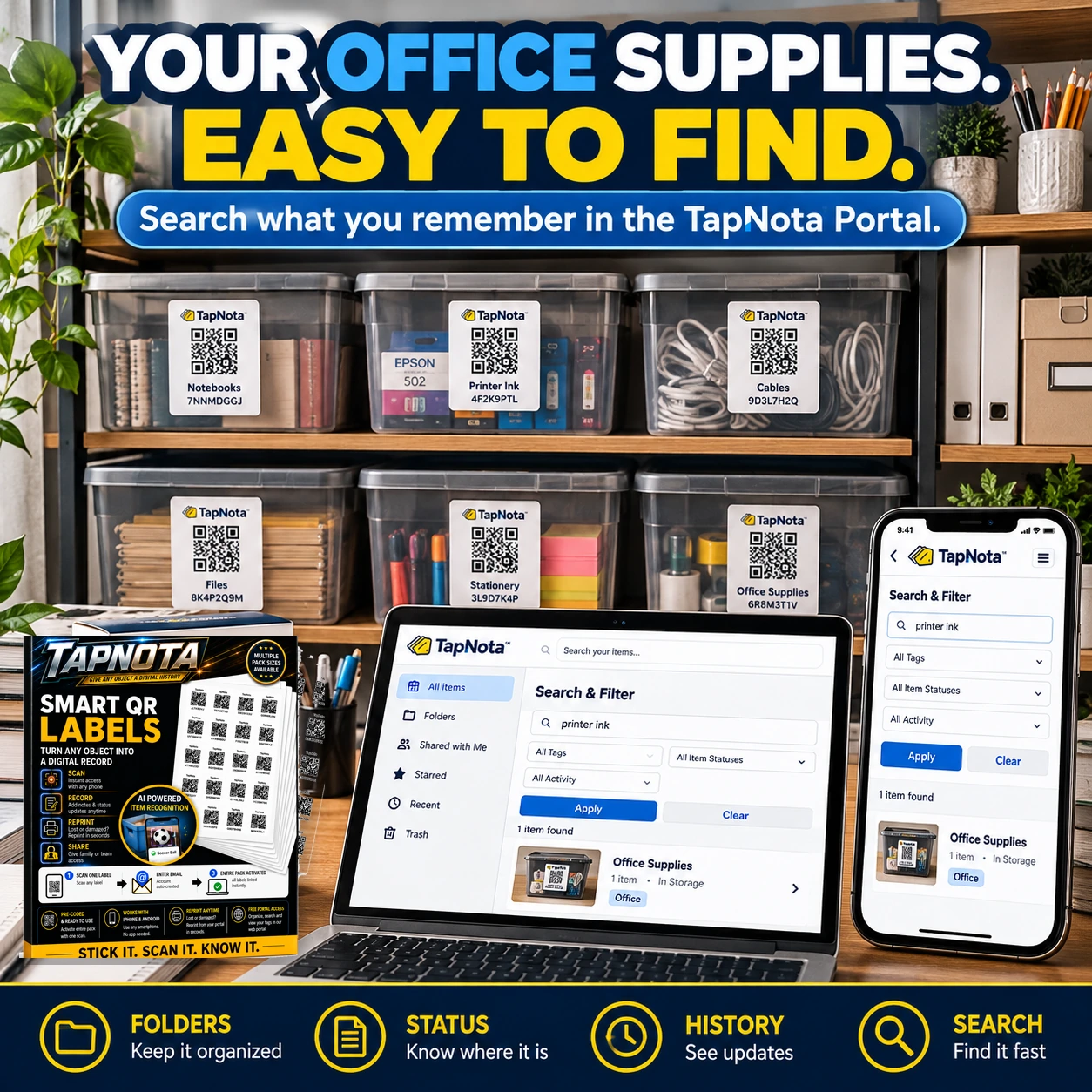
One of the key advantages is that searching your inventory does not require scanning the label first. You can simply open the TapNota Portal on your computer or phone and search by folder names, tags, or note text to instantly find what you need. This is especially useful for office settings where multiple people may need quick access to stored information.
Folders, Status, and History Features
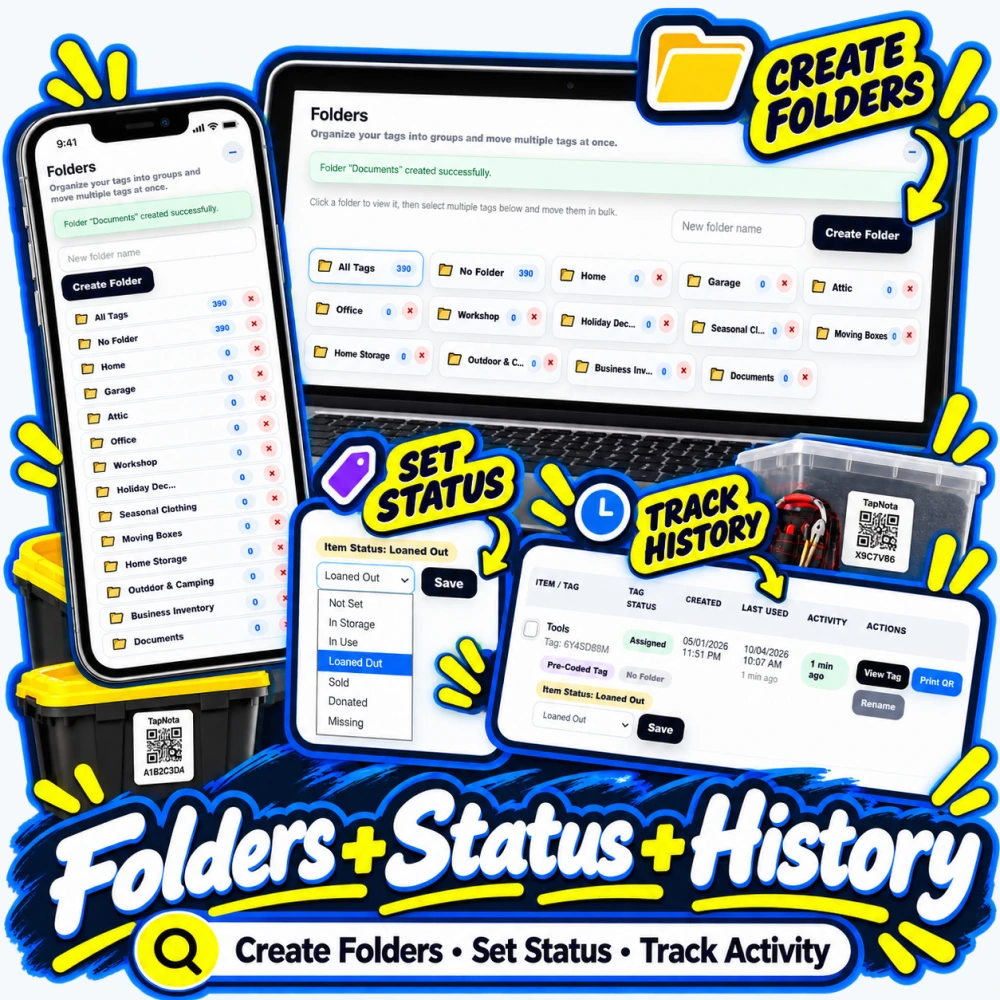
TapNota’s Portal supports organizing your records into folders such as “Projects,” “Finances,” or “Recipes,” mirroring your physical filing system digitally. You can also set an Item Status to indicate if something is in use, loaned out, missing, or stored. This helps keep track of document whereabouts and usage history.
The Activity/History log preserves changes over time, so you can see when notes were added or status updated — an invaluable feature for shared office environments or tracking document revisions.
Practical Tips for Using TapNota Mini QR Labels in Your Office
- Label folders and boxes consistently: Use clear, descriptive item names and tags to make searching intuitive.
- Add photos: Upload permanent photos of folder contents or important documents for quick visual reference.
- Use status settings: Mark folders as “In Use” or “Loaned Out” to avoid misplacement.
- Create folders in the Portal: Group related items digitally to mirror your physical filing system for easier navigation.
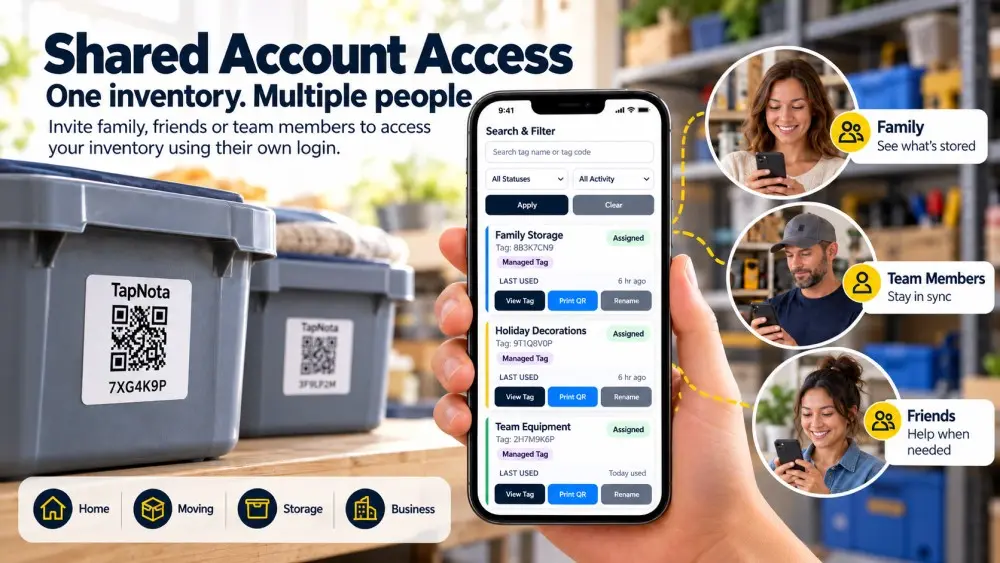
- Share selectively: Use TapNota’s sharing features to provide access to colleagues or assistants without compromising privacy.
Why Choose TapNota Over Traditional Office Labeling?
Traditional paper labels or spreadsheets lack the dynamic, searchable, and collaborative advantages of TapNota’s system. With TapNota, each QR label links to a live digital record that can be updated anytime and accessed anywhere via the Portal. There’s no need to print new labels when folders change contents or status.
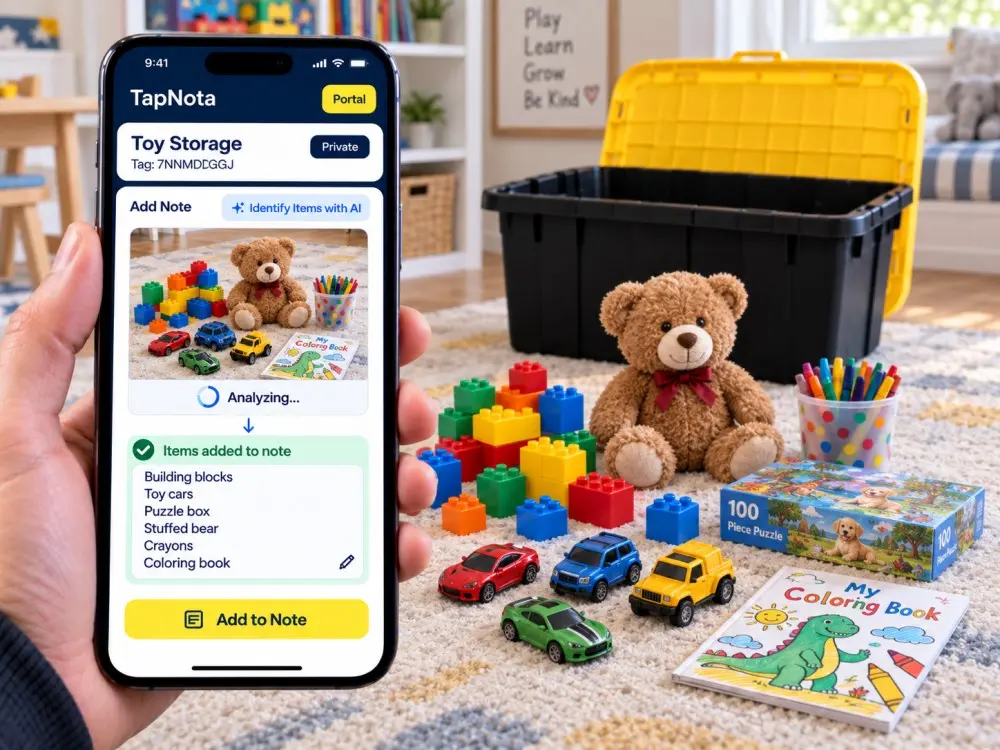
Additionally, TapNota’s optional AI-powered photo recognition can help you quickly generate content lists for visible items, saving time during initial setup or audits. This feature requires user review and editing to ensure accuracy but can be a helpful starting point.
Finally, the ability to track item history and status helps prevent lost documents or misplaced supplies, improving office workflow and accountability.
Getting Started with TapNota Mini QR Labels
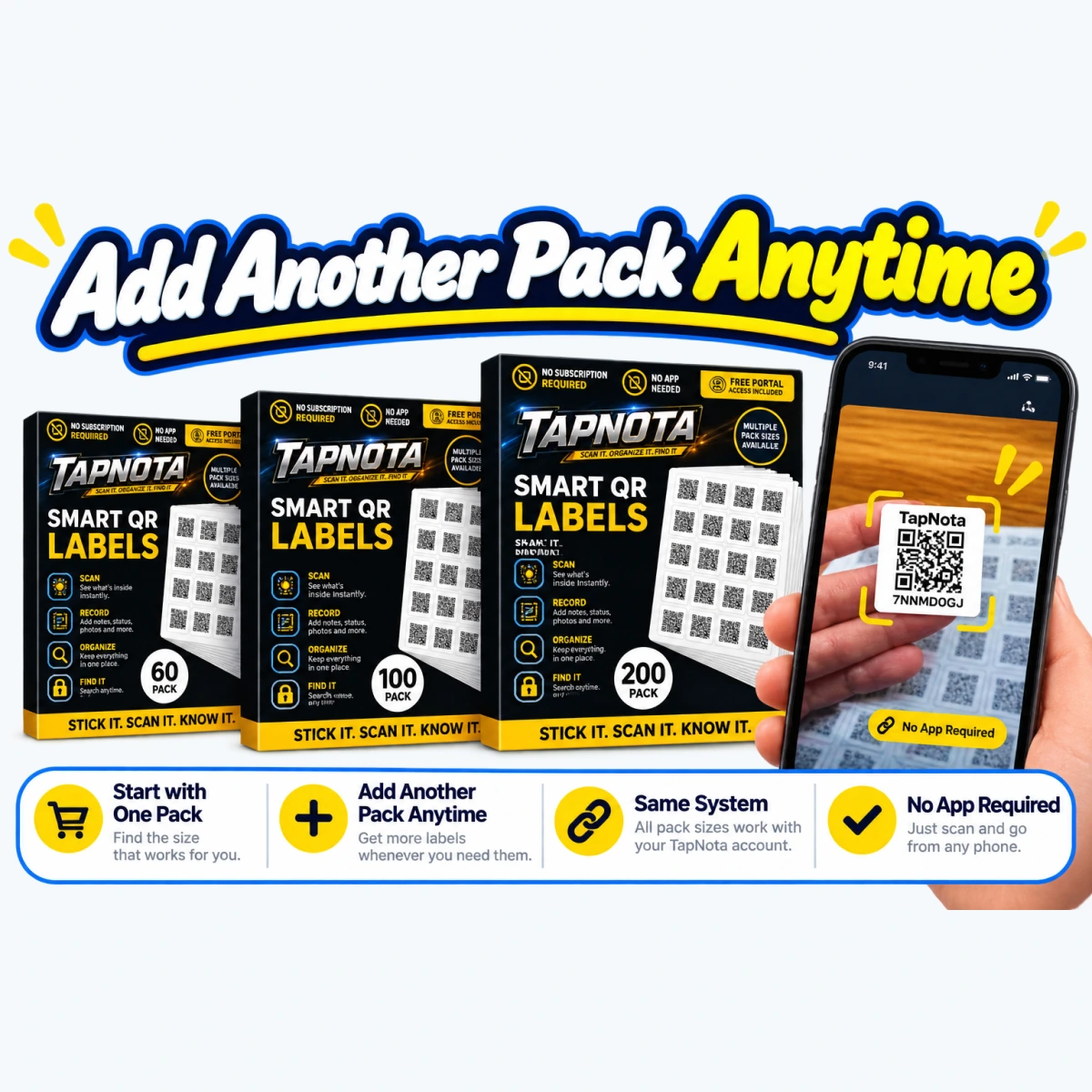
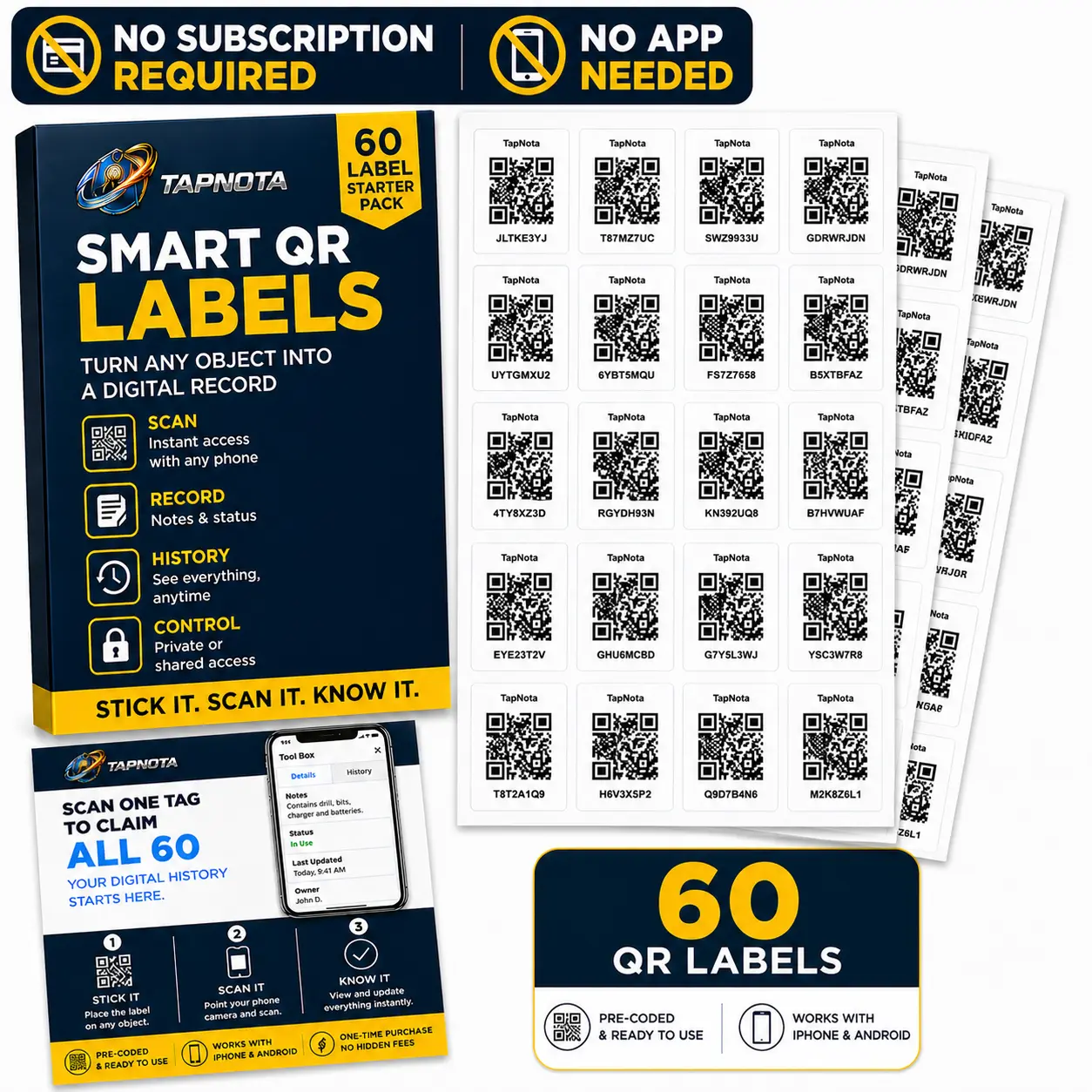
- Purchase a pre-coded pack of TapNota mini QR labels from the official TapNota label store.
- Scan any label in the pack and verify your email to activate the entire pack to your account.
- Attach labels to your folders, boxes, or supply containers.
- Open each Item Page via scanning or directly in the Portal to add names, notes, photos, and tags.
- Organize your records into folders and set item statuses to keep track of your inventory.
- Use the search function in the Portal to find what you need quickly without scanning physical labels.
By following these steps, you’ll transform your office organization from chaotic piles into a streamlined, searchable system that saves time and reduces frustration.
For more detailed setup instructions and tips, visit the TapNota Product Support & Setup Guide.
Frequently Asked Questions
Can I use TapNota mini QR labels on both folders and small boxes?
Yes, TapNota mini QR labels are designed for smaller items like document folders, supply bins, and small boxes, making them versatile for office organization.
Do I need to scan each label to activate it?
No, scanning and verifying your email for one label in a purchased pack activates the entire pack and associates all labels with your account.
Is it necessary to scan a label to search for an item?
No, you can search all saved item names, notes, tags, and folder names directly in the TapNota Portal without scanning the physical label.
Can I track who is using or borrowing a folder or document box?
Yes, the TapNota Portal allows you to set item status such as 'In Use' or 'Loaned Out' and track activity history for each item.
Does TapNota offer AI help for identifying folder contents?
Yes, an optional AI feature can analyze photos of visible contents to suggest a starting inventory list, but it requires user review and editing before saving.