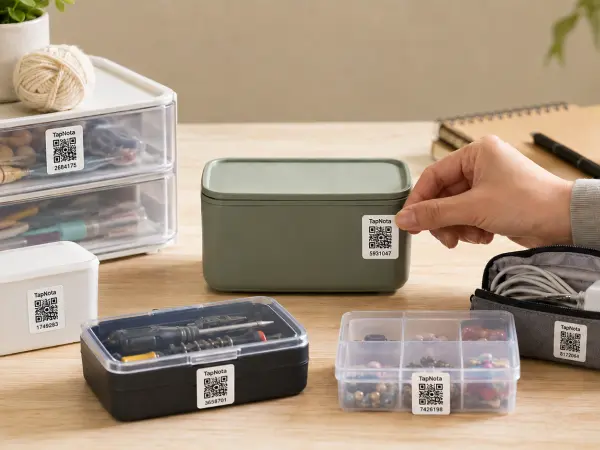
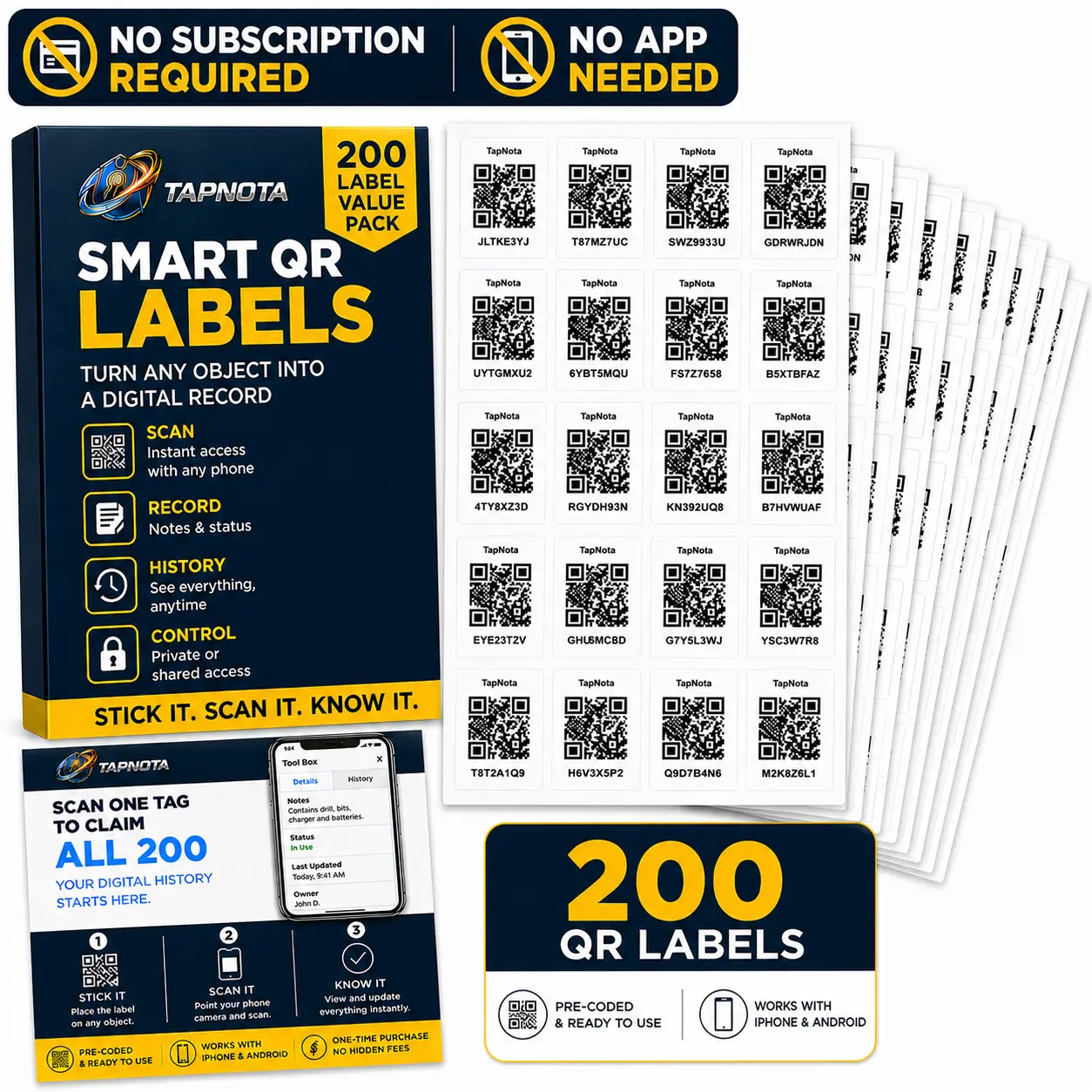
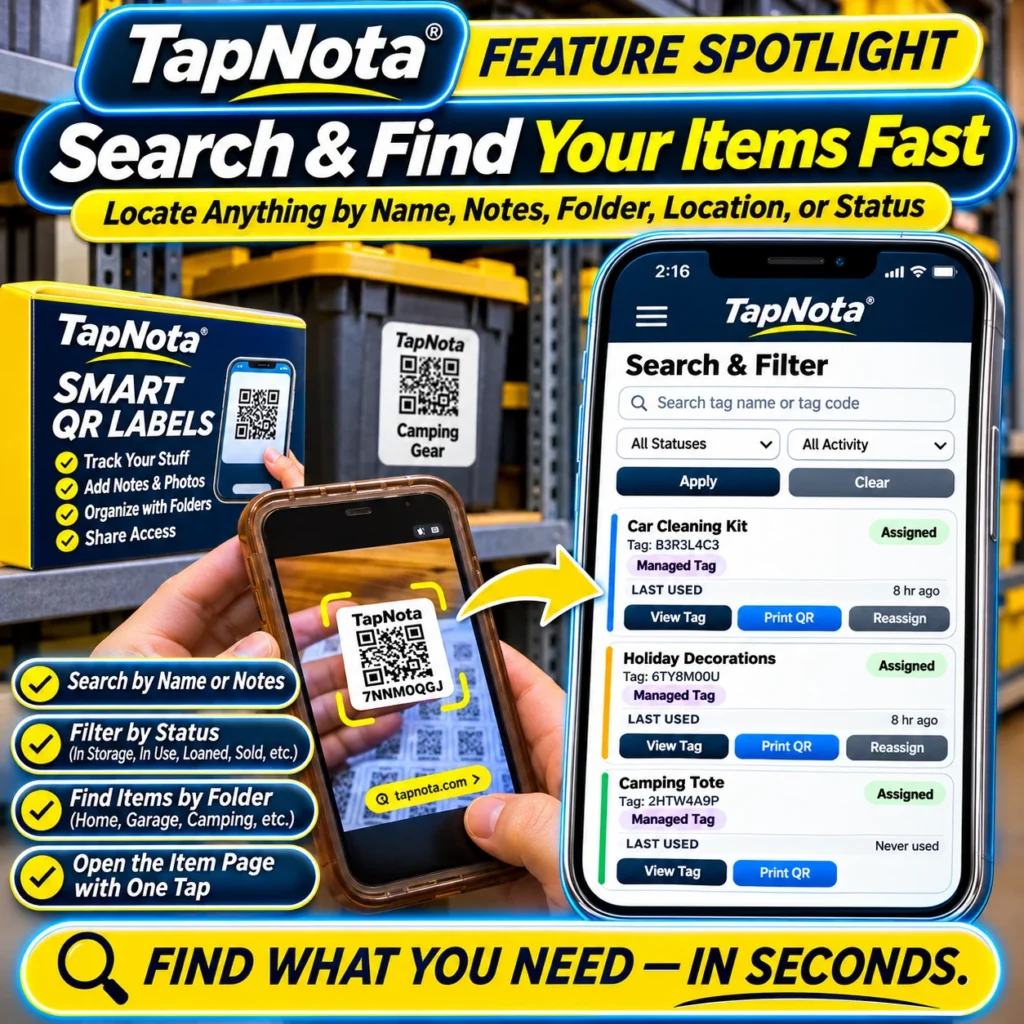
When managing a growing collection of stored items, whether in your home, garage, or business, finding exactly what you need quickly can be a challenge. TapNota’s smart QR label system transforms this process by linking each physical item or bin to a digital Item Page that you can organize and search effortlessly. This article dives into how you can find stored items by searching inventory using TapNota’s powerful web Portal search and filter tools, saving you time and frustration.
Why Searching Your Inventory Matters
Traditional inventory methods like handwritten labels or simple spreadsheets often leave you guessing about what’s inside a box or where a tool is located. TapNota’s system creates a dynamic connection between the physical item and its evolving digital record, allowing you to:
- Search by Name or Notes: Quickly locate items using keywords or detailed notes you’ve saved on each Item Page.
- Filter by Status: Narrow your search by item condition or availability, such as “In Storage,” “Loaned Out,” or “Sold.”
- Find by Folder: Group related items, like “Camping Gear” or “Holiday Decorations,” and search within those categories.
- Track Activity: Filter by recent usage or items never used to prioritize what you need to find.
All these options combine to let you find exactly what you need in seconds, without scanning every label or opening every box.
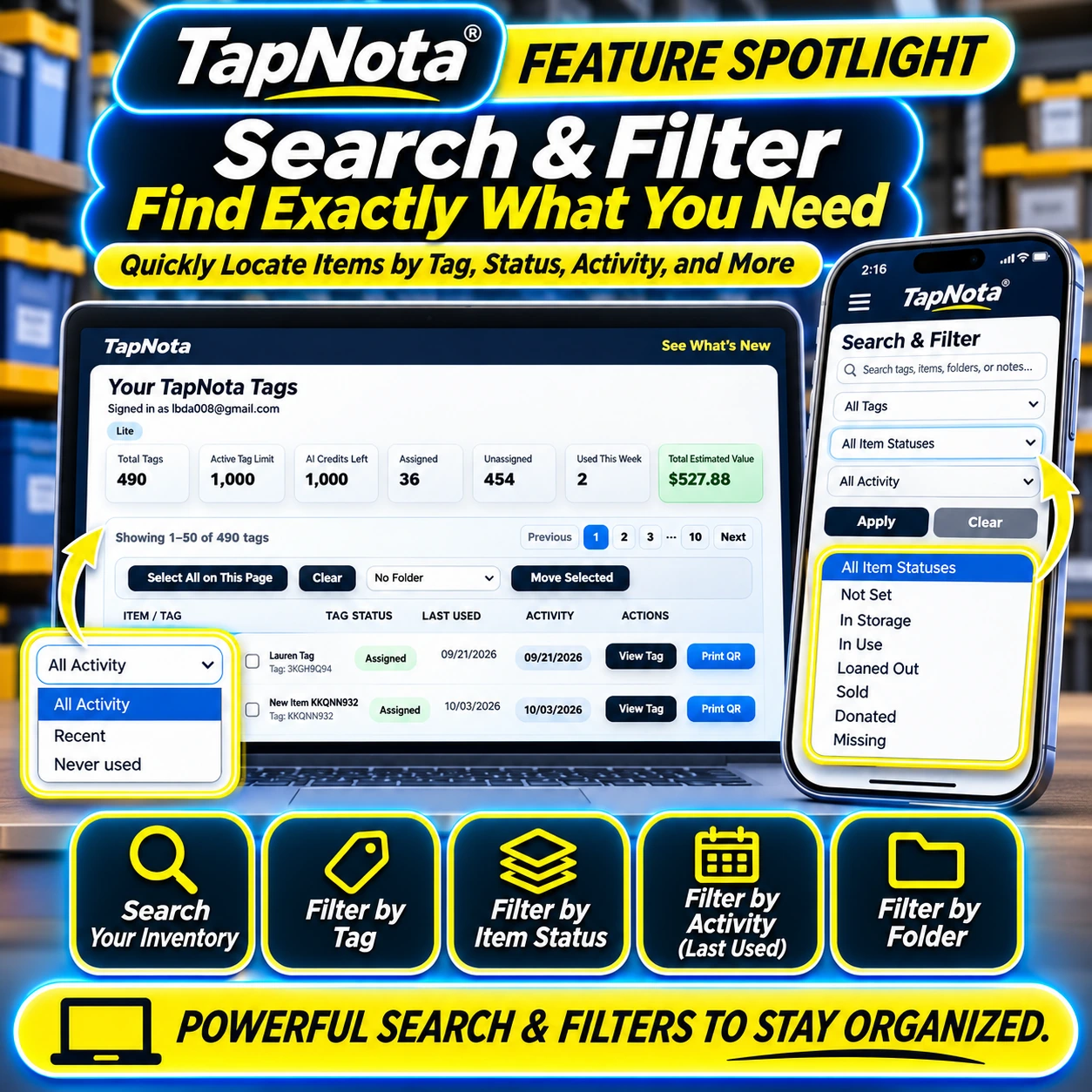
How to Use TapNota’s Search & Filter Features
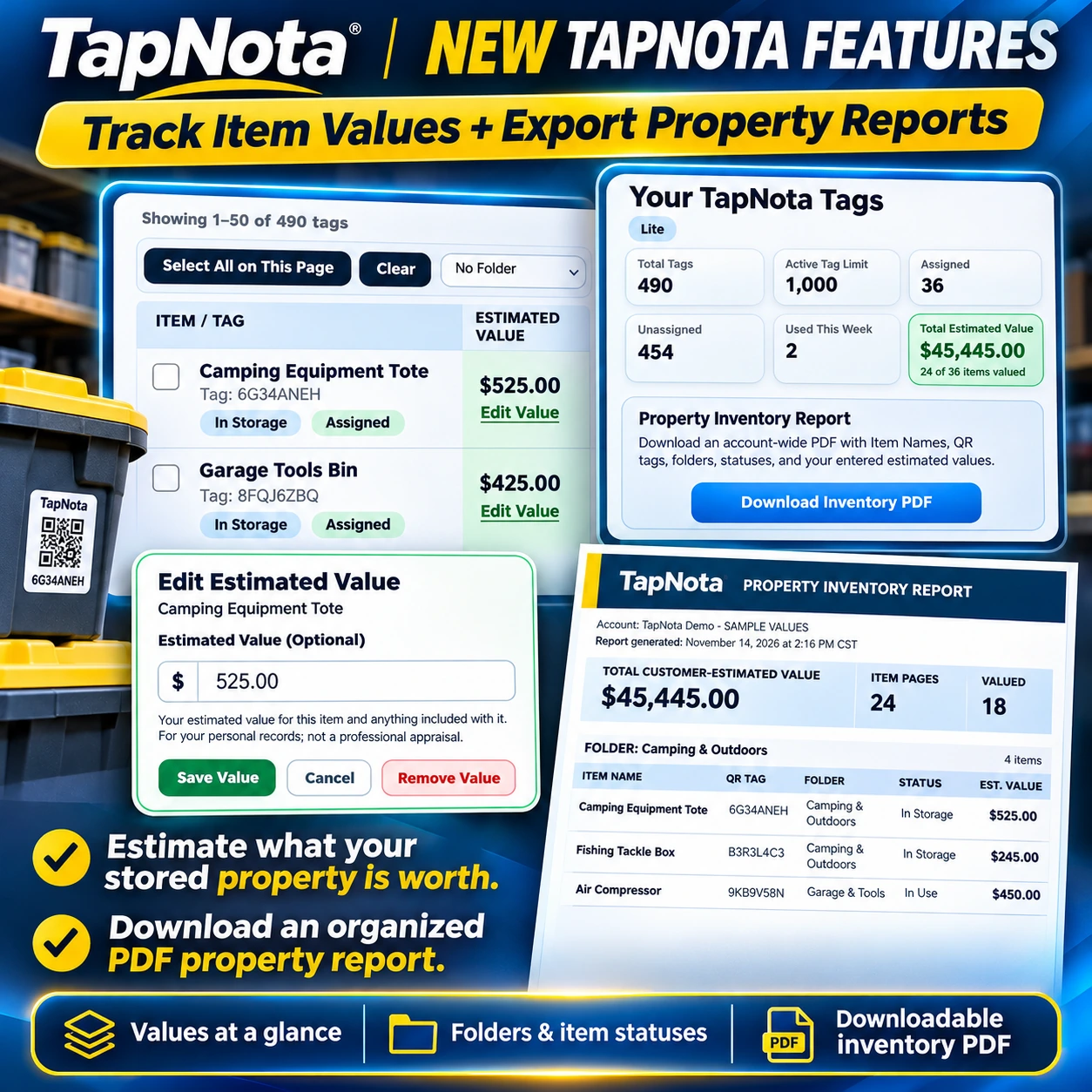
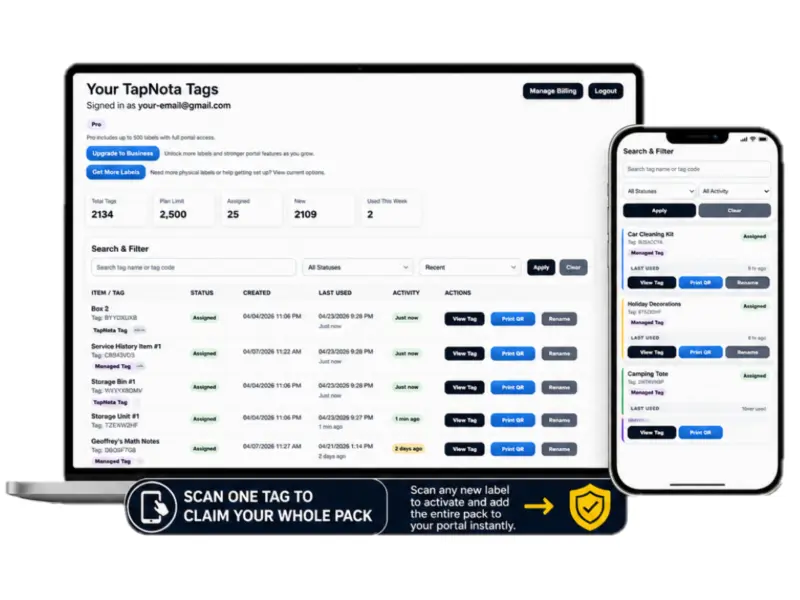
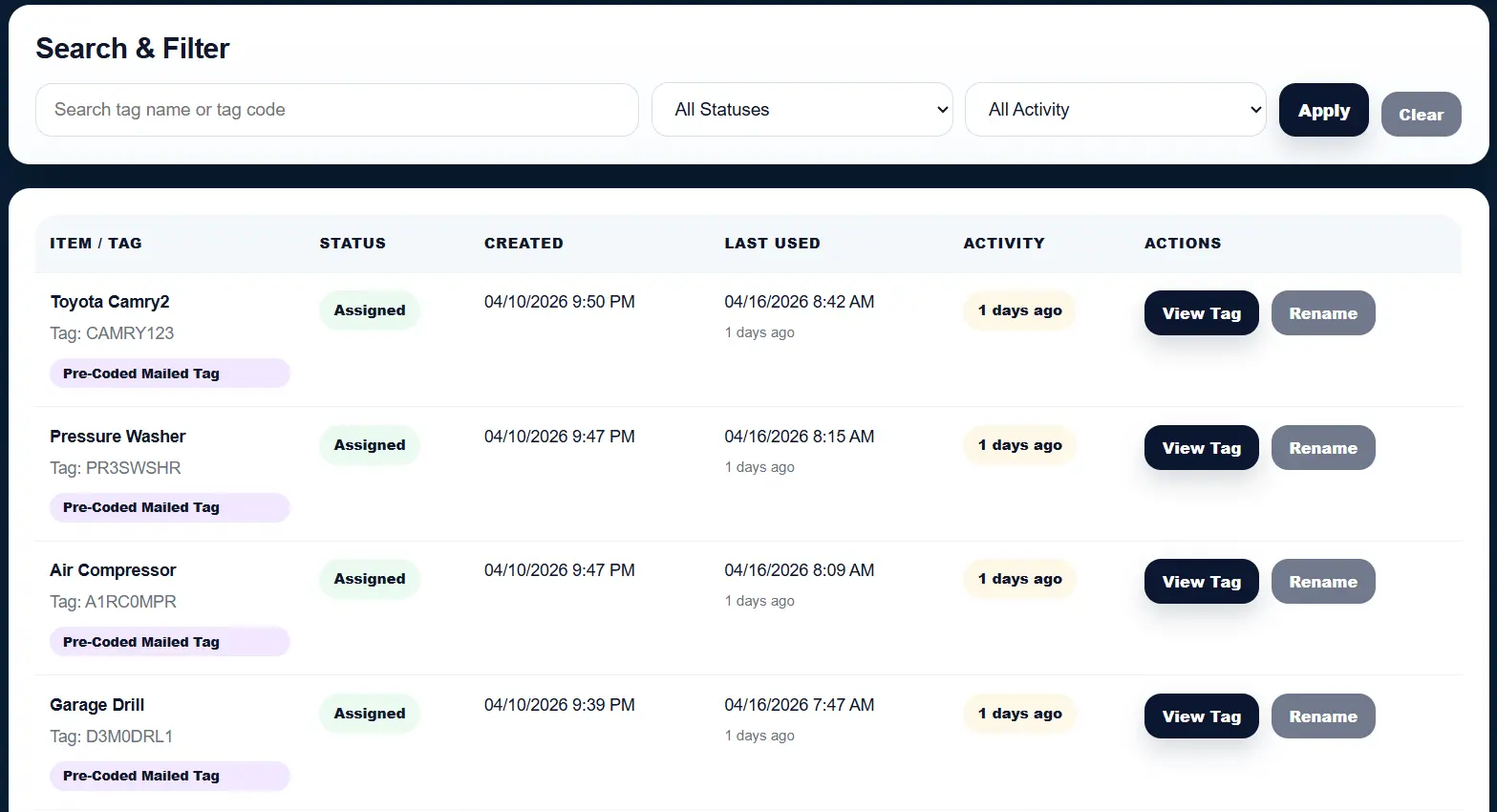
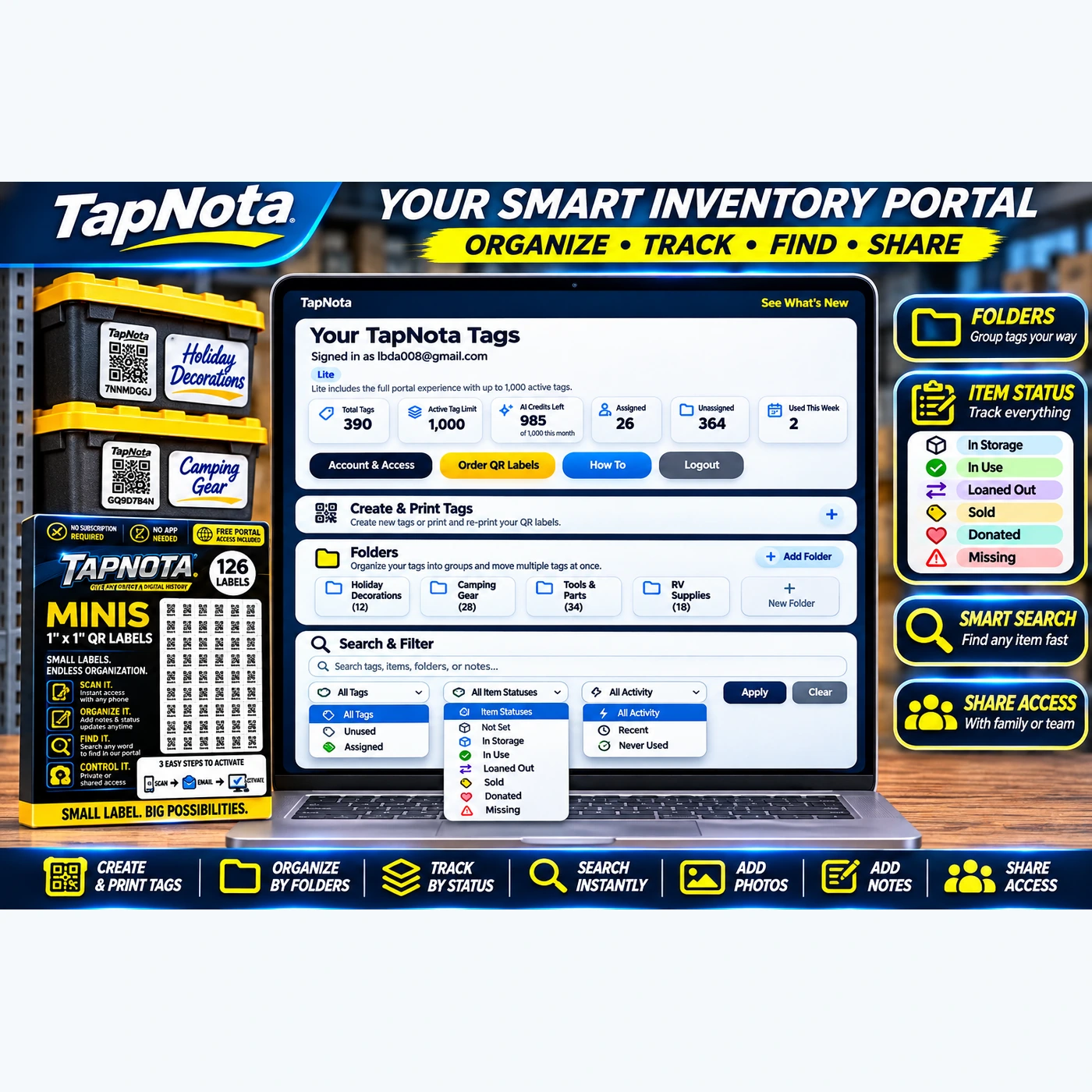
Access the TapNota web Portal from any browser—no app installation required. Once signed in, the search bar and filter dropdowns are prominently displayed, enabling you to:
- Enter Keywords: Type item names, tag codes, folder names, or notes keywords in the search box to locate matching records.
- Select Item Status: Filter by statuses like “Assigned,” “In Use,” or “Missing” to focus your search on relevant items.
- Choose Activity Level: Filter items by last used date or usage activity, such as recent, never used, or all activity.
- Apply Folder Filters: Limit search results to specific folders or categories you’ve created for better organization.
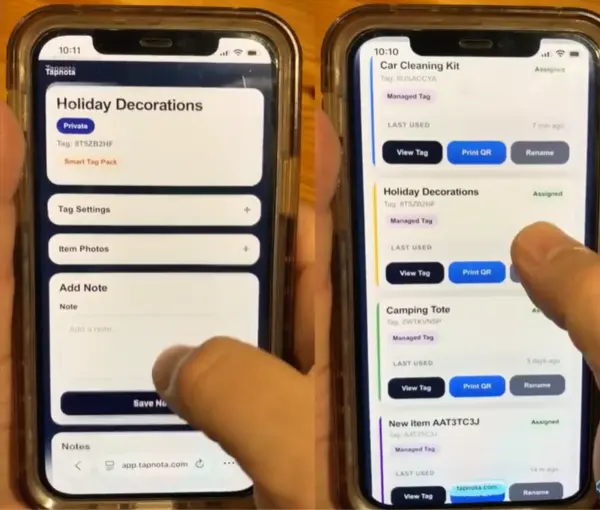
- View & Manage Results: Click “View Tag” to open the Item Page for details, add notes, photos, or update status without scanning the physical label again.
This multi-layered search and filter approach lets you pinpoint items even in large inventories, making TapNota ideal for everything from seasonal decorations to business equipment.
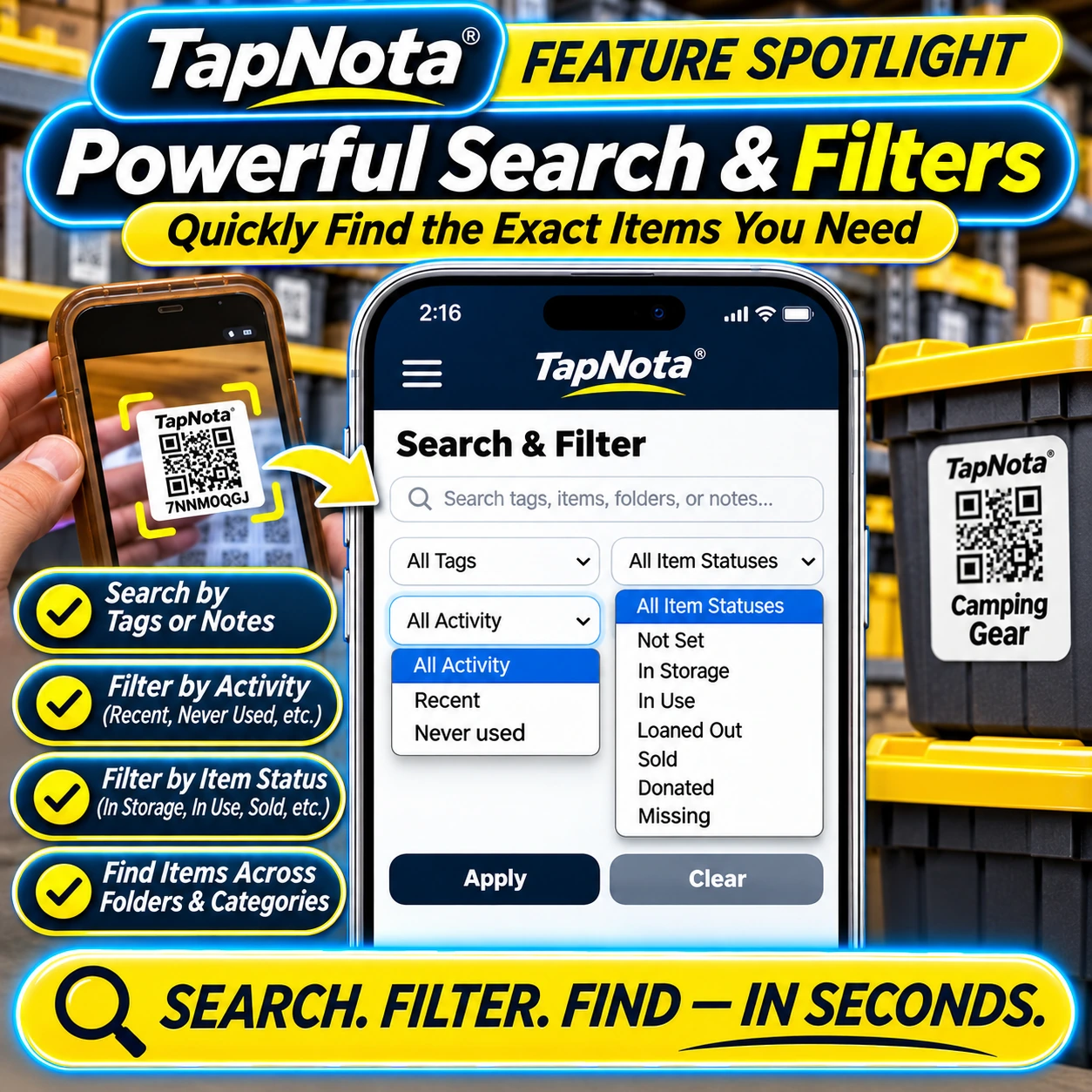
Organize Your Inventory for Faster Search
Effective searching starts with thoughtful organization. TapNota encourages you to:
- Create Folders: Group items logically by location, type, or use case, such as “Garage Tools,” “Camping Gear,” or “Office Supplies.”
- Assign Status: Keep track of whether items are “In Storage,” “Loaned Out,” or “Sold” to filter accordingly.
- Add Detailed Notes & Photos: Enhance each Item Page with descriptions, serial numbers, manuals, or condition updates for richer search results.
- Use Tags: Add custom tags to items to enable quick filtering and cross-referencing across folders.
Once organized, your inventory becomes a searchable digital database accessible anytime, anywhere.
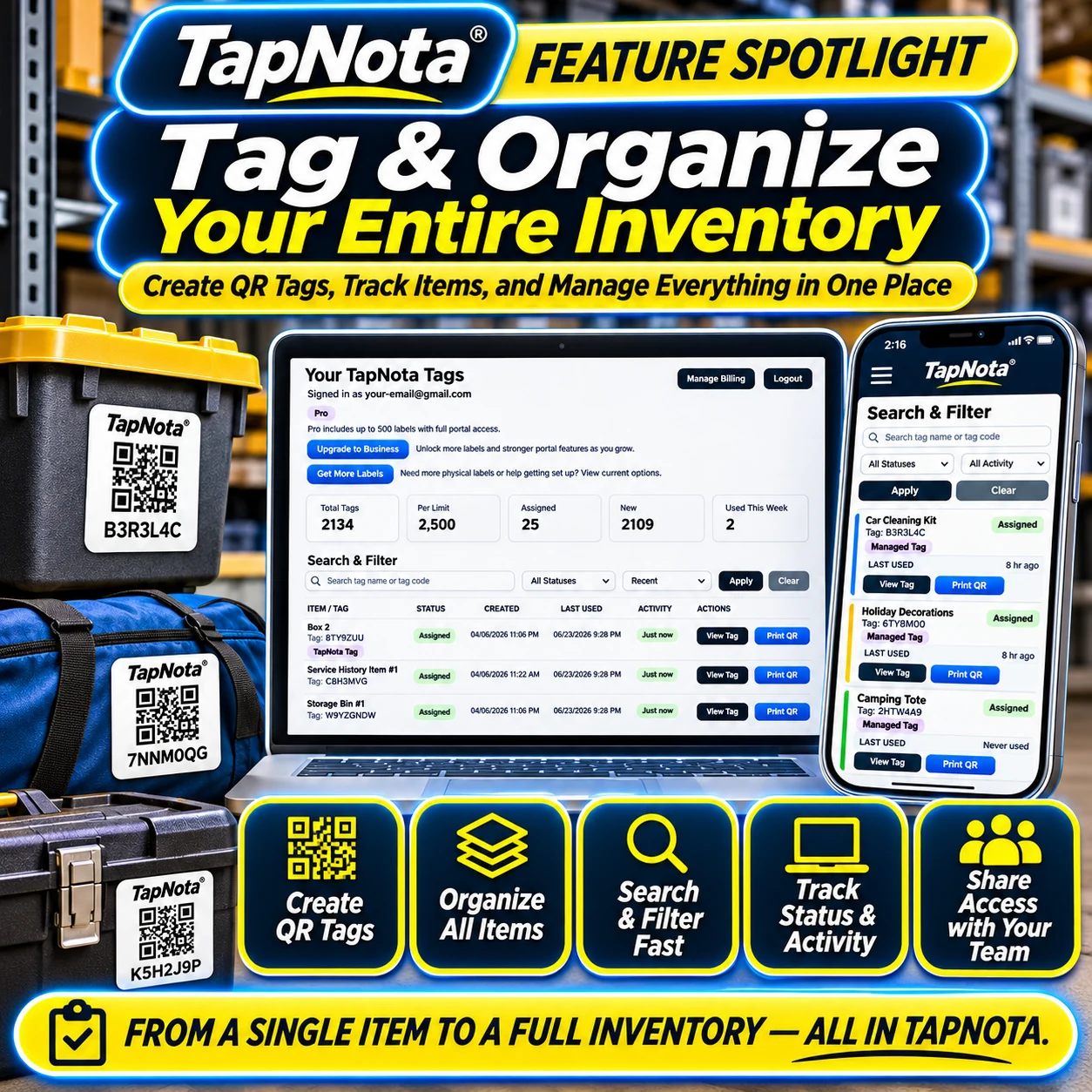
Collaborate and Share Access
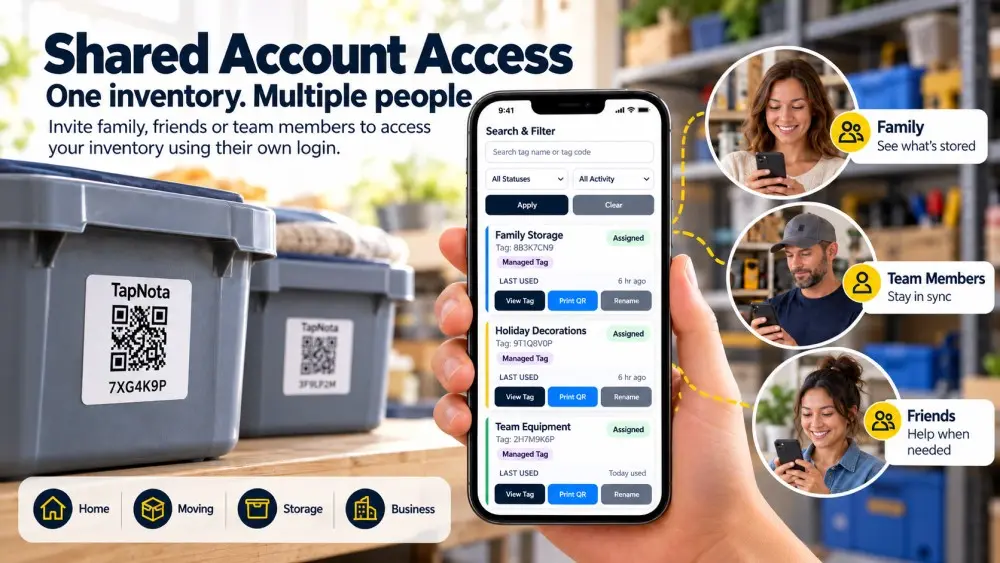
TapNota supports shared account access, so family members or team collaborators can log in with their own credentials to search and update the inventory. You can also share individual Item Pages via secure links for quick reference without giving full account access.
Tips for Finding Items Without Scanning
Unlike scanning a QR label that only opens its specific Item Page, TapNota’s Portal lets you search across all your saved records without needing the physical label in hand. This is especially useful when you know what you want but don’t know which box or bin it’s in. Use the search bar and filters to find the item, then note its folder or location before retrieving it physically.
Summary
TapNota’s powerful search and filtering system transforms how you find stored items by connecting physical QR labels to rich, editable digital records. By organizing your inventory with folders, statuses, and detailed notes, you can locate exactly what you need in seconds—without opening every box or scanning every label. Whether for home, business, or seasonal storage, mastering TapNota’s search tools saves time and keeps your belongings under control.
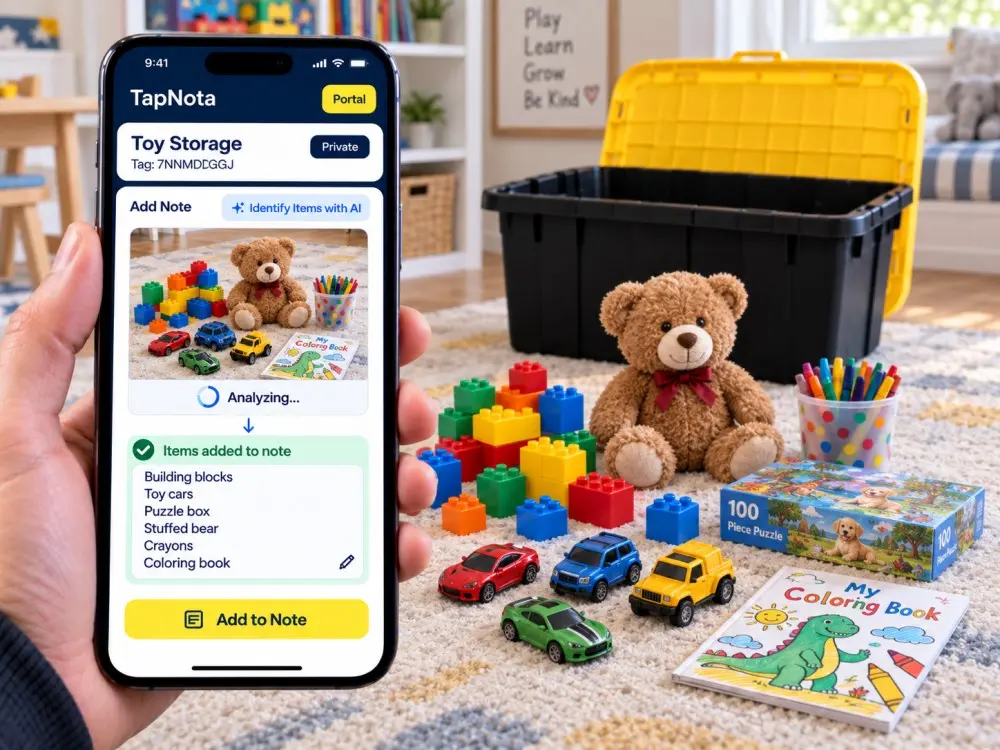
For more on organizing and searching your inventory, explore related posts like Master Seasonal Storage: Find Your Backstock Fast with TapNota and How to Use TapNota’s AI-Powered Item Recognition to Build Your Inventory Fast.
Frequently Asked Questions
Can I search my entire TapNota inventory without scanning QR labels?
Yes. TapNota's web Portal allows you to search all saved item names, notes, folders, and tags without scanning physical labels.
How do item status filters help in searching?
Item status filters let you narrow results by categories like In Storage, Loaned Out, Sold, or Missing, making it easier to find items based on their current condition.
Can I find items grouped in specific folders?
Absolutely. You can create folders to organize items and then filter your search to only show items within those folders.
Is it possible to share inventory search results with others?
You can share individual Item Pages via secure links or invite family/team members to access the full inventory with their own login credentials.
Does TapNota require a mobile app to search inventory?
No. TapNota’s search and filter features are accessed via a browser-based web Portal with no app installation needed.