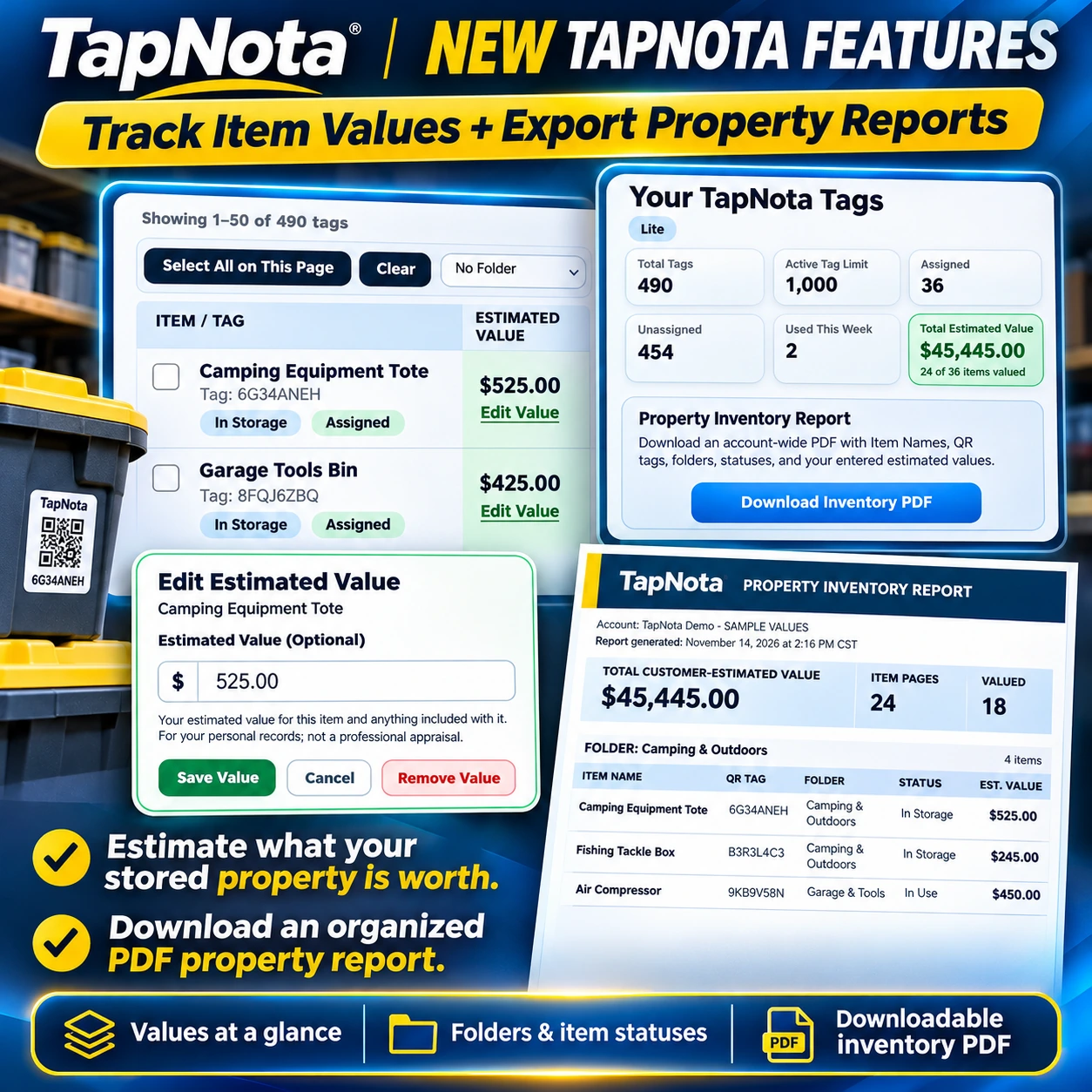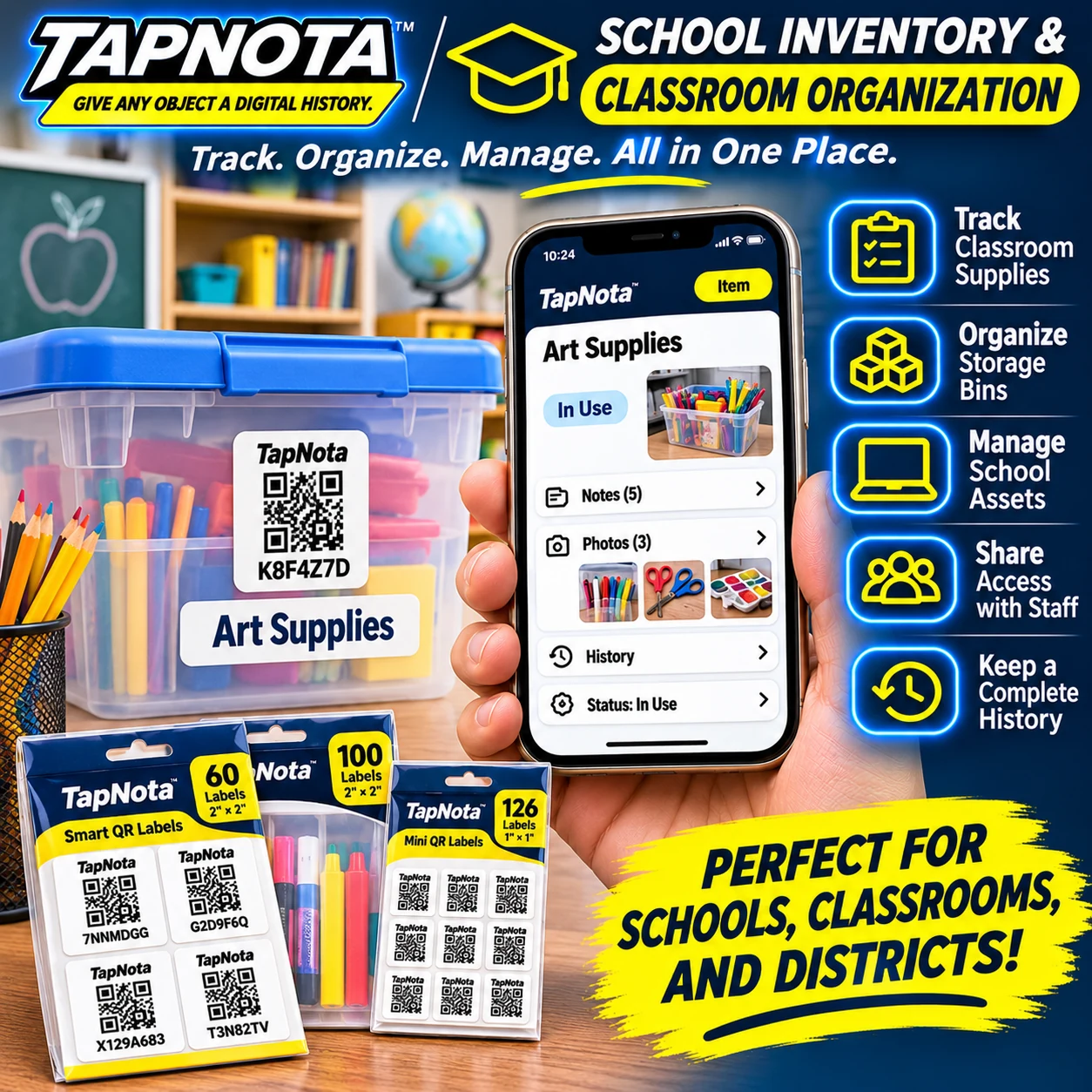
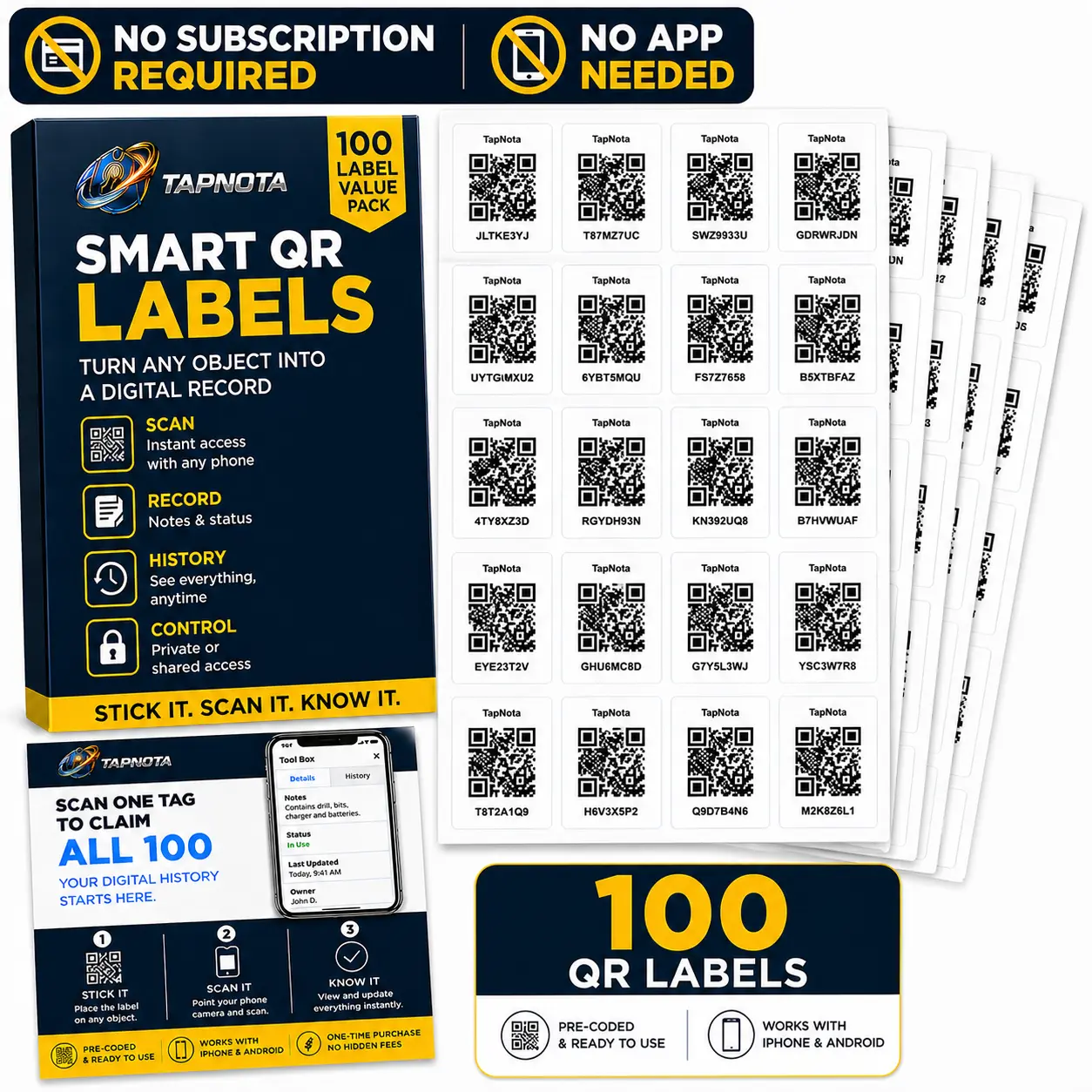
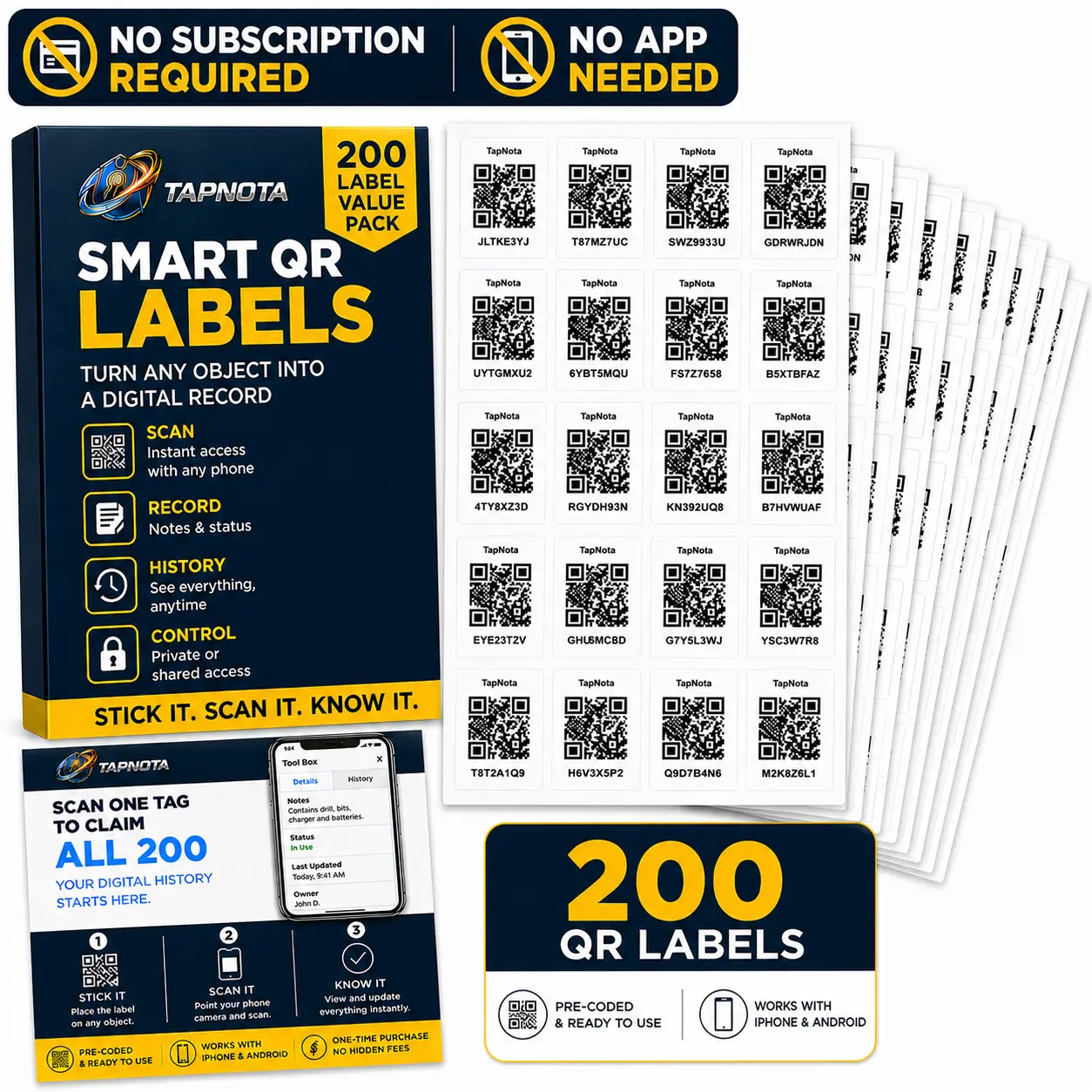
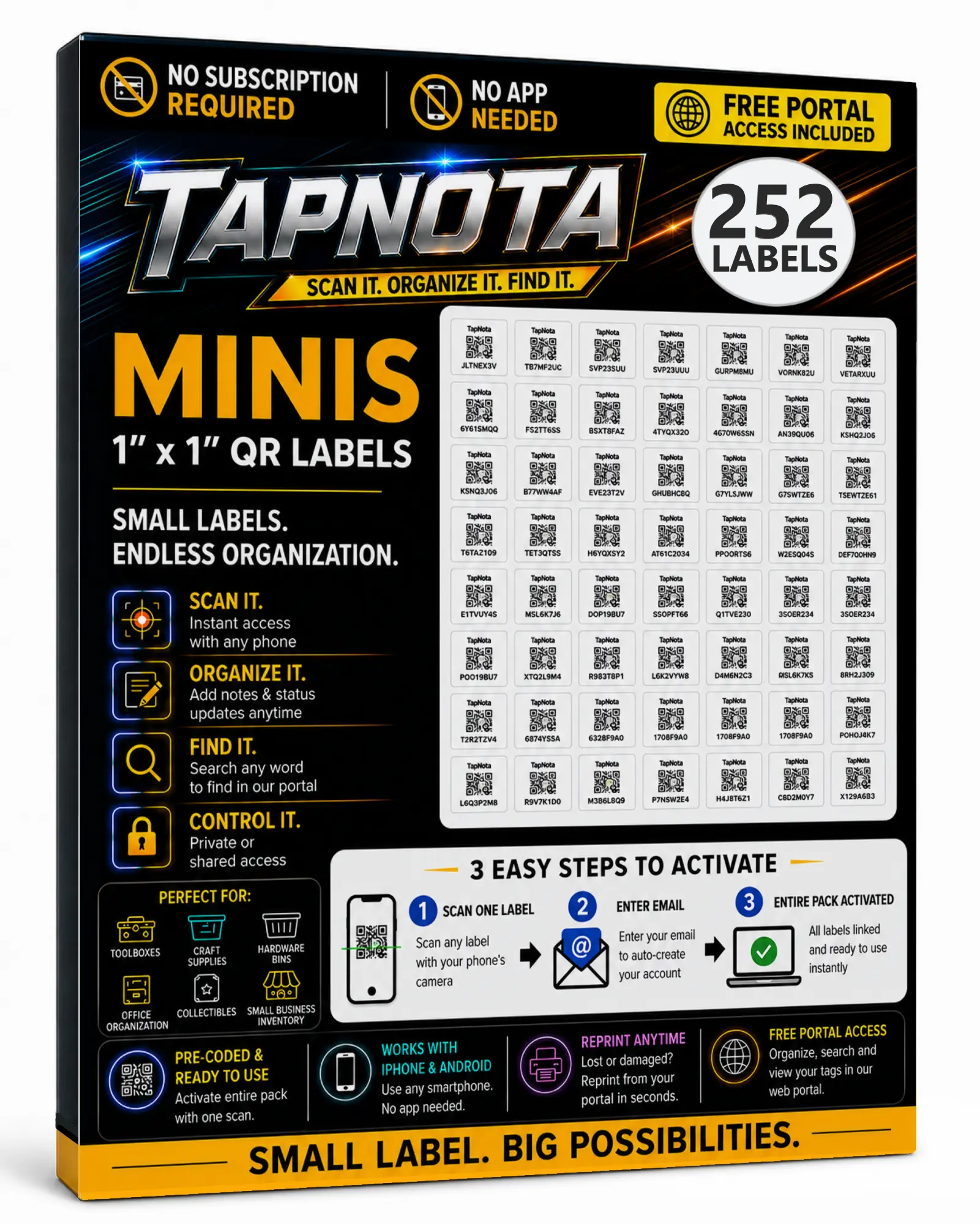
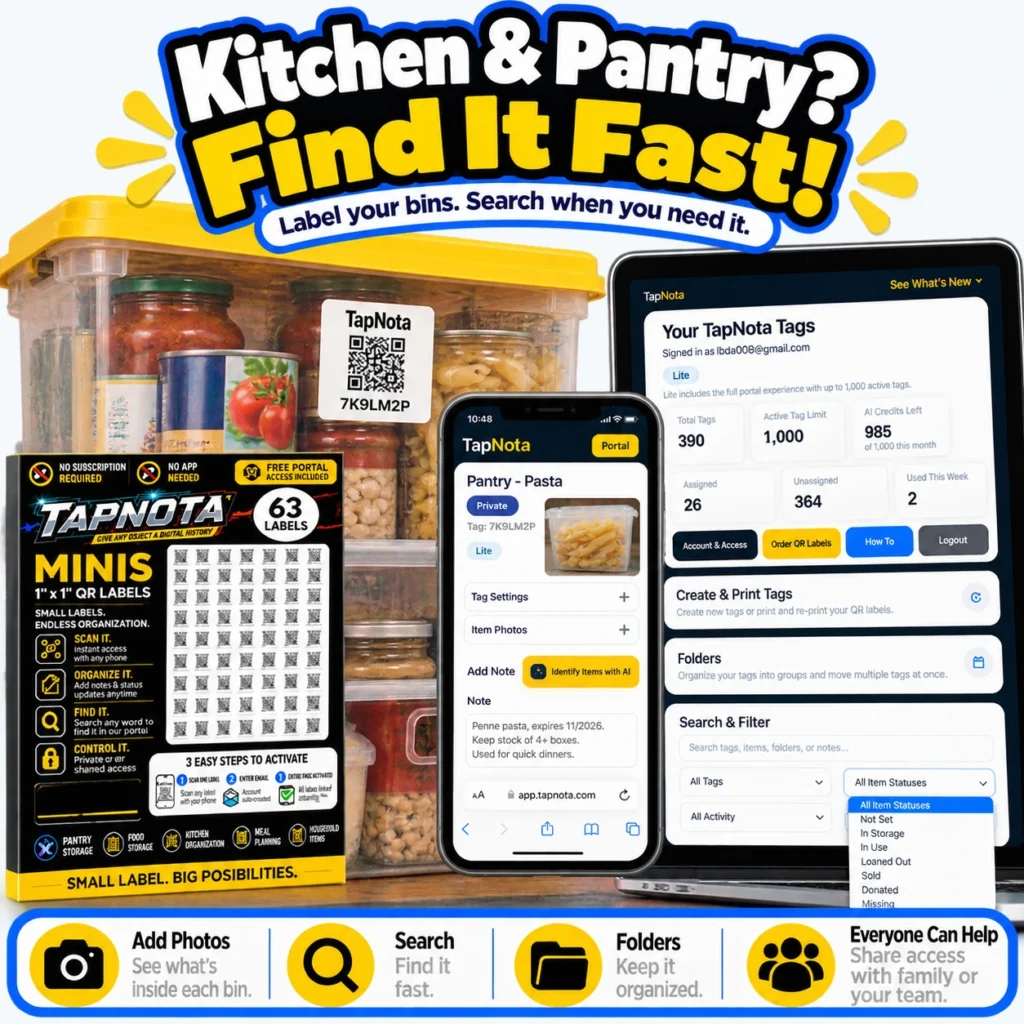
Organizing a kitchen pantry can be a daunting task, especially when you have numerous containers, appliances, and ingredients stored in various bins and shelves. TapNota offers a smart, physical-to-digital labeling system that transforms how you manage your kitchen storage. By attaching pre-coded smart QR labels to your bins and containers, TapNota connects each physical item to a dynamic digital record accessible anytime via a web Portal.
Why Use TapNota for Kitchen Pantry Organization?
Unlike traditional handwritten labels or static spreadsheets, TapNota’s system links each QR label to a unique Item Page where you can add detailed information such as contents, notes, photos, expiration dates, and more. This evolving digital record grows with your pantry, making it easy to track what’s inside each bin without opening it.
Key Benefits Include:
- Instant Access: Scan a QR label to open its specific Item Page on any device. No app installation needed.
- Detailed Records: Add permanent photos of contents, notes about expiration or usage, and manuals or recipes linked to kitchen gadgets.
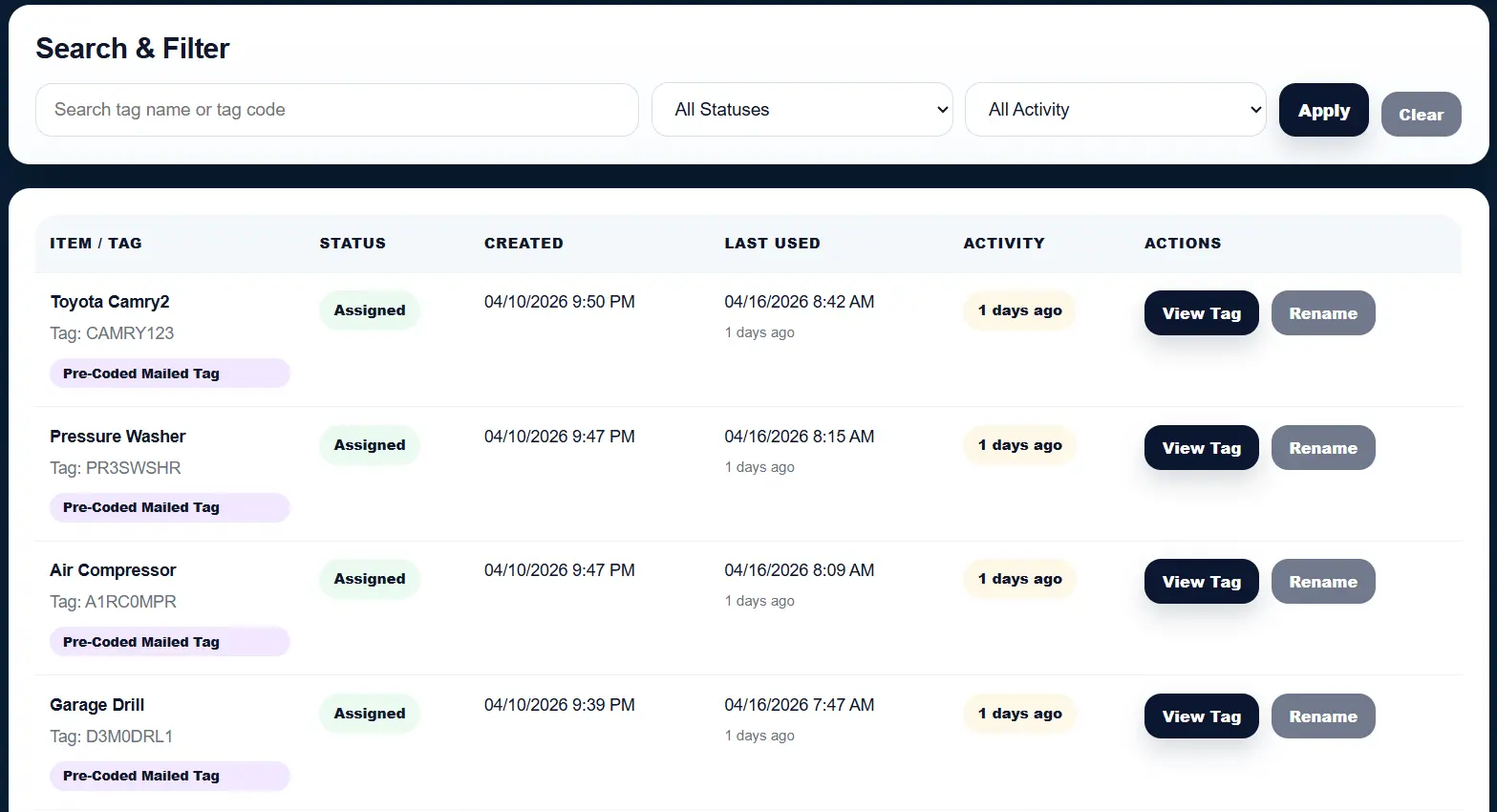
- Search Without Scanning: Use the TapNota web Portal to search by item names, notes, or tags even if you don’t have the physical label in hand.
- Folders & Organization: Group your bins into folders such as “Baking Supplies,” “Pasta & Grains,” or “Small Appliances” for easy browsing.
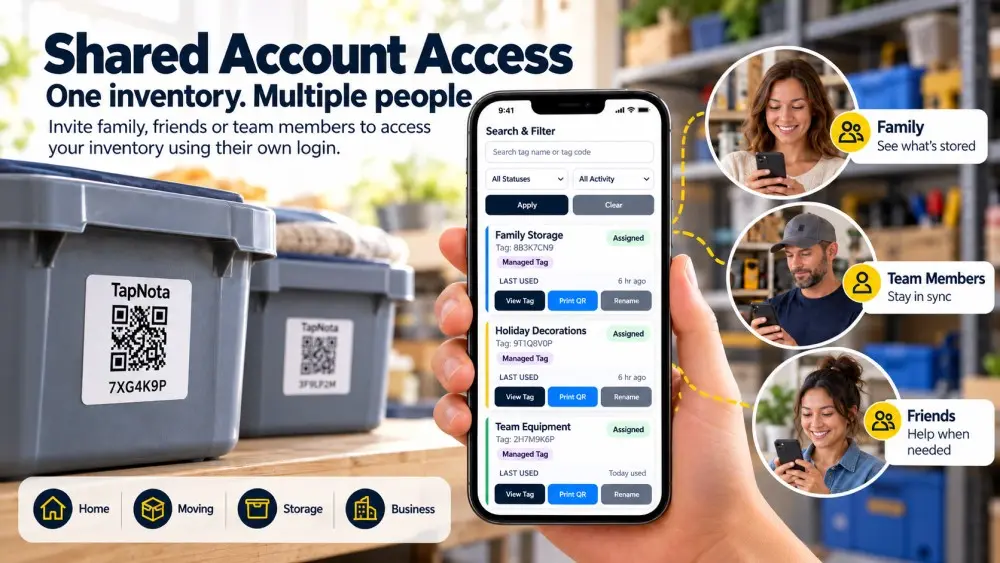
- Sharing: Share individual Item Pages or invite family members to access the entire pantry inventory with their own logins.
- Reprint QR Labels: If a label gets damaged, reprint without losing the linked data or history.
Step-by-Step Guide to Organizing Your Kitchen Pantry with TapNota
1. Attach Labels to Your Storage Bins
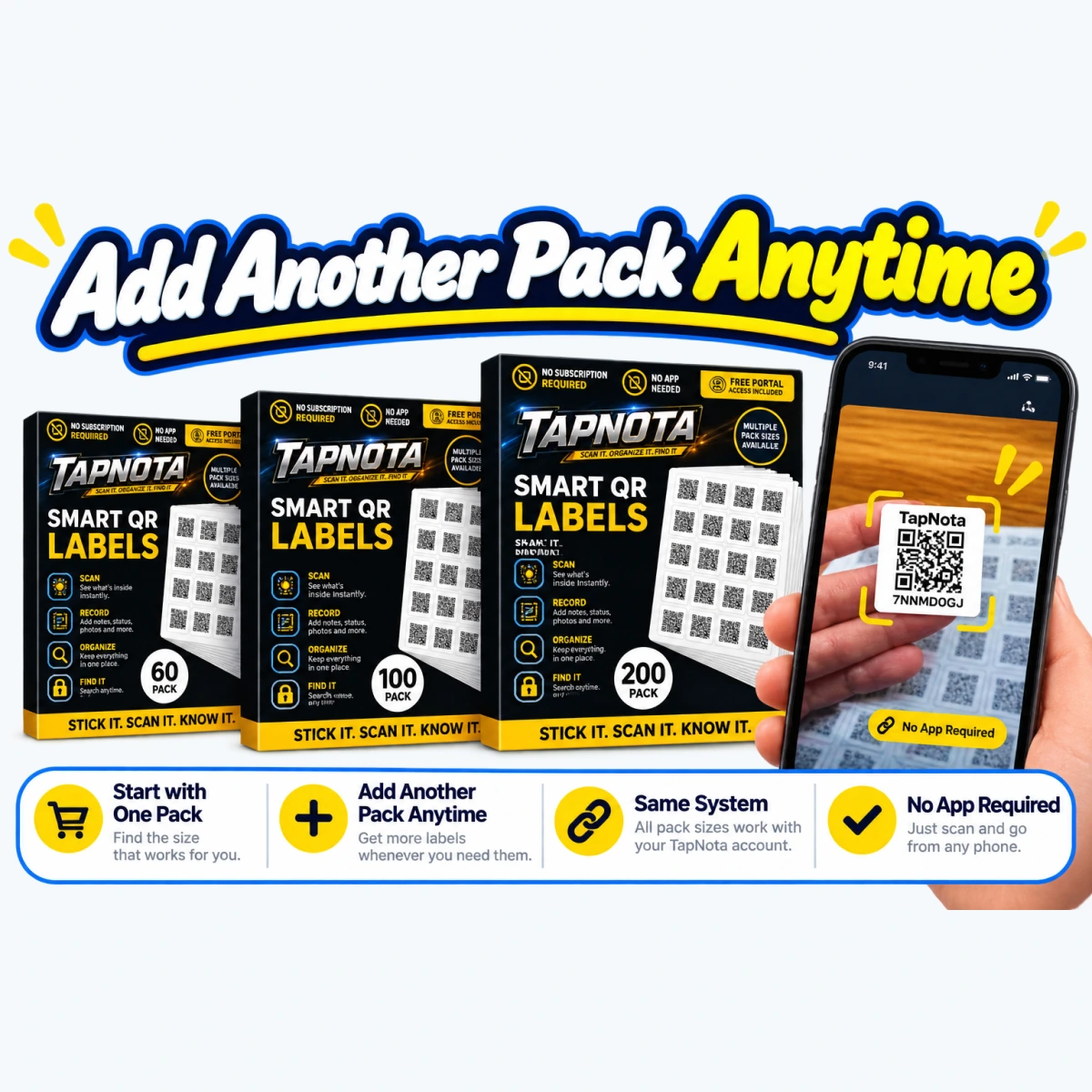
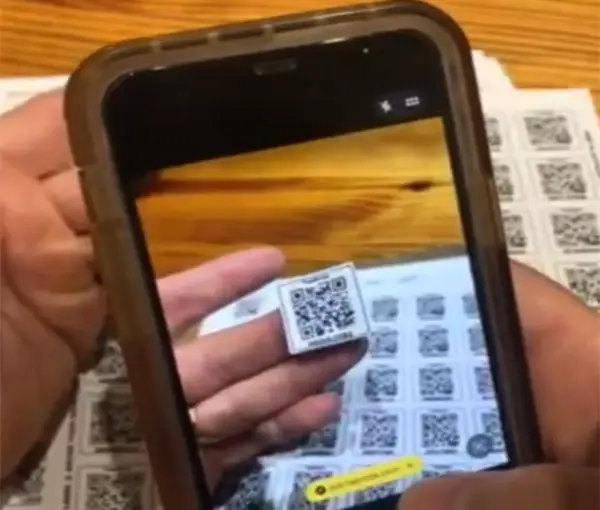
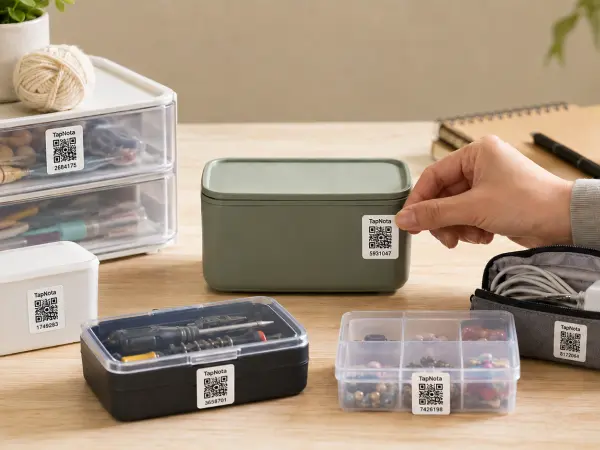
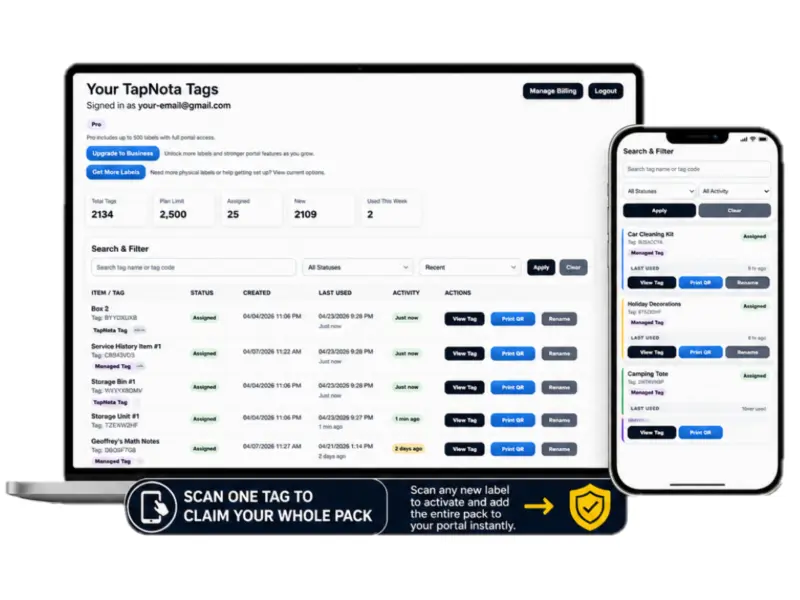
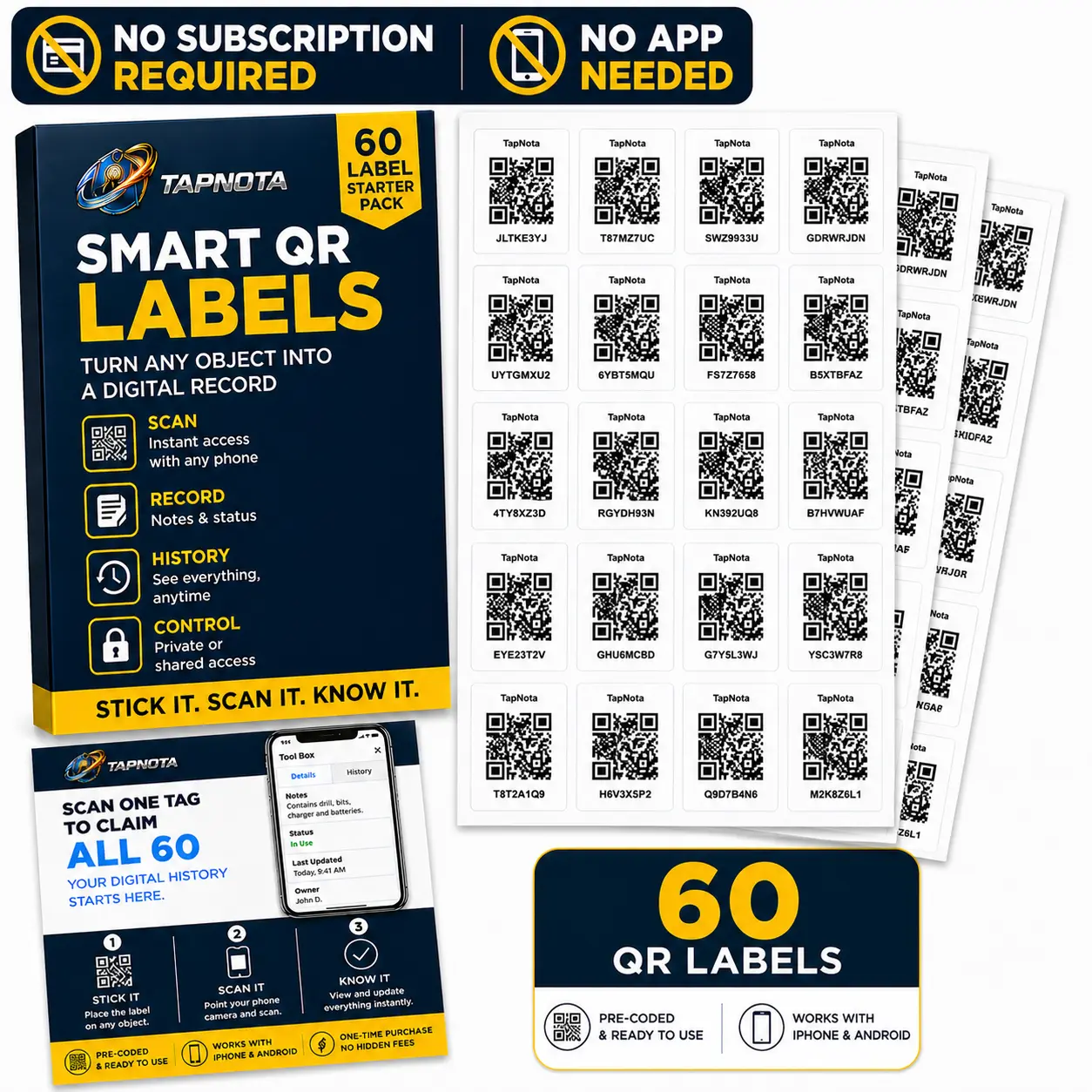
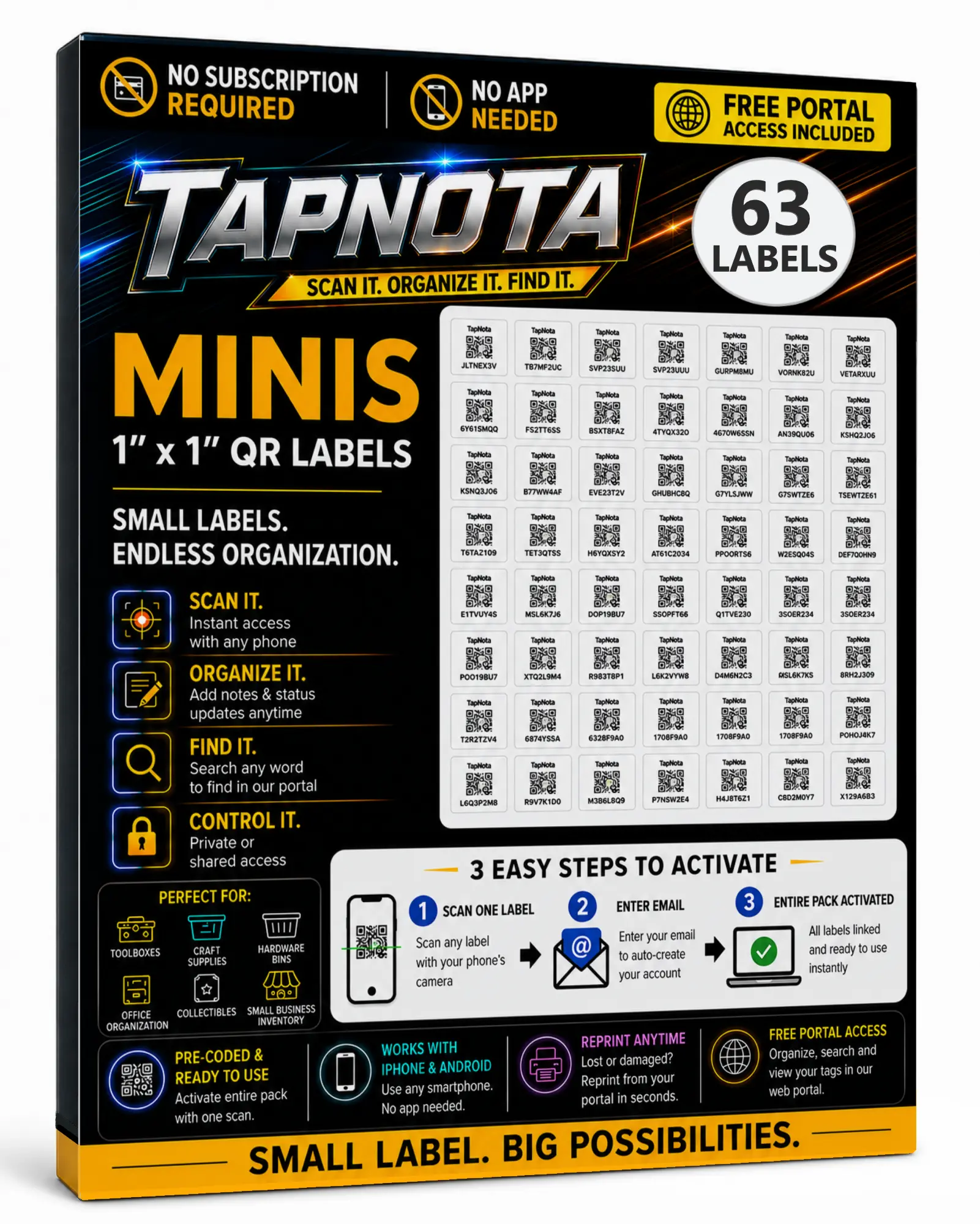
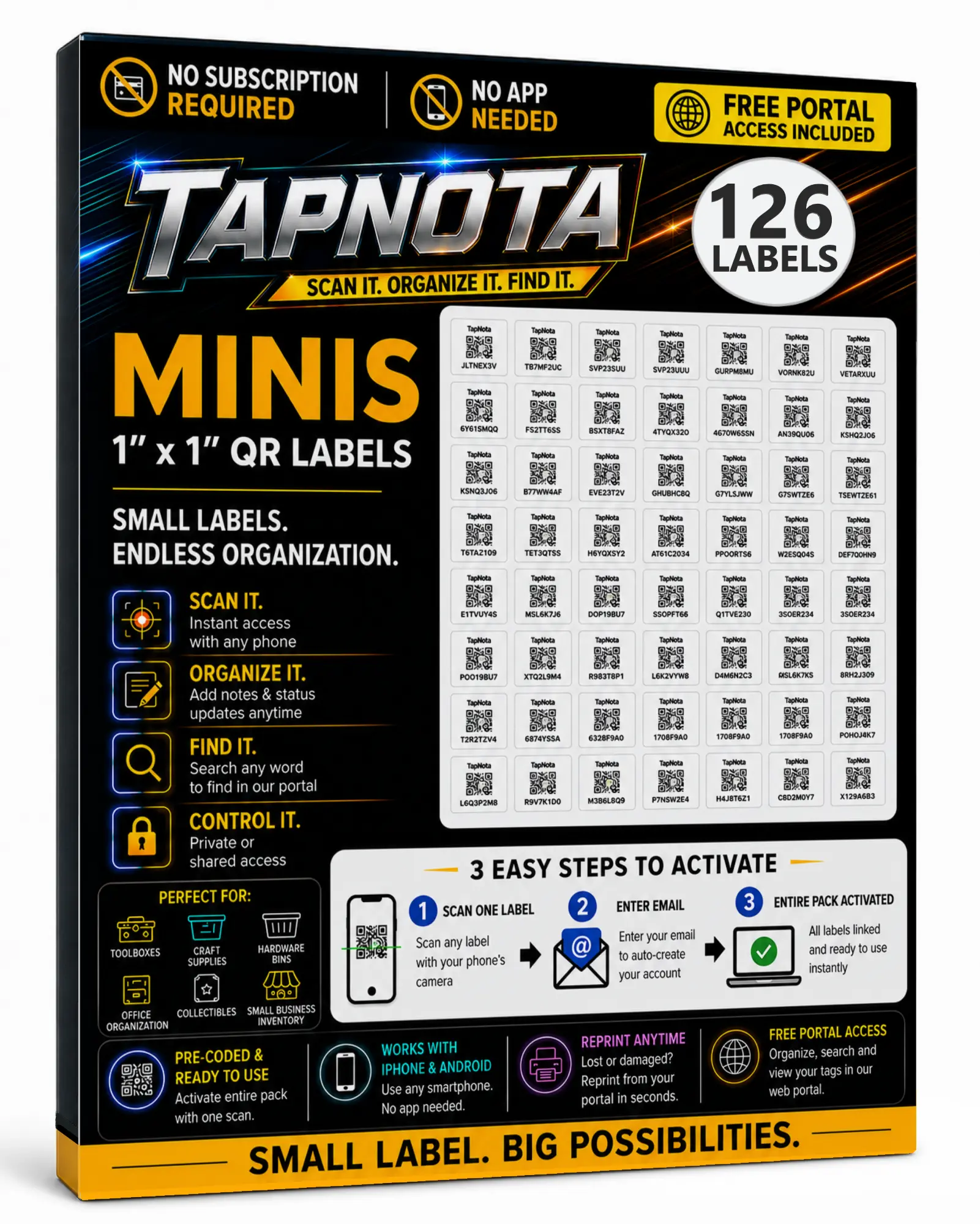
Start by sticking TapNota’s 1″ x 1″ Mini QR labels on your pantry bins, containers, or shelves. Each label is pre-coded and ready to activate as part of your account. For purchased packs, scanning any one label and verifying your email activates the entire pack—no need to activate each label individually.
2. Create and Customize Item Pages
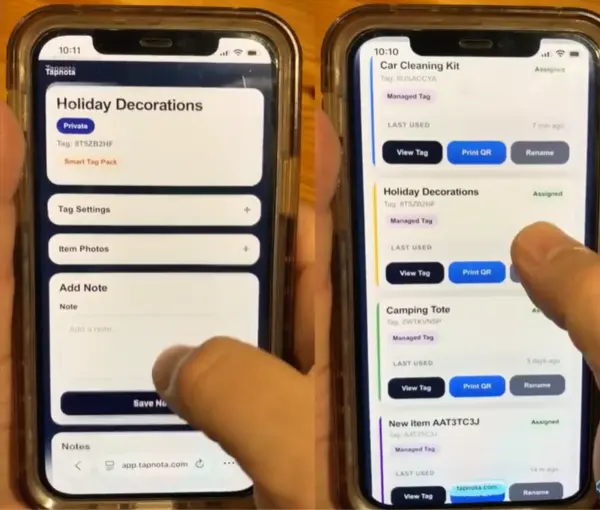
Scan a label to open its Item Page. Add a descriptive name like “Pantry – Pasta,” upload photos of the contents, and include notes such as expiration dates or quantity. You can even add manuals or instructions for kitchen appliances stored in bins.
3. Use AI to Identify Contents (Optional)
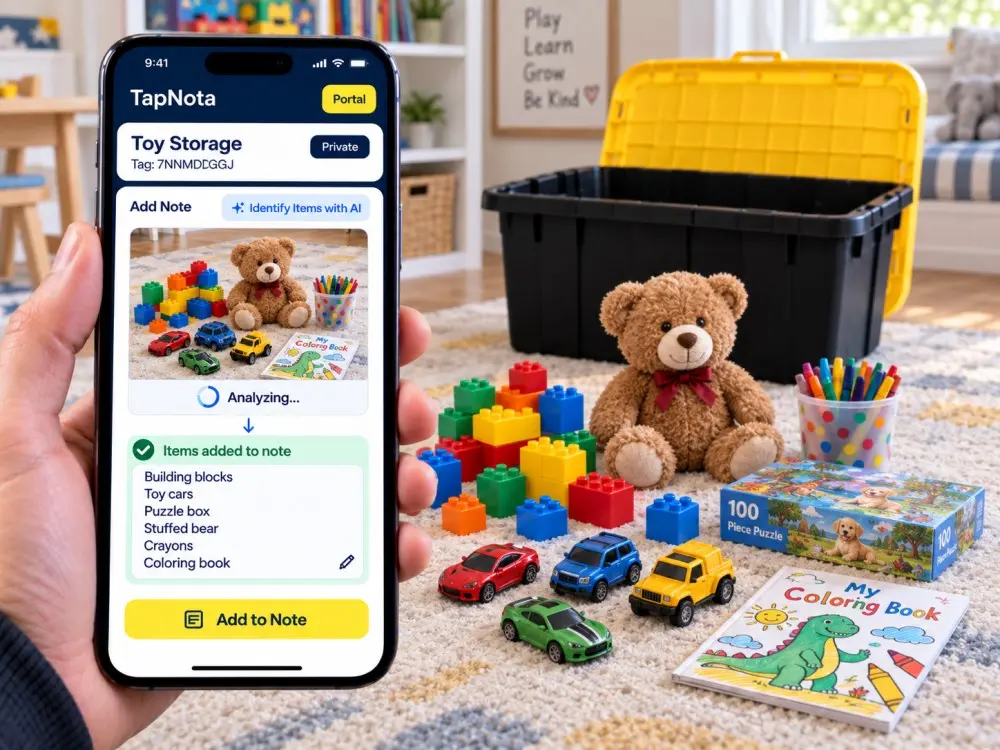
If you want a quick start, use TapNota’s optional AI feature by taking a photo of the visible contents. The AI suggests a list of likely items, which you can review, edit, and save. This helps build your inventory faster but requires your review to ensure accuracy.
4. Organize with Folders and Tags
Group your Item Pages into folders such as “Baking,” “Cooking Utensils,” or “Meal Prep.” Use tags to mark items by status (e.g., “In Use,” “Stored,” “Expired”) or type (e.g., “Appliances,” “Dry Goods”). This structure makes searching and filtering your pantry inventory effortless.
5. Search and Find What You Need Fast
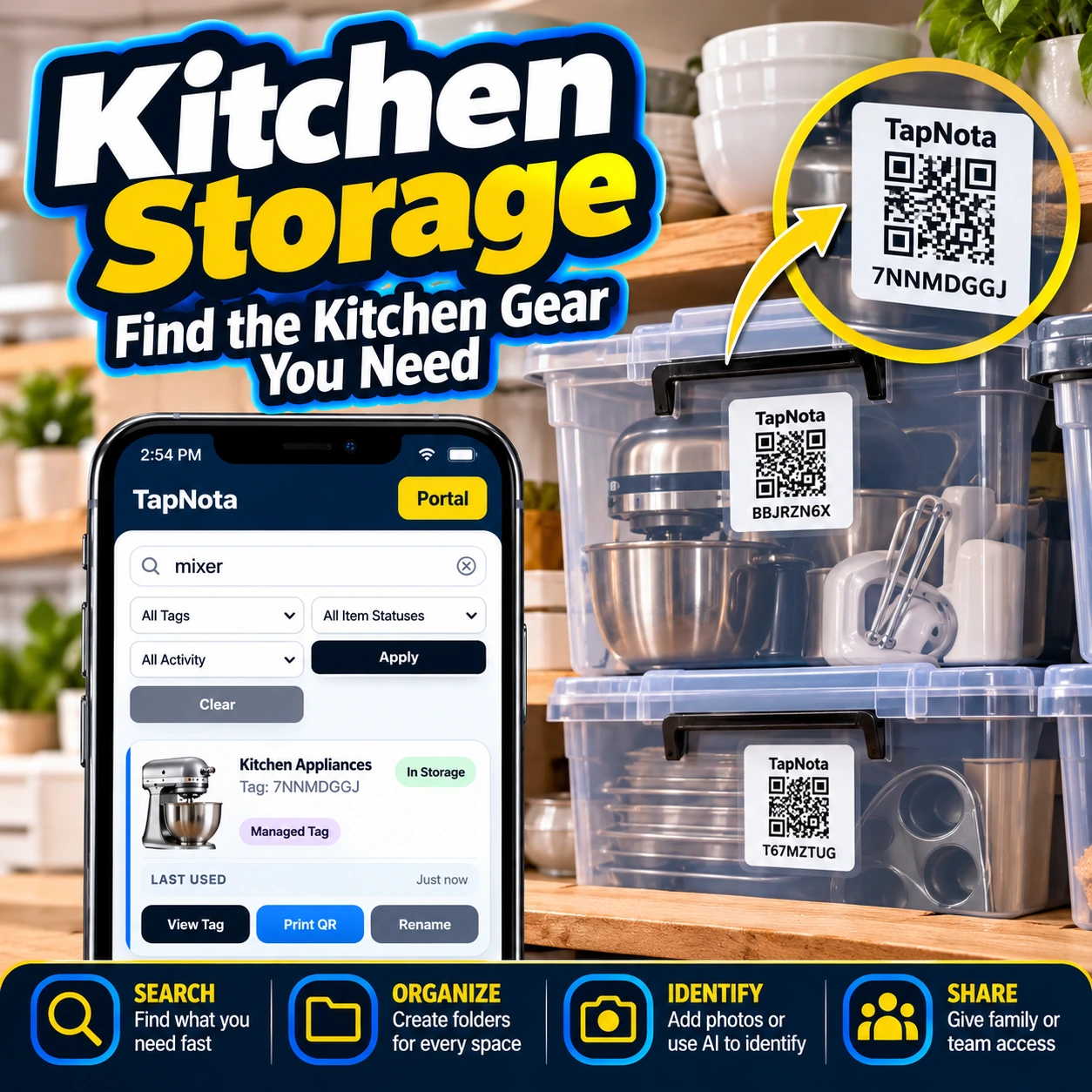
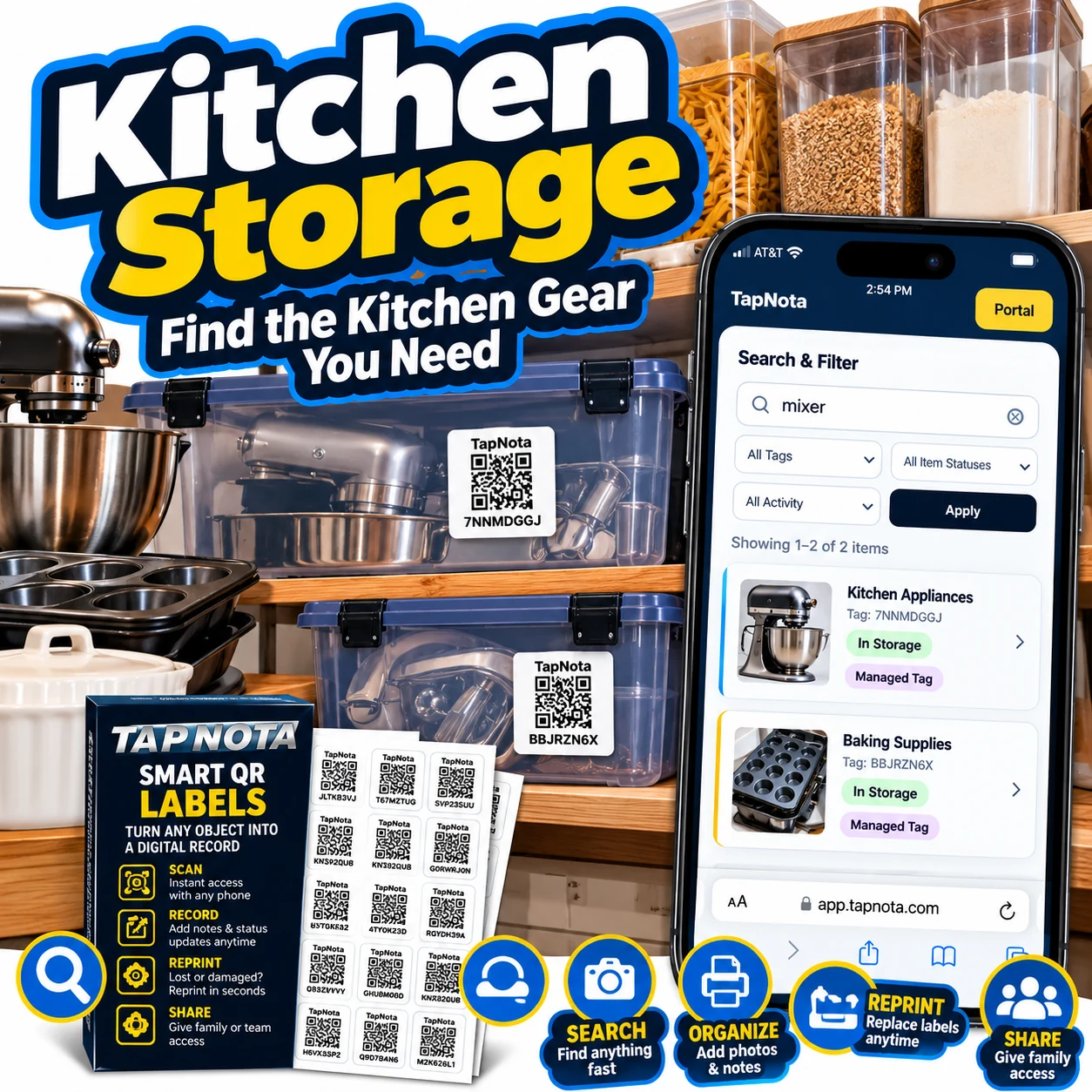
The TapNota Portal’s powerful search lets you find items by name, tag, or note text without needing to scan the physical label first. For example, searching “mixer” immediately shows all bins or appliances related to mixers, their storage status, and photos.
6. Share Access with Family or Helpers
Give family members or kitchen helpers access by sharing individual Item Pages or inviting them as authorized users on your account. Each user logs in with their own credentials, while you retain full control over administration and billing.
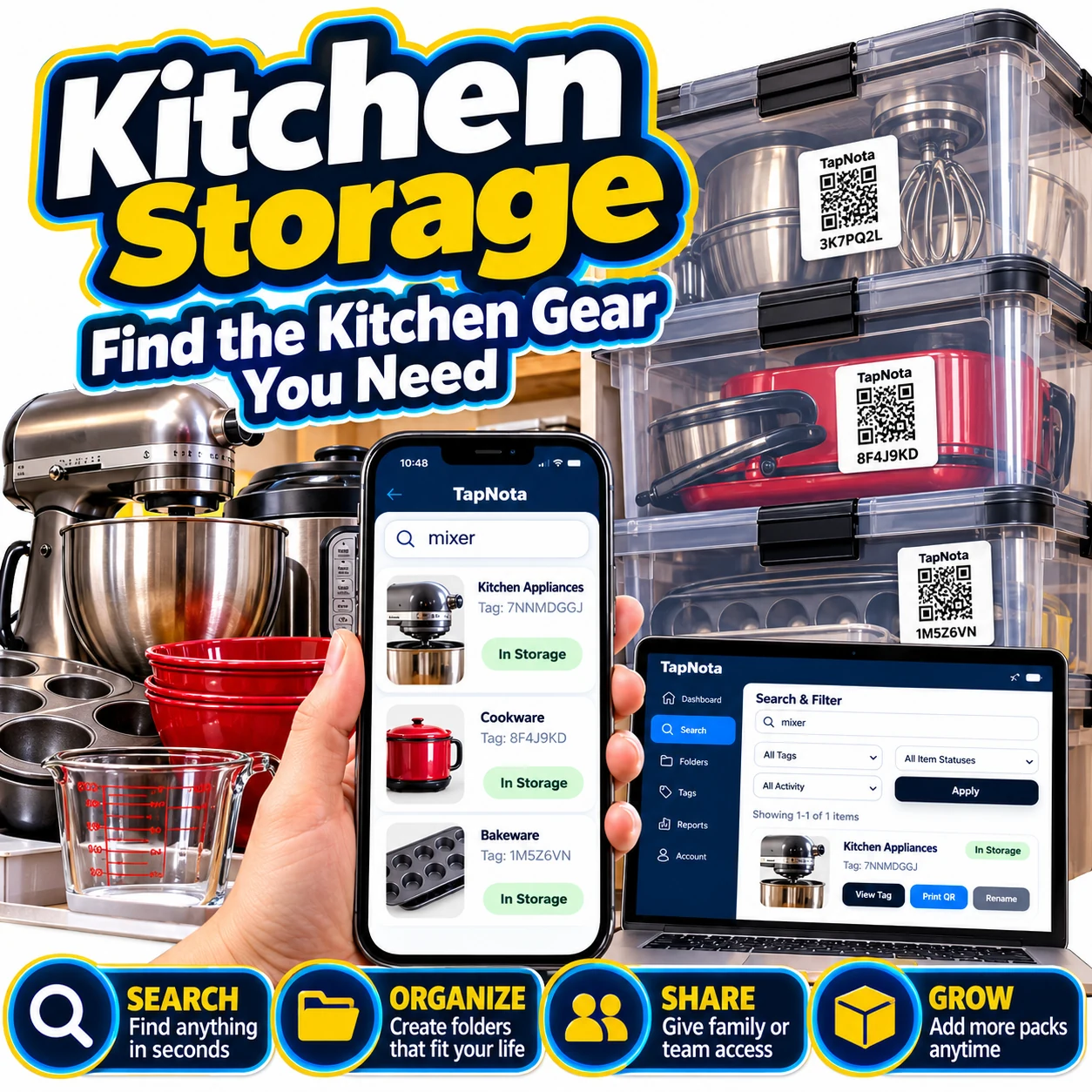
Practical Example: Managing Kitchen Appliances and Baking Supplies
Imagine you have several bins storing kitchen gadgets, baking pans, and utensils. Label each bin with a TapNota QR code and create Item Pages with photos and notes. For instance, a bin labeled “Kitchen Appliances” might include a photo of a mixer and notes about its model number and last service date. Another labeled “Baking Supplies” could list muffin tins, cookie sheets, and measuring cups.
When you need your mixer, simply search “mixer” in the Portal. The results show the exact bin with a photo and status, saving you from opening multiple containers. If you lend a baking pan to a friend, update the Item Page status to “Loaned Out” so everyone knows where it is. This system keeps your kitchen organized, reduces clutter, and saves time.
Tips for Maintaining Your Kitchen Inventory
- Regularly update Item Pages as you add or remove items from bins.
- Use photos to visually confirm contents, especially for opaque containers.
- Set reminders or notes for expiration dates to avoid food waste.
- Encourage shared access for family members to keep inventory current.
- Reprint labels if damaged to maintain a clean, scannable system.
By integrating TapNota’s smart QR labels into your kitchen pantry, you create a searchable, shareable, and evolving inventory that adapts to your lifestyle. This approach goes beyond simple labeling, offering a digital solution that keeps your kitchen running smoothly.
For more ideas on organizing your storage bins, visit How to Organize Storage Bins for Easy Access. To explore shared access features, see Sharing & Family Organization. Learn how AI can speed up inventory building with TapNota’s AI-Powered Item Recognition.
Frequently Asked Questions
Do I need to install an app to use TapNota for kitchen organization?
No, TapNota works entirely through a web Portal accessible via any smartphone or computer browser. There is no dedicated app to install.
Can I search my pantry inventory without scanning QR labels?
Yes, the TapNota Portal lets you search by item names, notes, tags, and folders without needing the physical label in front of you.
Is it possible to share my kitchen pantry inventory with family members?
Yes, you can share individual Item Pages via links or invite family members to access your entire inventory with their own login credentials.
What happens if a QR label gets damaged or lost?
You can easily reprint a replacement QR label from the Portal without losing any data or history linked to that Item Page.
How accurate is the AI feature for identifying pantry contents?
The AI suggests likely items based on visible photos but requires you to review and edit the suggested list. It does not see inside closed containers and is not fully automatic.